Generate an API key
An API key lets an external system call the Installer.com API as your organization. The secret is shown once, when you create the key, and cannot be retrieved afterwards.
Create a key
- Select Settings in the sidebar.
- Under Advanced, select Integrations. The API card lists your organization’s keys.
- Select Add key.
- Enter a Key name. Description is optional.
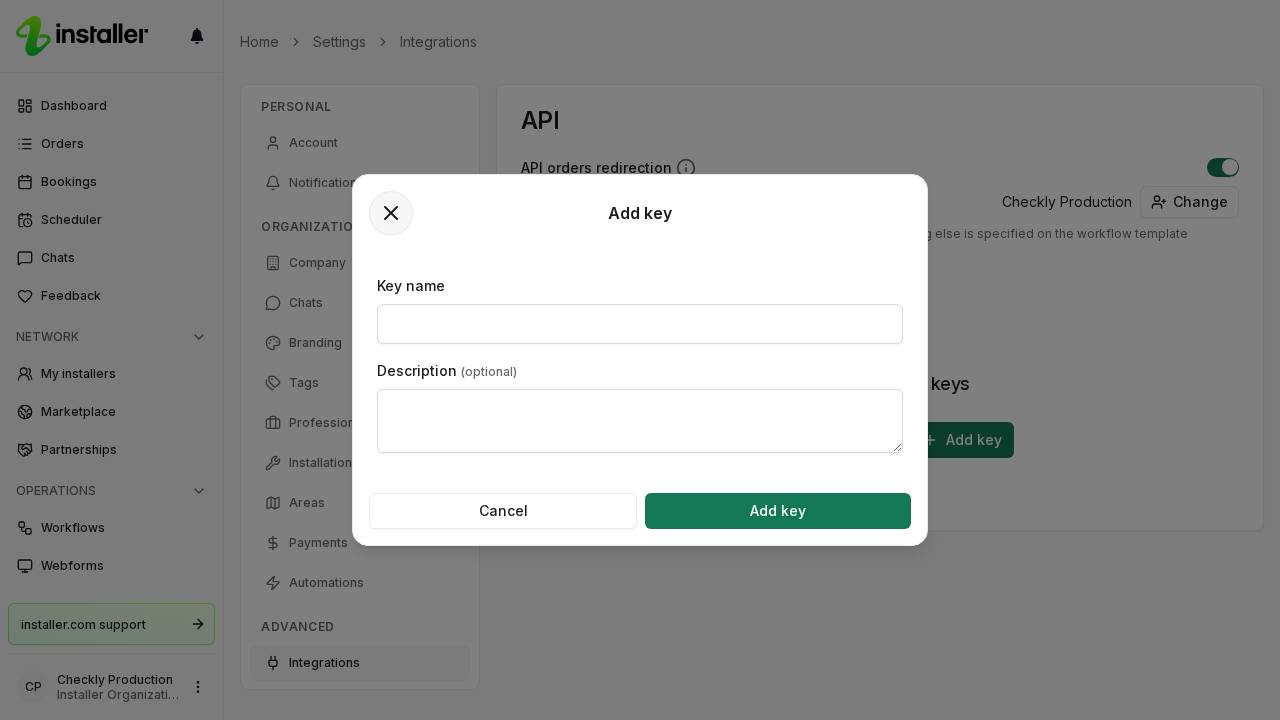
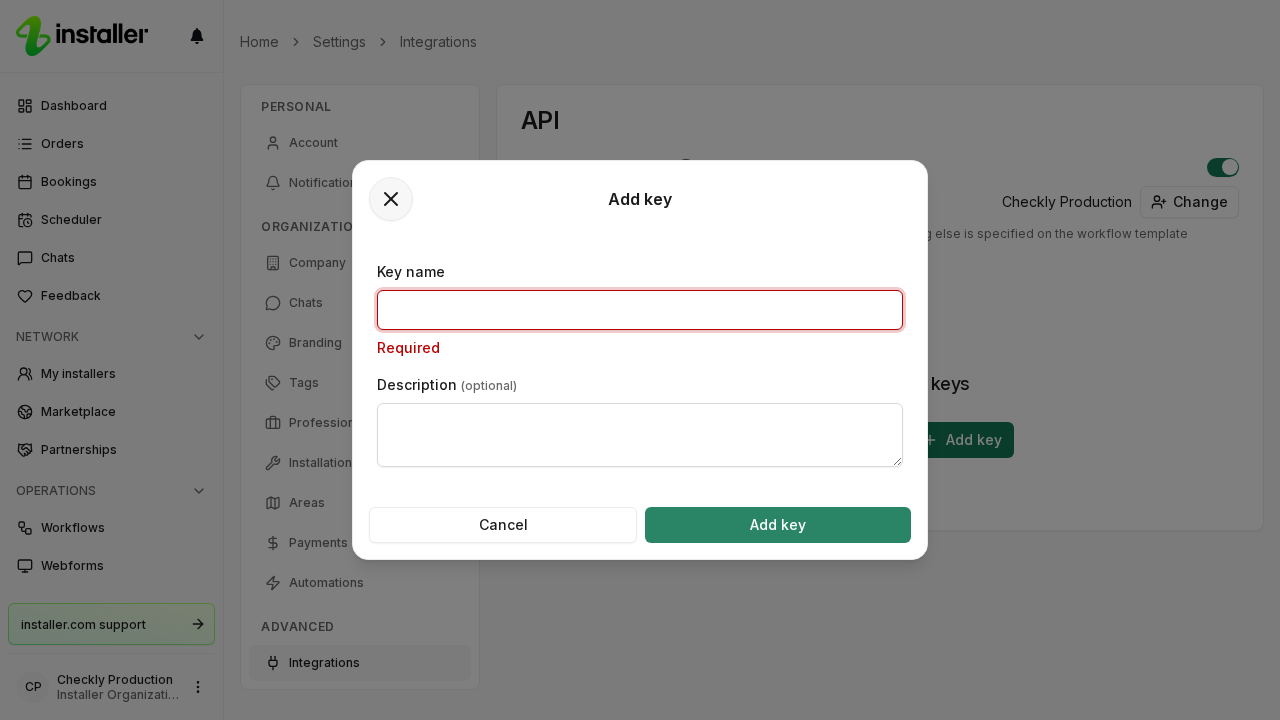
- Select Add key in the dialog. A name is required, so the field reports Required if you leave it empty.
- The dialog now reads Create new access key and shows the Secret. Select Copy to put it on your clipboard, then store it in the system that will use it.
- Select Finish.
Closing the dialog instead of selecting Finish deletes the key you just created. Create another one if that happens.
Manage existing keys
Each key appears in the API card with its name and description.
- You can edit the name and description of a key you created yourself.
- You can delete any key in the list. Deleting revokes it, and anything still using that key stops being able to call the API.
If a secret is lost, delete the key and create a new one.
Who can see this
Integrations appears in Settings only if your role includes the API access permission.
Related articles
Need help? Contact Installer.com support.
Was this helpful?