Send DNO applications through ENA Connect
In the UK, an EV charger cannot be connected until the DNO, the company that runs the local electricity network, has approved an application for it. The DNO application step collects the answers the application needs, sends it through ENA Connect, and holds the workflow until the DNO approves it.
Connect ENA Connect
The step sends applications only while ENA Connect is connected. Select Settings in the sidebar, then Integrations under Advanced. Open ENA Connect and select Connect.
Once it is connected, Automatically submit DNO applications reads Enabled. There is no switch to turn on: it works on every order whose workflow has the DNO application step.
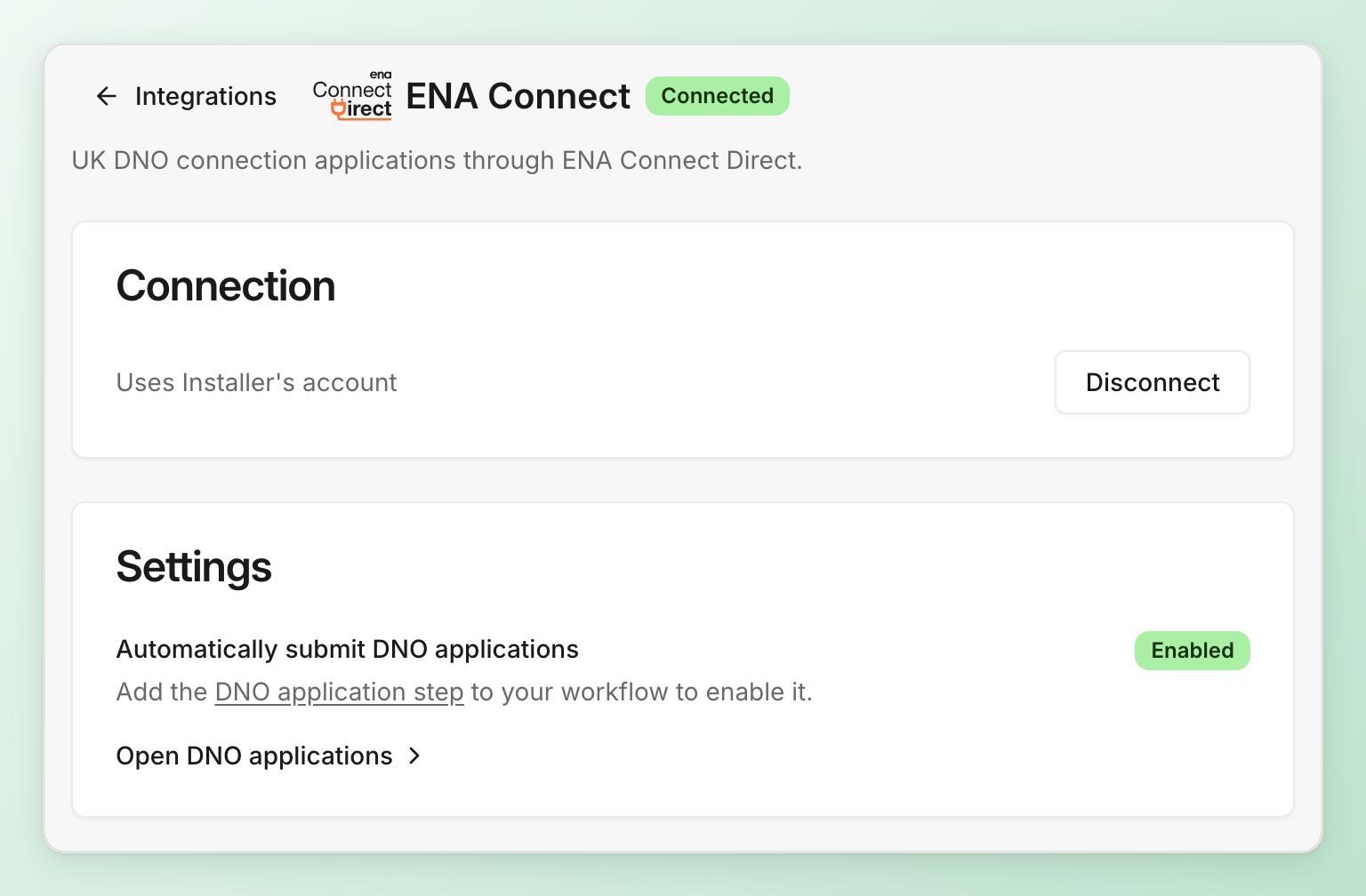
ENA Connect is available on request. If its card is greyed out under Integrations, contact sales.
Add the step to a workflow
- Select Workflows in the sidebar and open the workflow. A published version is read-only, so select Start editing to create a draft, or Go to draft if a draft already exists.
- Select Add at the bottom of the timeline.
- Open None of these fit and select DNO application.
- Select Add 1 step.
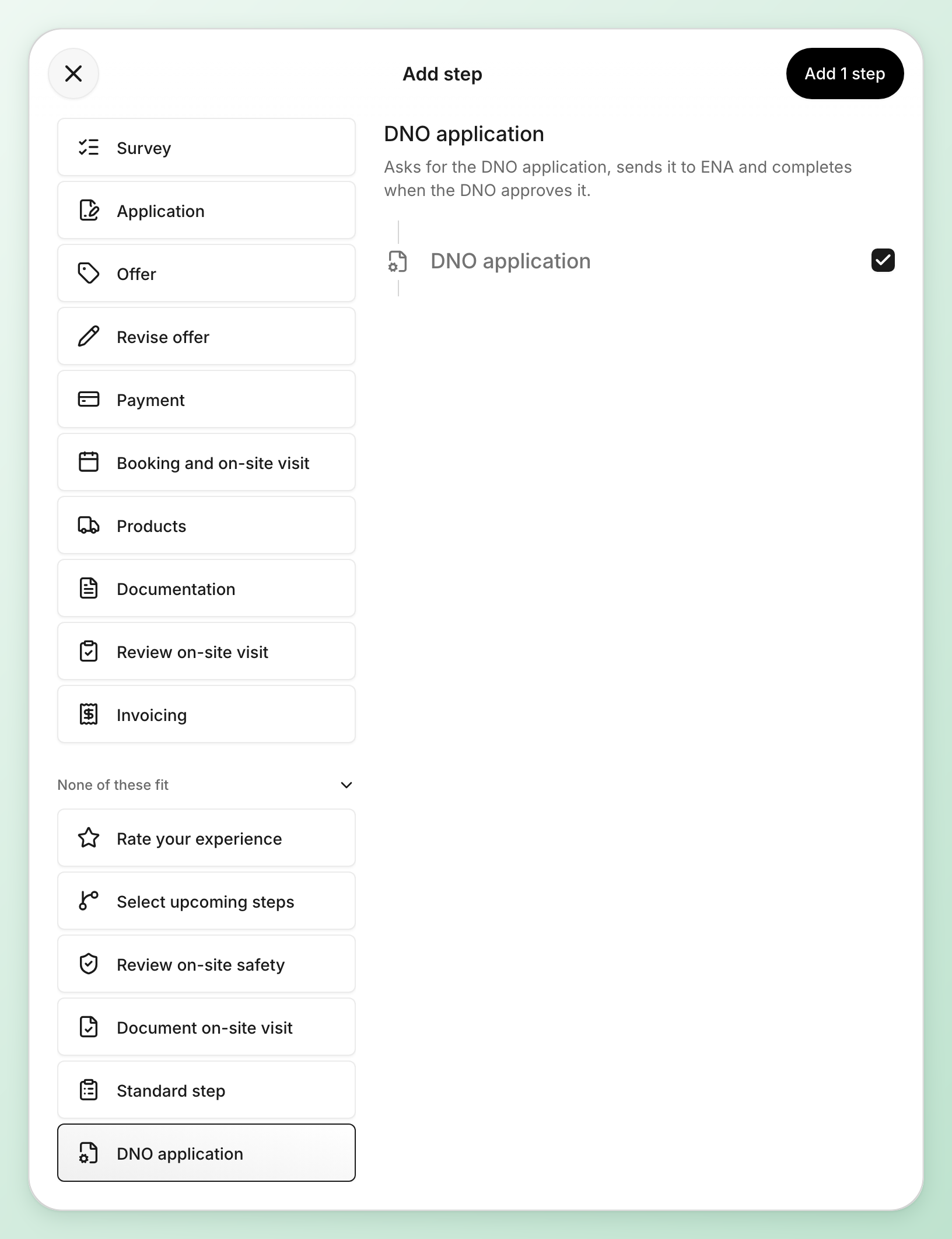
The application names the installer’s organization, so place the step after the step where the installer accepts the order.
Configure the step
Select the step in the timeline. Its settings open on the right.
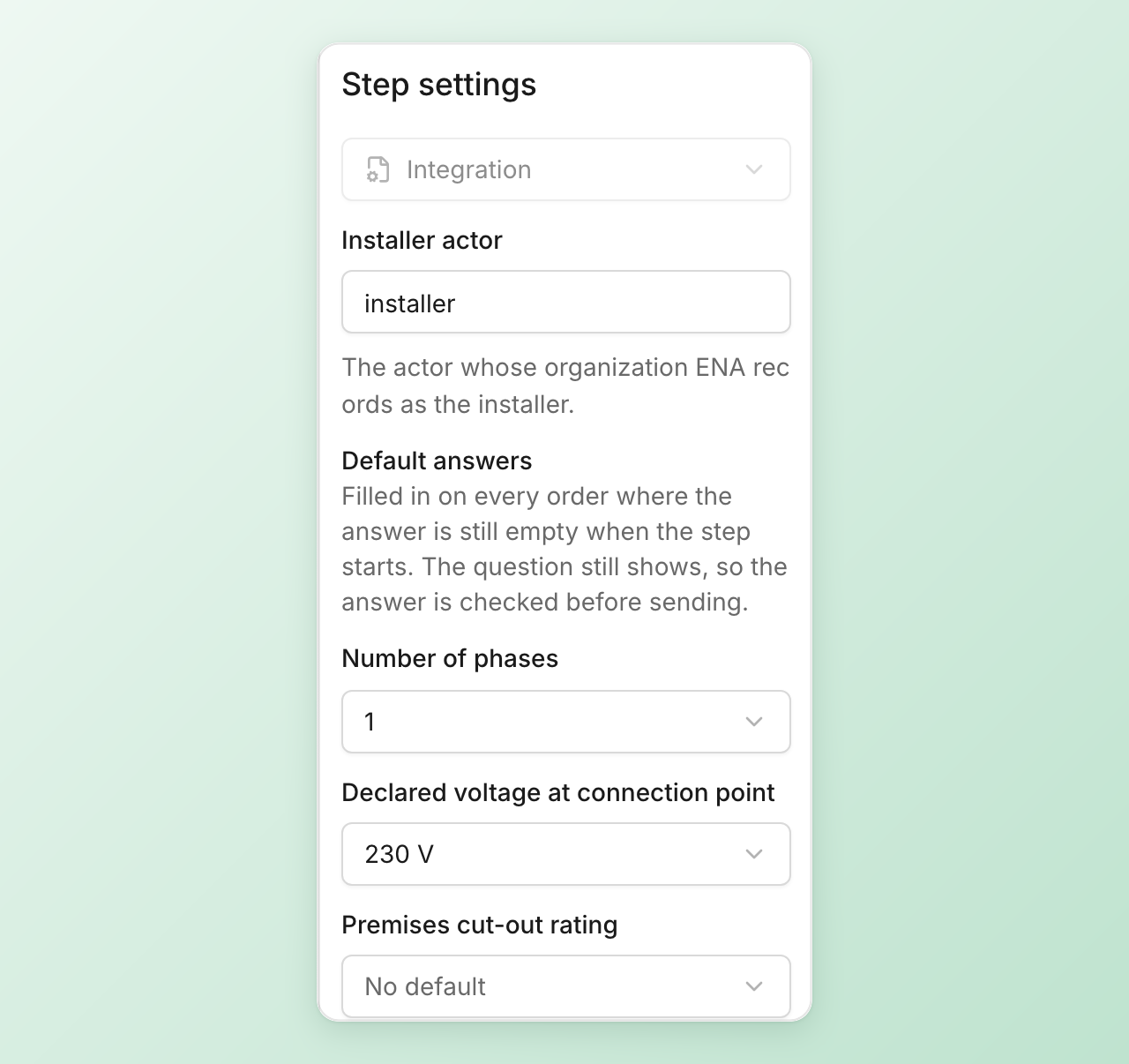
- Installer actor is the actor whose organization ENA records as the installer. Pick the actor for the installer company that does the work.
- Default answers fill in supply answers that are the same on most orders: Number of phases, Declared voltage at connection point and Premises cut-out rating (A). A default is written when the step starts, and only where the answer is still empty. The question still shows, so the answer is checked before sending.
- The Device question takes the charger being installed. To give your installers a list, open the question, set it to Dropdown and add your chargers. Type each charger’s register number from the ENA device register as the option, then edit the option to show the charger’s name.
When you are done, select Publish to put the draft live.
The step comes with every question the application needs. You can change a question’s wording and order, but you cannot remove a question or change its answers.
What the application contains
| From | Answers |
|---|---|
| The order | Customer name, customer phone, customer email, address and postcode |
| The installer actor | The installer organization, and the phone number of its contact person on the order |
| The step’s questions | MPAN, Number of phases, Declared voltage at connection point, Premises cut-out rating (A), CT metered, Max import capacity (kVA), Looped supply, Import limiting device present, I confirm there are no issues with the supply, I confirm there are no safety issues, Device, Proposed install date, New premises max demand (A per phase), Cut-out image |
MPAN is optional, because ENA can look it up from the address. Max import capacity (kVA) is asked only when CT metered is Yes.
Another step can ask one of these questions sooner, for example a survey the customer or the installer fills in. Add a question to that step and pick the field from the list, such as dno__mpan or dno__cut-out-image. The answer is stored once on the order, and the DNO application step shows it already filled in.
Send the application
When an order reaches the DNO application step, the step shows Not sent yet above its questions. Answers given earlier in the workflow, and the workflow’s default answers, are already filled in.
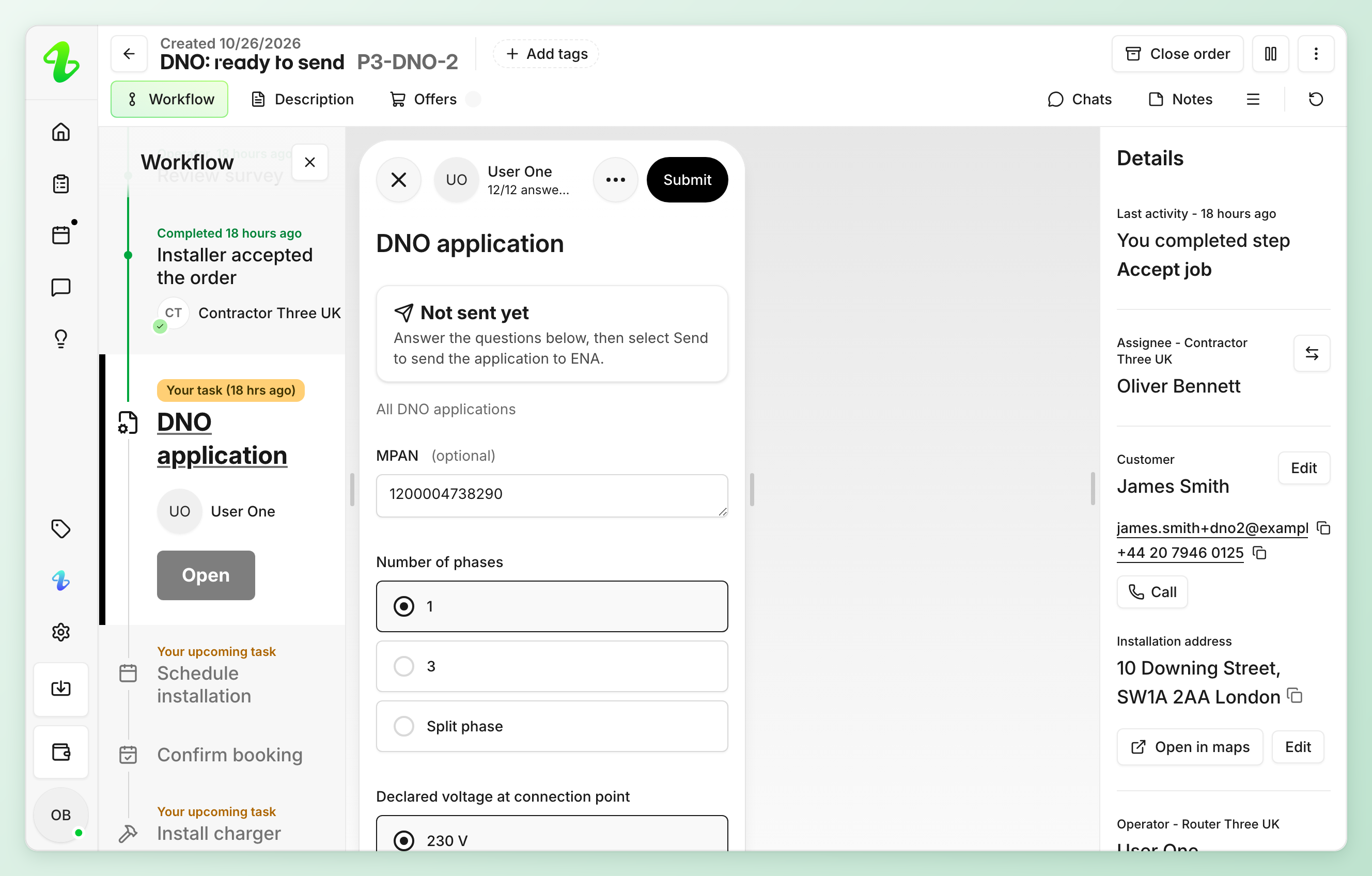
- Open the order and select the DNO application step.
- Answer the questions, and check the answers that were filled in for you.
- Select Submit.
The application is sent in the background, so for a moment the step shows Sending to ENA. Reload the page to see the result.
While the DNO decides
Once ENA has the application, the step shows Waiting for DNO, with the DNO’s name and ENA’s status. Below it are the application ID and the date it was sent.
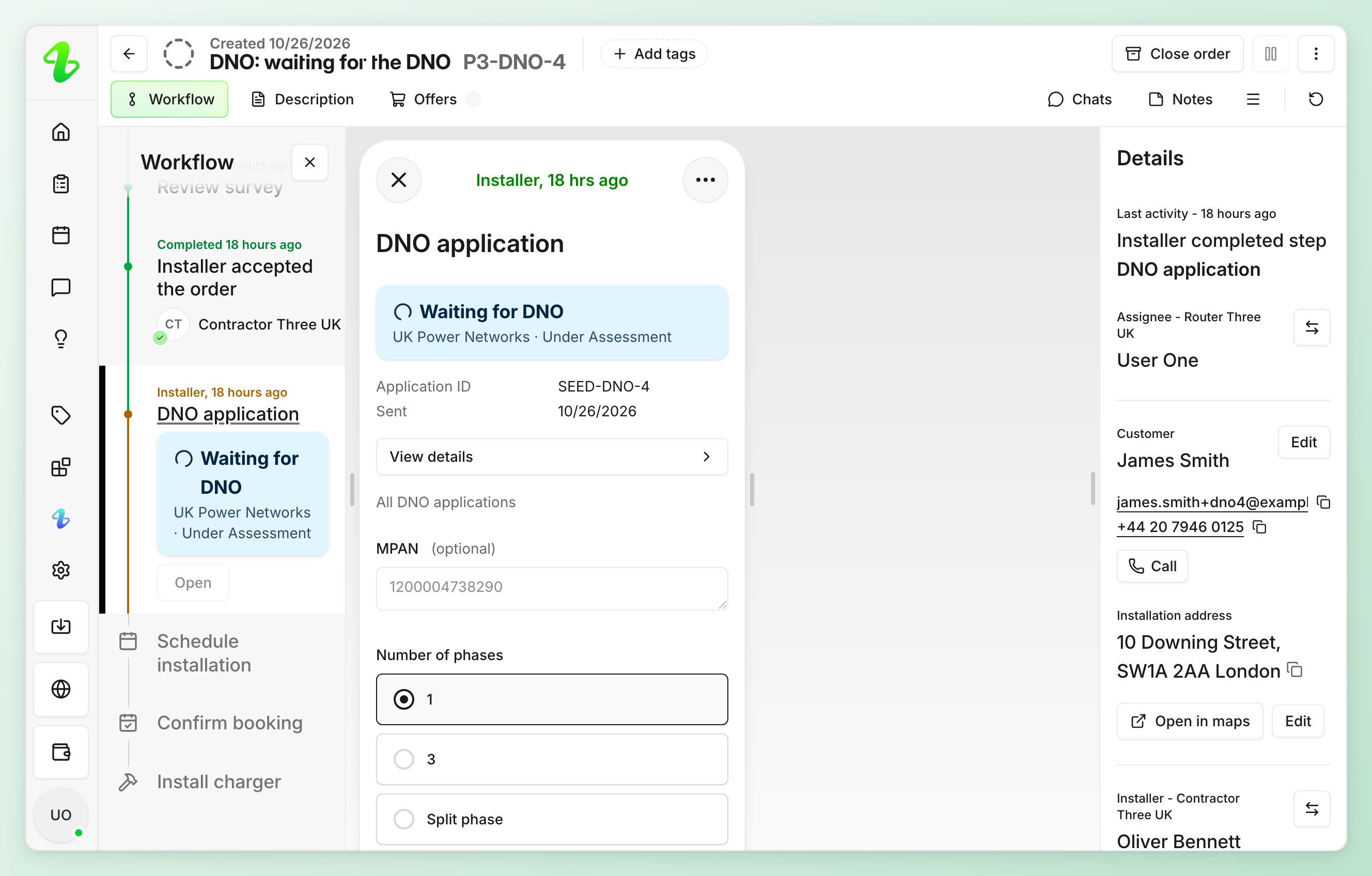
The DNO application step waits until the DNO updates the application, either approving it or asking for more. The workflow does not continue to the next step until the DNO has approved the application.
Installer.com reads every application from ENA every 30 minutes and updates the step. To read one straight away, select View details, then Refresh from ENA.
When the DNO decides
The card at the top of the step shows where the application stands. The same card appears on the order’s timeline.
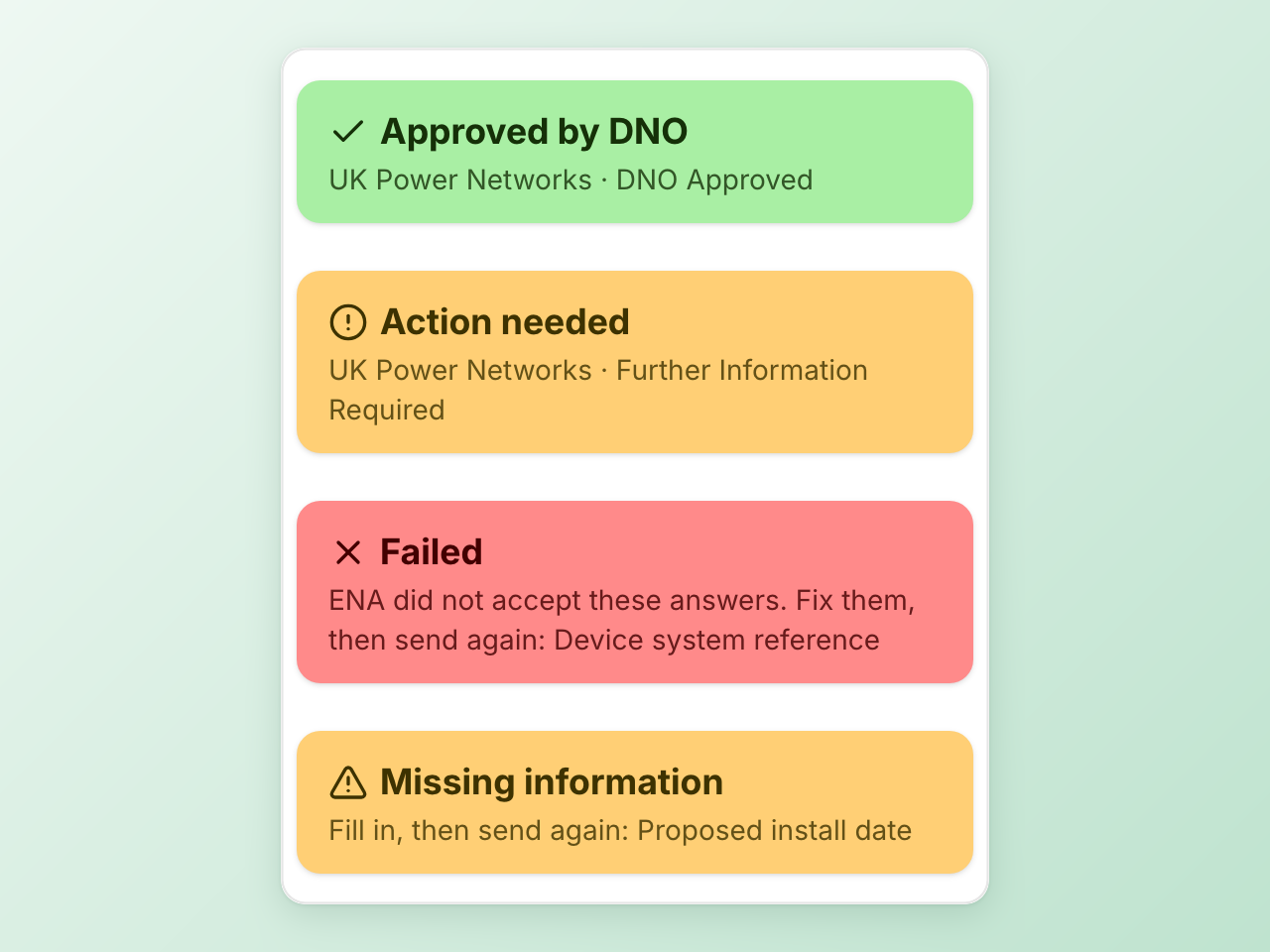
| The step shows | What happened | What happens next |
|---|---|---|
| Approved by DNO | The DNO approved the application. | The step completes and the workflow moves on to the next step. |
| Action needed | The DNO asked for more information or for works on its network. | The step keeps waiting. Select View details to read what the DNO asked for. |
| Failed | ENA did not accept the application, for example because an answer was not valid. The card lists those answers. | The step goes back to In Progress. Fix the answers and select Submit to send a new application. |
| Missing information | An answer the application needs was empty when it was sent. The card lists the answers to fill in. | The step goes back to In Progress. Fill in the answers and select Submit again. |
An application that failed stays on the order. The step lists earlier applications under Earlier applications on this order, each with its status.
When ENA looks up the MPAN
When MPAN is left empty, ENA looks the MPAN up from the address. The next time Installer.com reads the application from ENA, it writes the MPAN that ENA found into the order’s MPAN field, so later steps and later applications have it. An MPAN that is already filled in is never replaced.
If ENA cannot find the MPAN from the address, the application fails. Fill in MPAN and select Submit again.
Skip the step
Some orders do not need an application sent from Installer.com, for example when the application was made outside Installer.com, or when the DNO confirmed the install before granting the application.
To allow skipping on every order, turn on Allow skip at the top of the step in the workflow. Require a reason to skip then appears in the step settings, and it is on by default. On a single order, an operator can open the step’s ⋯ menu and select Make step optional instead.
- Open the step and select Skip, next to Delay task.
- Pick a ready reason, Completed outside platform or DNO confirmed install before application grant, or write your own under Comment.
- Select Confirm.
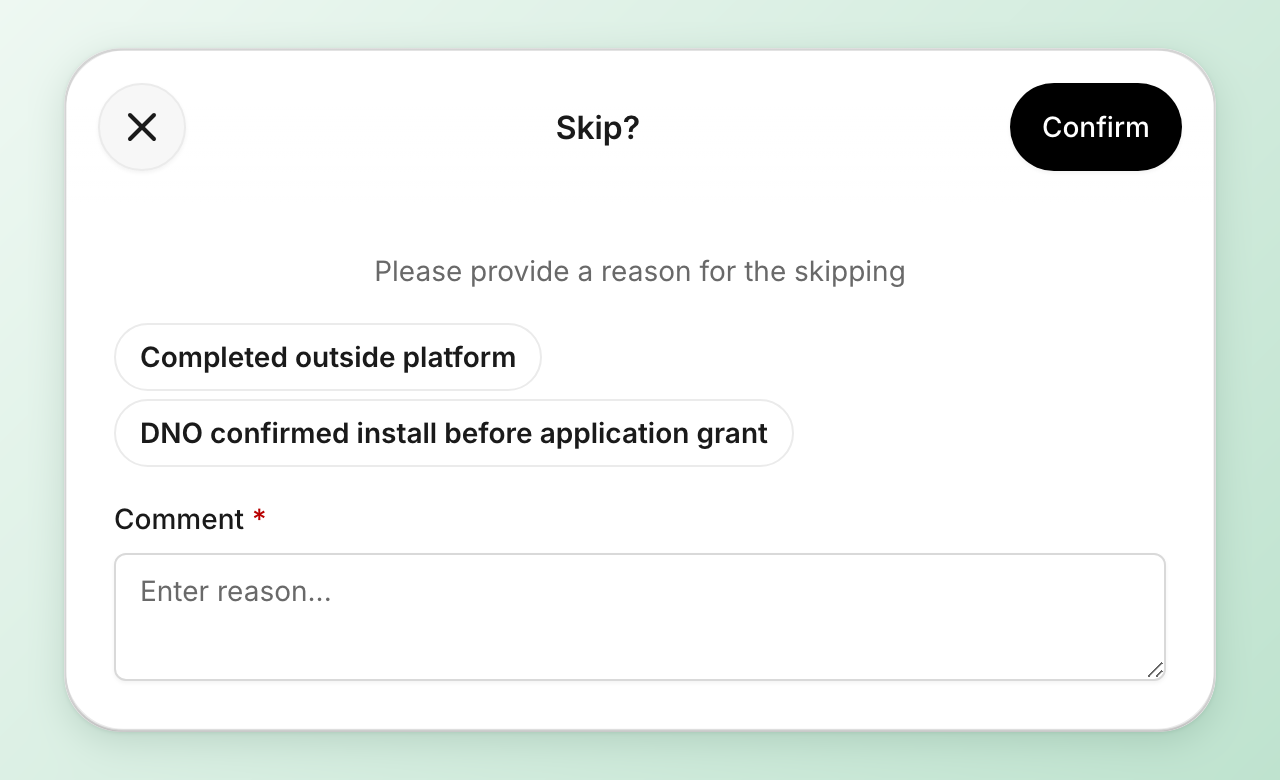
The step reads Skipped and the workflow moves on. Skipping sends nothing to ENA.
Use the DNO application status later in the workflow
Every order with the step has a DNO application status field. Installer.com fills it in when the application is first sent and updates it each time the application changes, so the rest of your setup can act on the DNO’s decision without anyone opening the step.
| Status | Value in templates | Meaning |
|---|---|---|
| Awaiting decision | submitted |
ENA has the application and the DNO has not decided. |
| DNO needs more | action_required |
The DNO asked for more information or for works. |
| Approved | approved |
The DNO approved the application. |
| Failed | failed |
ENA did not accept the application. |
| Missing information | missing_data |
An answer the application needs was empty when it was sent. |
Use the field like any other order field:
- An automation that runs when an order’s field changes picks up every change of status, so it can act the moment the DNO decides.
- A webhook or a notification can include it as
{{customFields.dno__application-status}}, which gives the value in the second column. See Configure webhooks.
See all applications
On the step, select All DNO applications. You can also open Settings > Integrations > ENA Connect and select Open DNO applications.
Each row shows the order, the address, the DNO, the installer and ENA’s status, with a badge for where the application stands. Search by order, address, DNO or application ID, or filter by Awaiting decision, DNO needs more, Missing information, Failed or Approved.
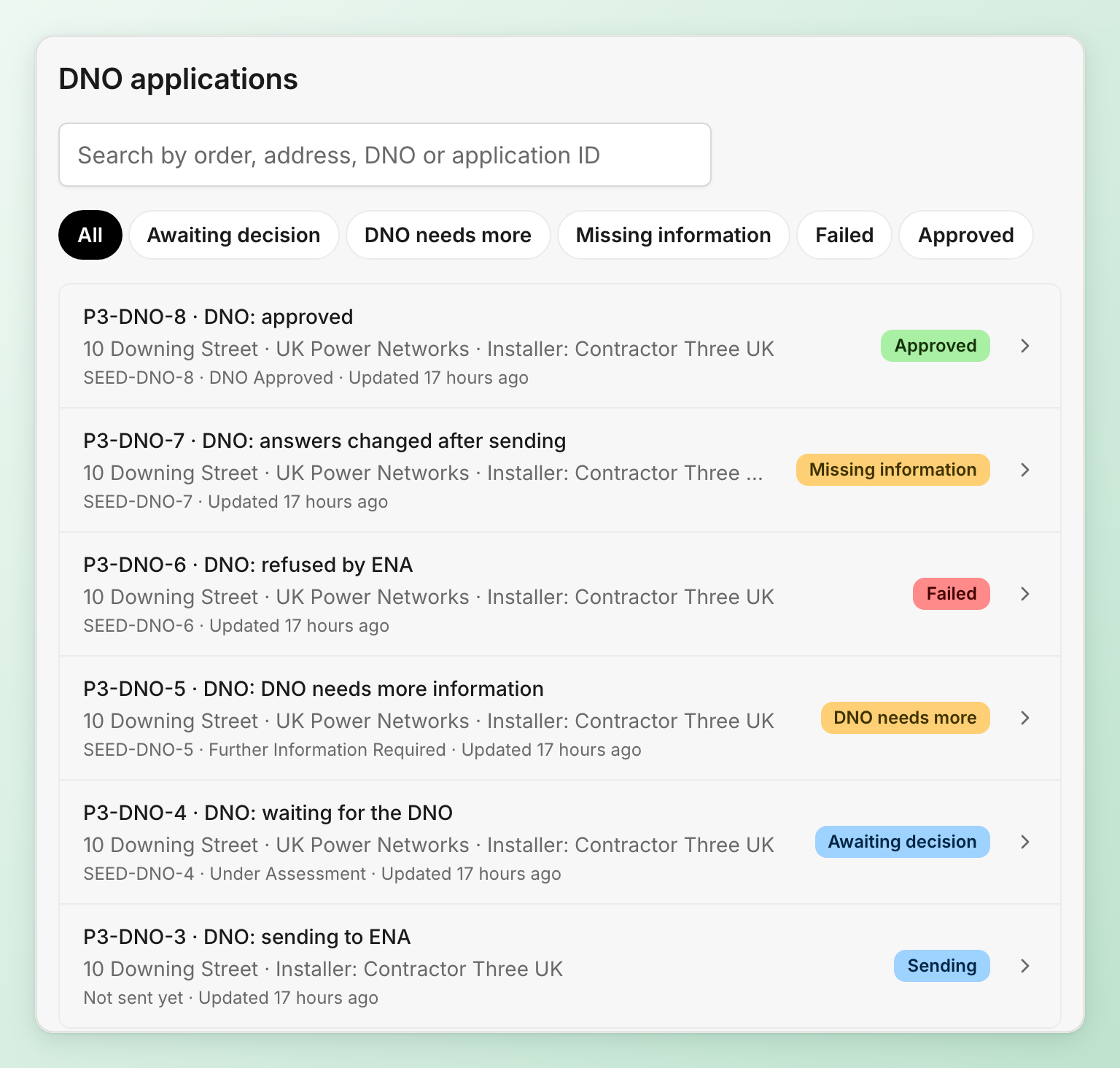
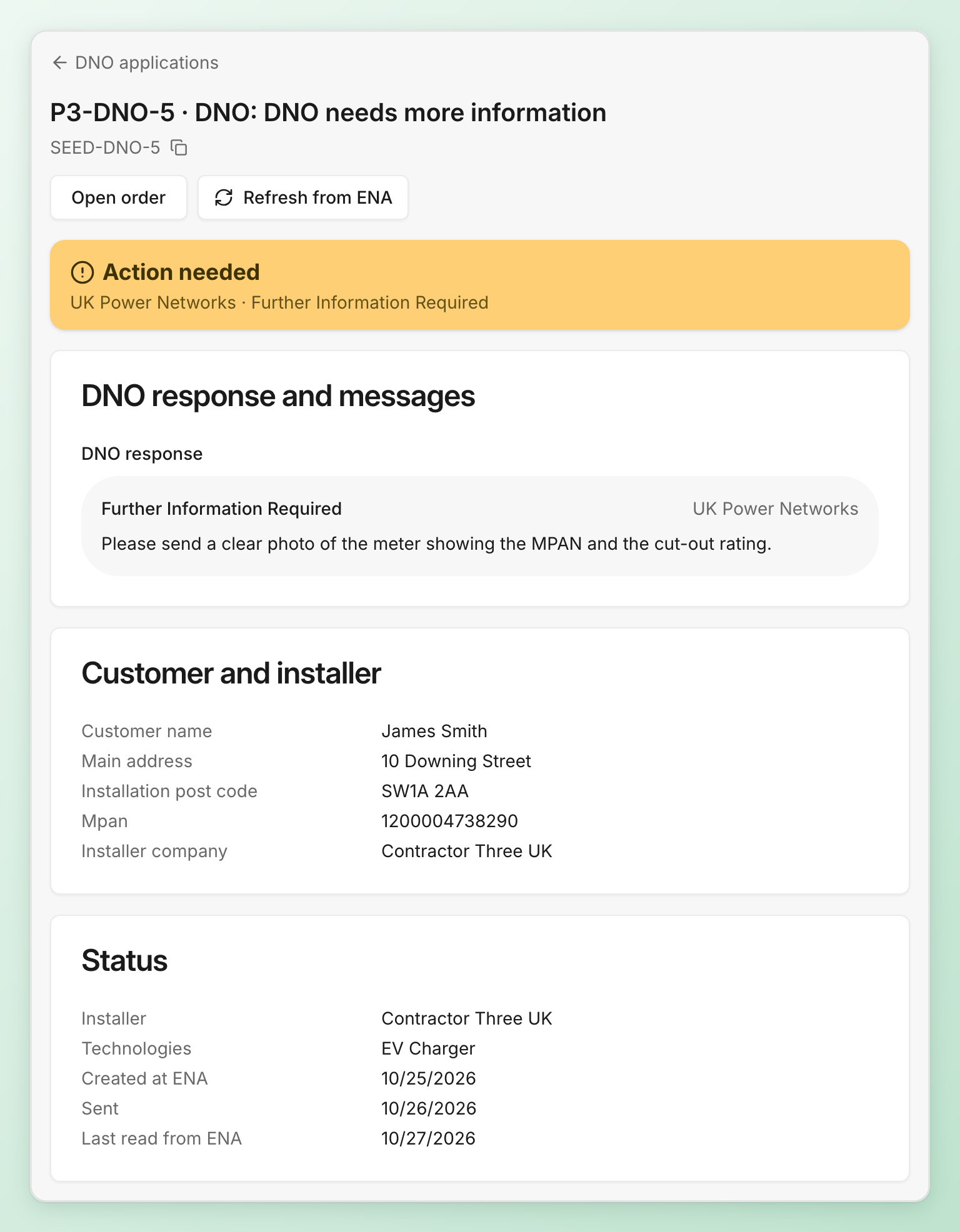
Select an application to open its details. The page shows the DNO’s response and any messages, the customer and installer details ENA holds, and when the application was sent and last read from ENA. Open order takes you to the step, and Refresh from ENA reads the application again now.
Who sees the applications
Every organization on the order sees its applications, including earlier ones that failed. The installer organization named on an application always sees it, even if the workflow hides the step from that organization. When the installer is another organization, the list and the application show its name.
Related articles
Need help? Contact Installer.com support.
Was this helpful?