Set up a webform partnership
A webform turns a submission into an order in your account. Share one with a partner and they send orders straight into a workflow you own.
Create the webform
A webform belongs to one workflow, and that workflow needs a published version before you can create a form for it.
- Open Workflows in the sidebar and select the workflow the orders should follow.
- Open the Webforms tab.
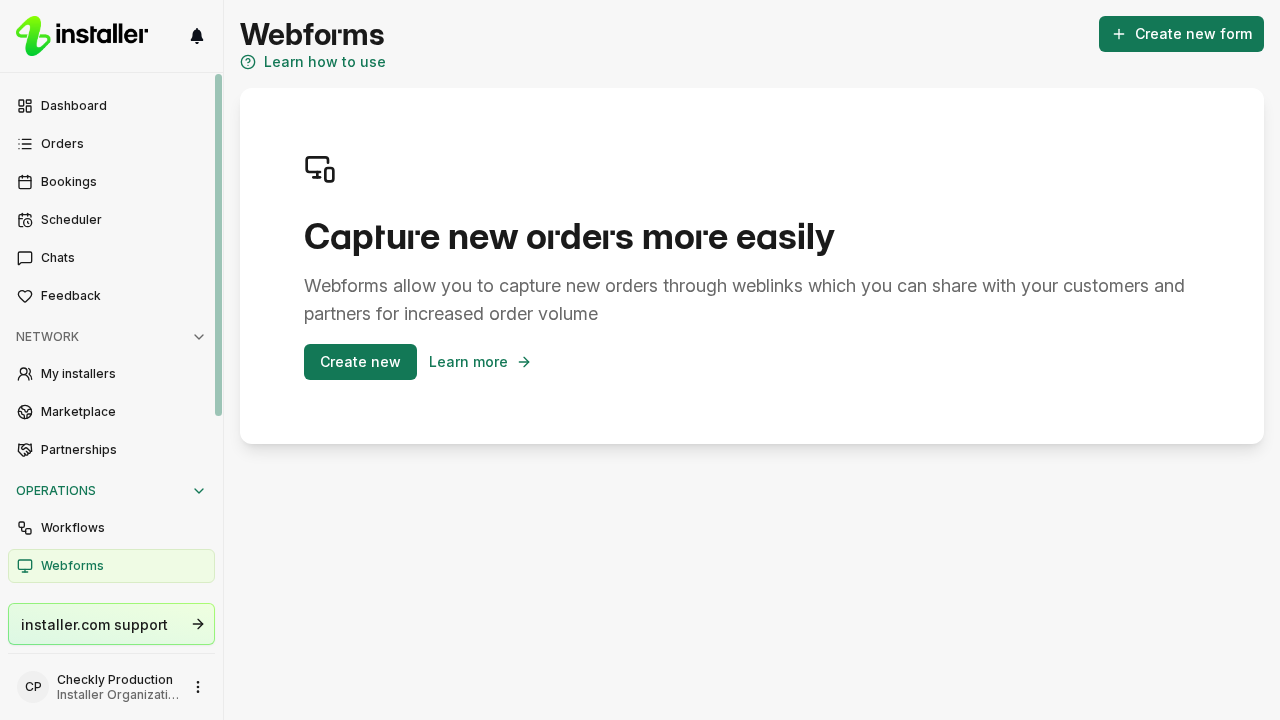
- Select Create new form. If the button is disabled, the workflow has no published version yet, and the page says so: publish it first.
- Enter the name of the form in Header.
- Select a Default assignee. Orders created through this form go to that user, ahead of the workflow’s own default assignee.
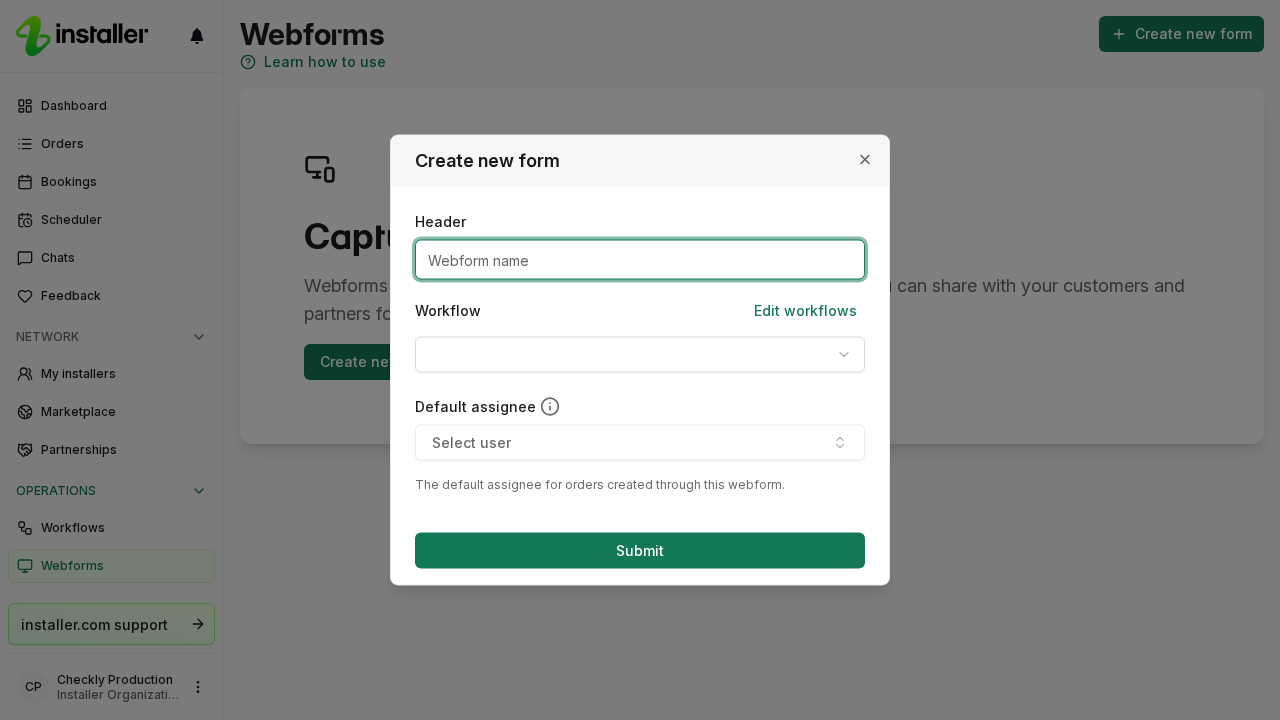
- Select Submit.
The form opens for editing. Under Settings you set the sub header, whether offers are included, the default order tags and where a public submission redirects. Select Save when you are done. 
Share it with a partner
- Open Partners and select the partner.
- Select Share webform.
- Pick the form from the list. The dialog also links to Manage webforms if you need to create one first.
- Select Share.
The card on the partner’s page now counts the forms you share with them. Orders they submit through a shared form land with you.
A partner can pass a form you shared with them on to their own partners. When that happens, the row shows the organisation the form came from.
To take a form back, open the row’s menu and select Stop sharing. The form is no longer available to that partner.
What your partner sees
Your partner selects Create order, and the shared form appears on the Create orders page, grouped under your organisation’s name. Opening it shows “Sending to” your organisation above the form.
In their account your organisation is also listed under Installers. Its page shows every form you shared with them, each with a Start button.
Show your partner’s logo
Once a form is shared, its settings gain a Show partner logo switch. Turn it on to show the logo of the partner viewing the form. Show logo controls your own organisation’s logo the same way.
Need help? Contact Installer.com support.
Was this helpful?