Create orders from HubSpot deals
The HubSpot integration turns HubSpot deals into orders, and writes each order’s progress back to the deal it came from. Your sales team follows the install in HubSpot without opening Installer.com.
Connect HubSpot
- Select Settings in the sidebar.
- Under Advanced, select Integrations.
- Select HubSpot, then Connect.
- Sign in to HubSpot and pick the HubSpot account to connect.
Back in Installer.com, the HubSpot page reads Connected and shows Connected to HubSpot account with the account’s ID.
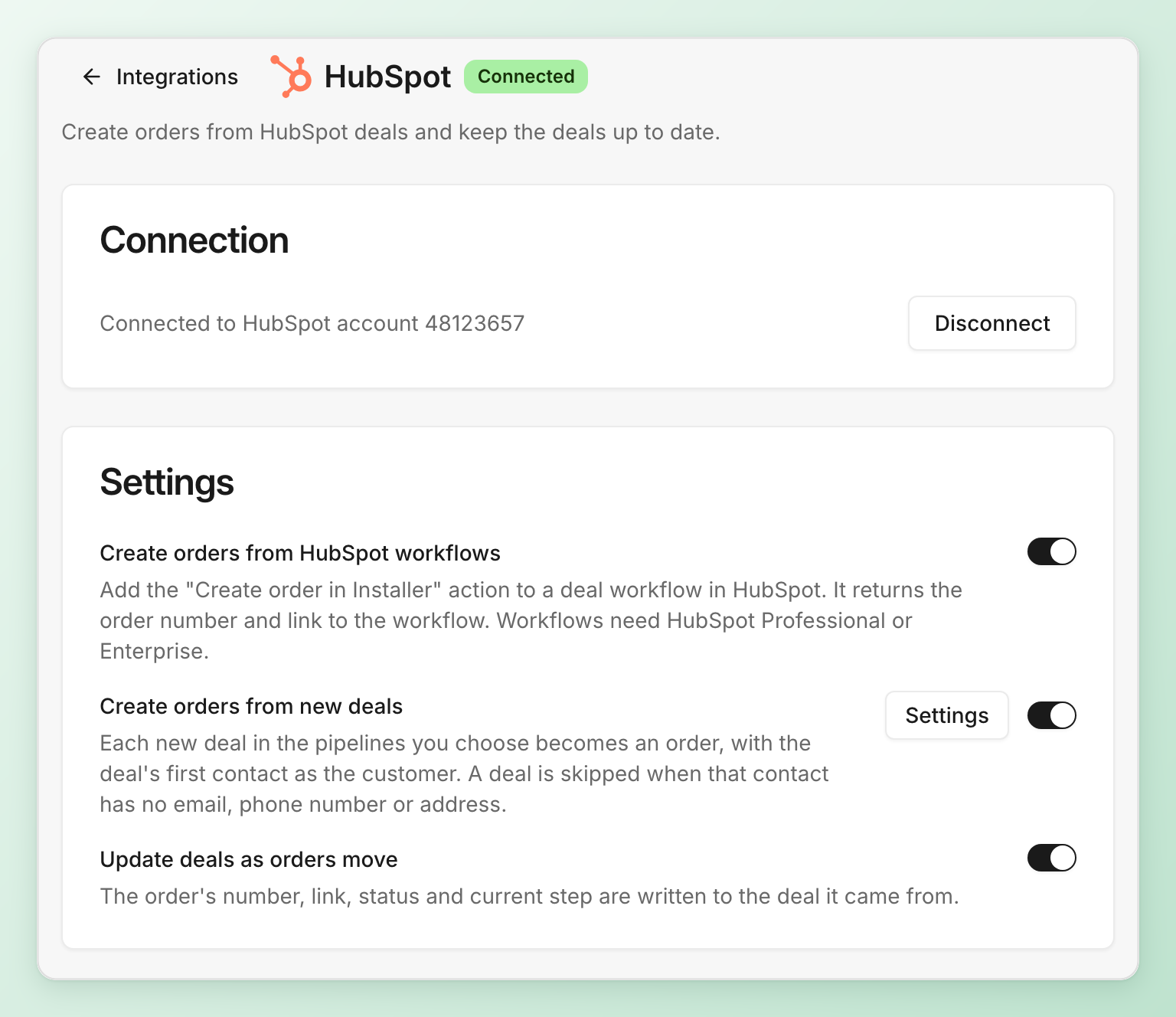
If the HubSpot card is greyed out under Integrations, your organization does not have it yet. Contact sales.
Choose what HubSpot does
The Settings section on the HubSpot page has a switch for each thing the integration does. They work only while HubSpot is connected.
| Setting | What it does | On by default |
|---|---|---|
| Create orders from HubSpot workflows | Lets a HubSpot deal workflow create an order with the Create order in Installer action. | Yes |
| Create orders from new deals | Creates an order for each new deal in the pipelines you choose. | No |
| Update deals as orders move | Writes the order’s number, link, status and current step to its deal. | Yes |
Each deal gets one order. If a deal already has an order, it does not get a second one, whichever setting asks for it.
Create orders from new deals
- On the HubSpot page, turn on Create orders from new deals. Its settings open.
- Under Pipelines, select the HubSpot pipelines whose new deals become orders.
- Under Workflow, pick the workflow the orders follow. Default workflow uses your organization’s default.
- Select the check button in the top right to save.
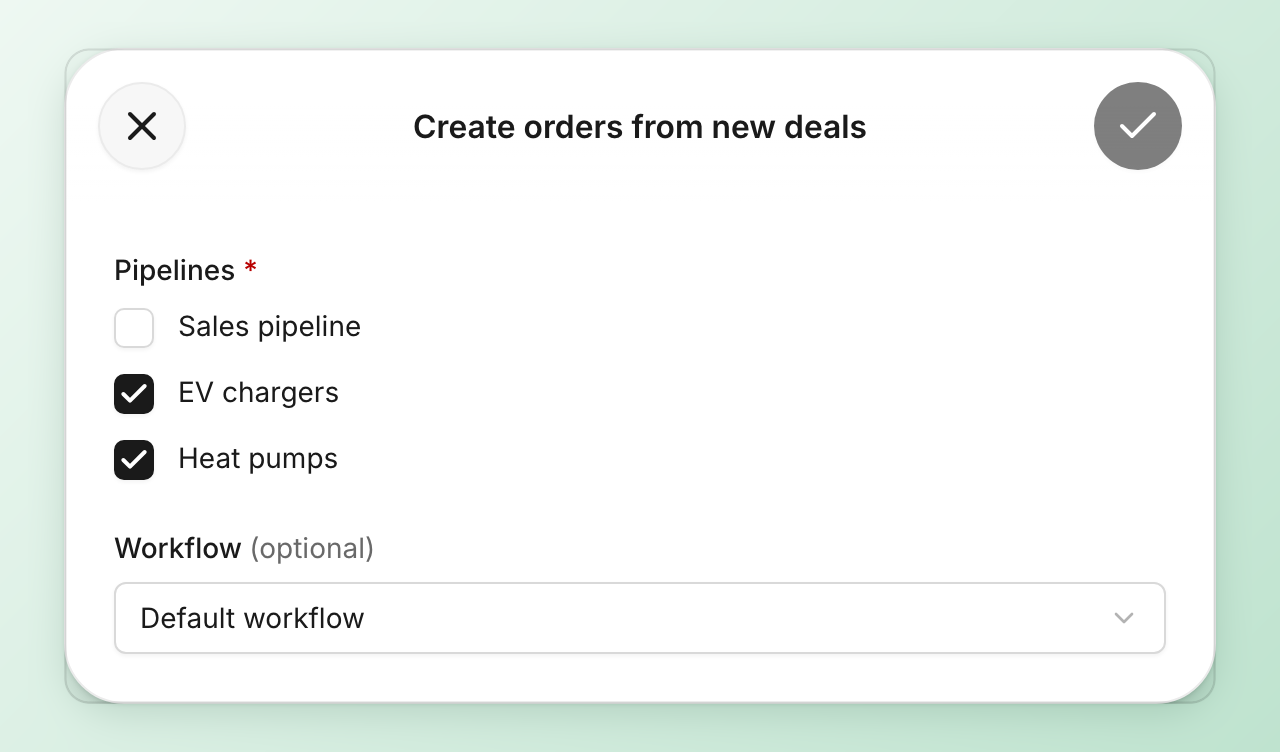
About a minute after a deal is created in one of those pipelines, Installer.com creates the order. The deal’s first contact becomes the customer. A deal is skipped when that contact has no email, phone number or address.
To change the pipelines or the workflow later, select Settings next to the switch.
Create orders from a HubSpot workflow
A HubSpot workflow can create the order at the moment you choose, for example when a deal reaches Closed won. HubSpot workflows need HubSpot Professional or Enterprise.
- In HubSpot, open or create a deal-based workflow.
- Add the action Create order in Installer.
- Pick the Workflow the order follows.
- Fill in Customer name, Customer email and Customer phone from the deal’s properties. Fill in City or Postal code as well, because the order needs one of them.
The action returns Installer order number and Installer order link, which later actions in the HubSpot workflow can use. If the order cannot be created, Error message says why.
What the deal shows
While Update deals as orders move is on, Installer.com writes four properties to the deal, in a property group called Installer:
| Property | Value |
|---|---|
| Installer order number | The order’s number. |
| Installer order link | A link to the order in Installer.com. |
| Installer order status | In progress, Completed or Cancelled. |
| Installer current step | The workflow step the order is on. Empty once it is done. |
The properties are created in HubSpot the first time a deal is updated. The deal is updated when the order is created, each time a step starts, and when the order is completed, cancelled or reopened.
These updates run as managed automations. They are listed under Intelligence > Managed automations and cannot be changed. To stop them, turn off Update deals as orders move.
Sync more data back to HubSpot
To write something else to the deal, or move it to a stage, create your own automation.
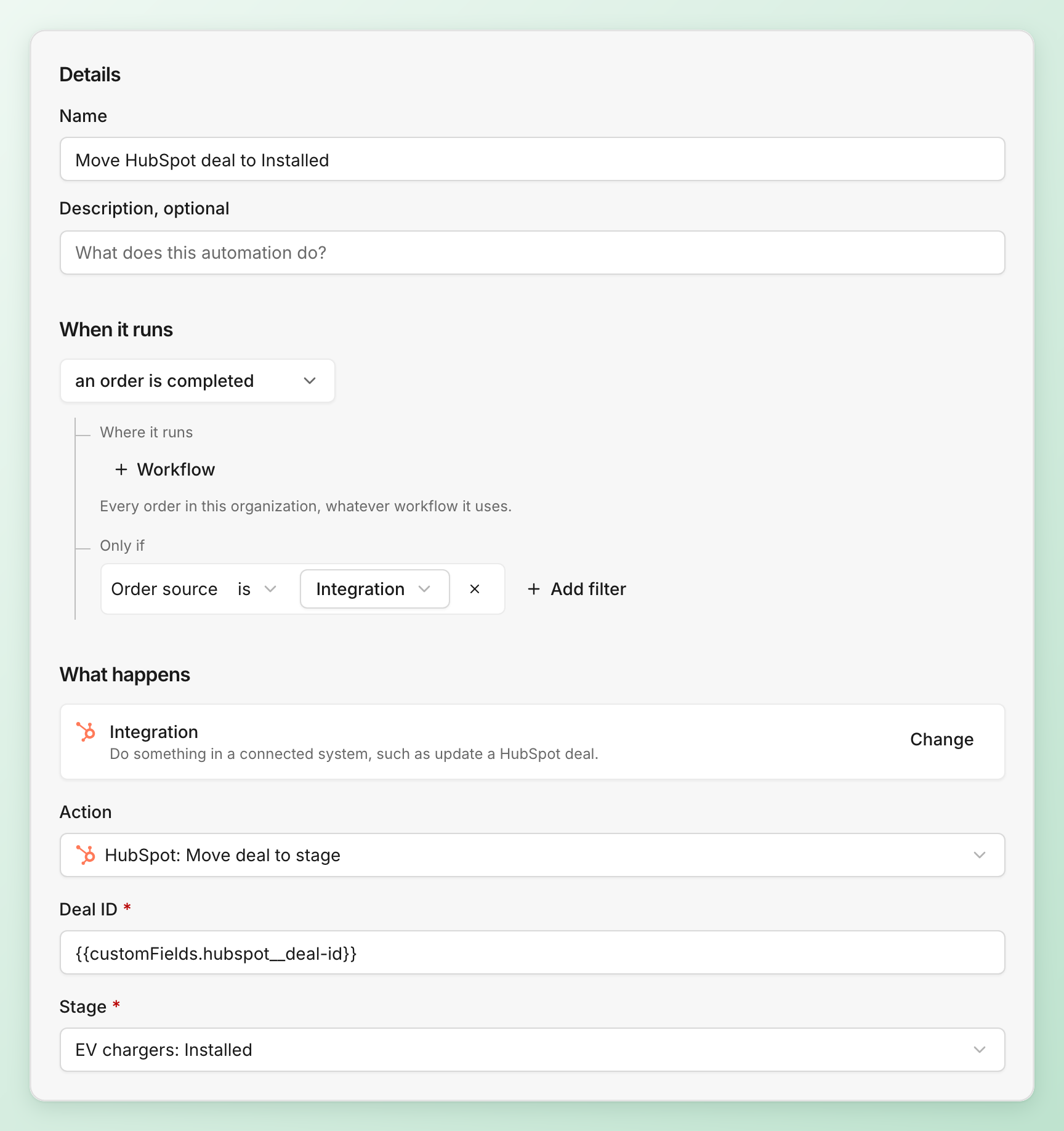
- Select Intelligence in the sidebar, then New automation.
- Under When it runs, pick what starts it, for example an order is completed.
- Under Only if, select Add filter > Order > Order source and pick Integration. Orders that did not come from HubSpot have no deal, so runs for them fail.
- Under What happens, select Integration, then pick an Action:
- HubSpot: Move deal to stage moves the deal to the Stage you pick.
- HubSpot: Update deal writes Properties to the deal. Each property is a HubSpot internal property name and a value, such as
"installer_order_number": "{{order.displayId}}". A property that does not exist in HubSpot makes the run fail, so create it in HubSpot first.
- Leave Deal ID as it is. It reads the deal ID that Installer.com stores on each order from HubSpot.
- Select Create automation, then Publish.
Related articles
Need help? Contact Installer.com support.
Was this helpful?