Payout settings
Settings → Payments holds the choices about how money leaves the platform, on its settings card and its Accounting card. They apply to your whole organisation, not to one order.
Who does this. Each organisation sets its own. Installer payouts is the order owner’s choice, and it decides whether installers are paid here at all.
The section appears once your payment account exists. See Set up payouts.
Payouts
How approved money reaches your bank account.
| Option | What you get |
|---|---|
| Combined payouts | One transfer for all approved money, usually daily. |
| One payout per offer | One transfer per offer. |
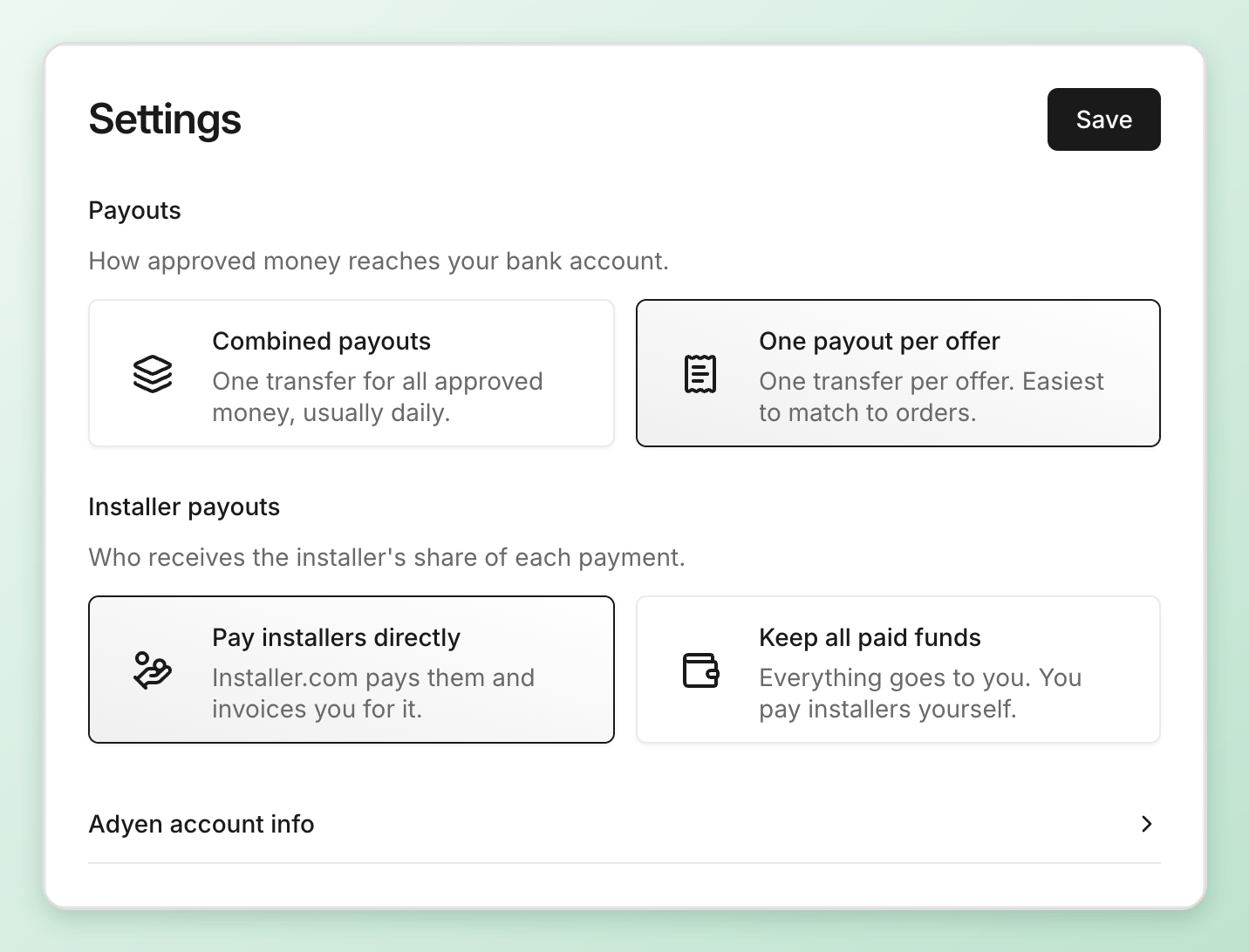
One payout per offer is easier to match to orders. Combined payouts gives you fewer bank entries. Either way, payouts go out on the daily payout run.
Pick an option, then select Save at the top right of the card.
Installer payouts
Who receives the installer’s share of each payment.
- Pay installers directly: the installer’s share of each order goes to the installer’s own bank account. You are invoiced for it automatically, so you stop receiving and checking their invoices.
- Keep all paid funds: all funds are paid to your bank account, and you settle with the installer yourself.
Keep all paid funds is the default. Most of what platform payments save you sits on this setting, because Pay installers directly is the option that takes installer invoices out of your back office.
You can also pay installers directly for one partnership rather than the whole organisation. That is the way to pay a single partner through the platform while everyone else stays on invoices.
Pay installers directly is why installers must complete payment setup before they can accept your orders. There has to be an account to pay into.
With Keep all paid funds, the installer’s amount is still worked out and shown on the offer, but no share is created from it. The whole payment becomes one share to you, so no invoice passes between you through the platform. You still owe the installer that money. You settle it outside Installer.com, on your own invoices. See Product prices and shares.
Installer payouts appears only if your organisation can take payments from customers.
Payout statement CSV format
Whether a CSV is attached to payout statement emails, and in which layout. It is on the Accounting card.
| Option | Effect |
|---|---|
| None | The email carries the PDF only. |
| Default | A full CSV, one row per invoice line. |
| Simplified | A short CSV, one row per order with the payout amount. |
See Export payment data to a spreadsheet for the columns in each.
Accounting system
The system you keep your books in. Choose it on the Accounting card. Then the Monthly Statement menu of each month also offers import files for that system. They come in addition to the CSV above and are not emailed. Installers and merchants both have the card.
See Choose your accounting system for the systems and their guides.
Where statements are sent
Payout statement emails go to your billing email, set under Settings → Company. Without one, no statement email is sent, though the documents are still on the payout in Payout overview.
Who can change this
Changing payment settings needs the finance permission with write access. Members without the finance permission do not see the page at all.
Members of the Accounting team can change the Accounting card, so your accountant can set up the accounting system. An administrator invites them with Invite your accountant on this page.
Was this helpful?