Navigate with the left sidebar
The left sidebar runs down the left side of every page in the web app. It holds the main sections, a few cards below them, and your account.
Full width or icon rail
The sidebar has two widths, and the page you are on decides which one you get.
- On Overview it is at full width, with an icon and a label on every row.
- On every other page it stays a narrow rail of icons, so the page itself gets the width. There is no button to hold it open.
- Point at the rail and it slides open over the page with the labels showing. It closes again when you move the pointer away. Moving the keyboard focus into it does the same.
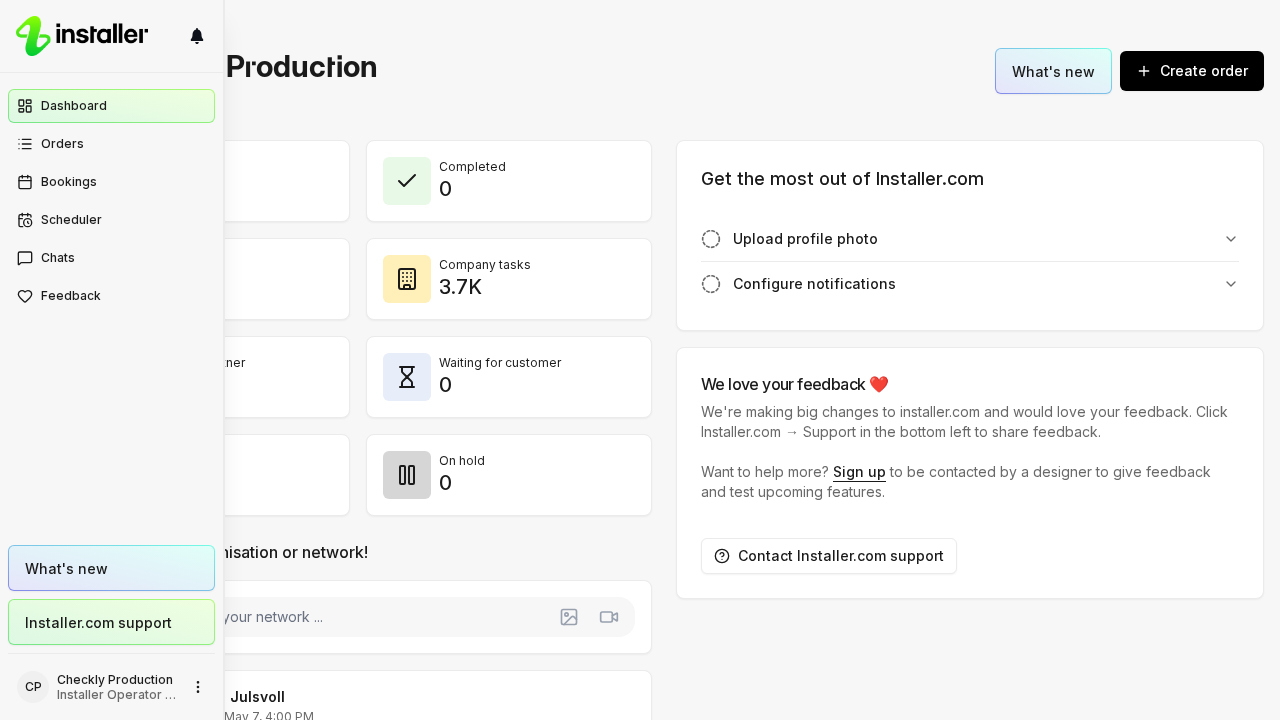
What is in the sidebar
The rows are Overview, Orders, Calendar, Chats, Insights, Products, Workflows, Intelligence and Settings. Your list can be shorter: a row appears only if your permissions allow it and your organisation has that feature turned on.
Three rows carry a count:
| Row | The count means |
|---|---|
| Orders | Orders waiting to be accepted, across the whole organisation. |
| Calendar | Orders that are not scheduled yet. |
| Chats | Unread messages. |
On the icon rail each count shrinks to a dot.
Below the rows sit cards for Partners, Installers and Wallet, subject to the same permissions and features.
At the bottom is your name and your current organisation. Click it to switch organisation, open Account settings, or Sign out.
At the top, the logo takes you back to Overview. Next to it, at full width, a question mark button opens Installer.com support.
On a phone
On a small screen the sidebar becomes a bar along the bottom of the screen. Tap More to open the full menu, including the cards and your account.
Need help? Contact Installer.com support.
Was this helpful?