Create and publish a workflow
A workflow defines the steps an order moves through and the order details every order created from it starts with. You build it as a draft, then publish it to make it live for new orders.
Create a workflow
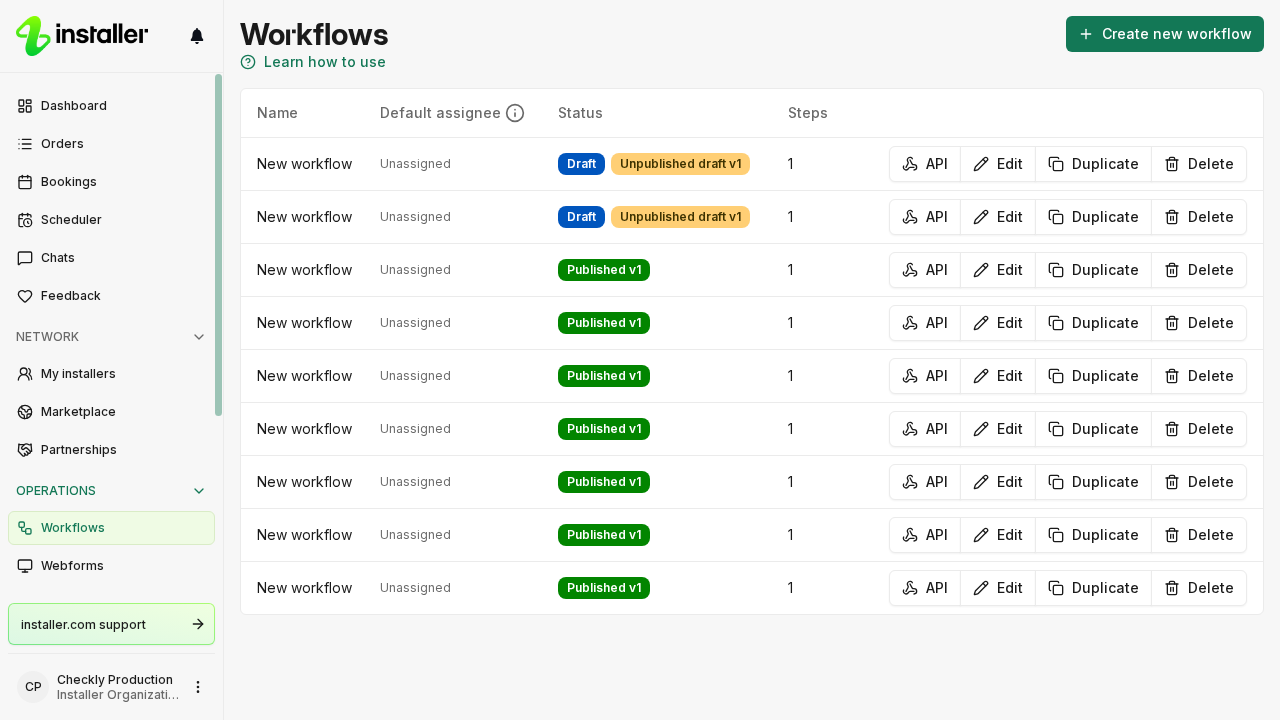
- Select Workflows in the sidebar.
- Select Create new workflow.
- Enter a Name. Pick an Installation type if you know what will be installed.
- Select Create.
The workflow opens as an unpublished draft on the Workflow tab.
Set the order details
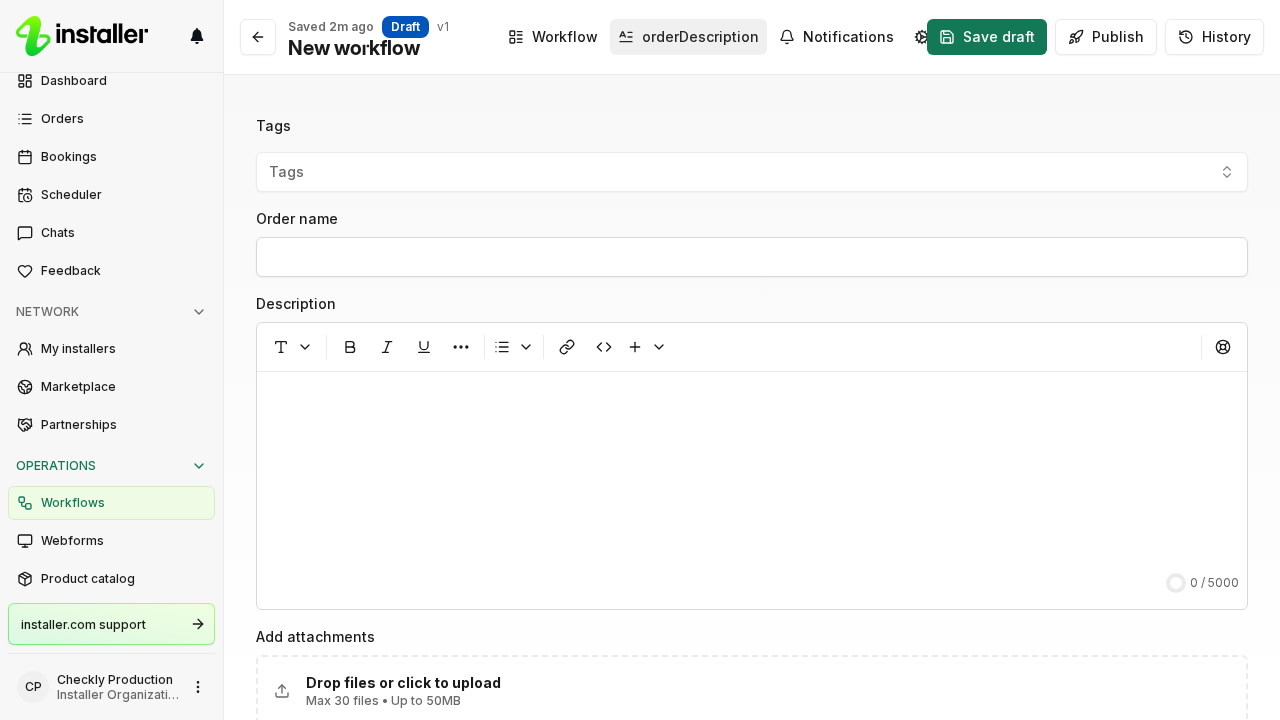
The Description tab holds the details that every order created from this workflow starts with.
- Select the Description tab.
- Select the order Tags.
- Enter an Order name.
- Write the Description. Insert variables from the editor’s variable picker.
- Under Add attachments, drag files in or select Drop files or click to upload.
Add steps
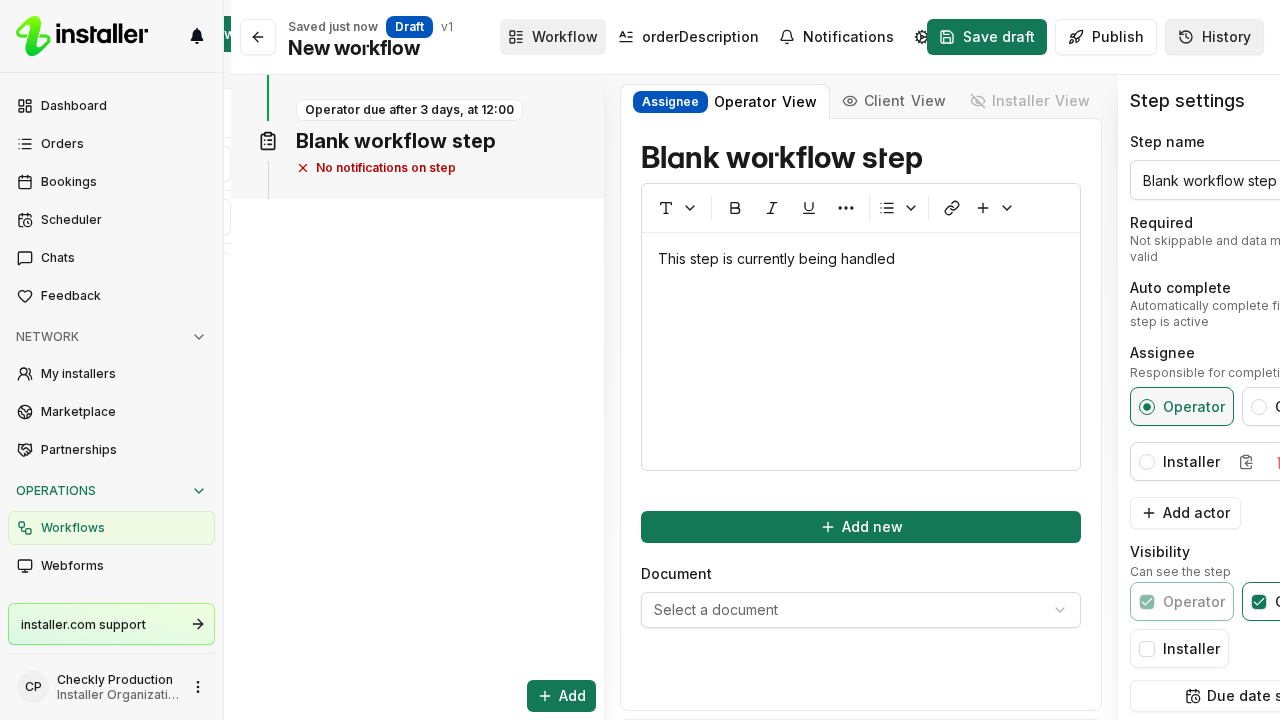
- Select the Workflow tab.
- Select Add.
- Pick an entry in Add step. Each entry adds one or more steps at once. Booking adds Schedule booking, Confirm booking and Perform on-site visit.
Set step details
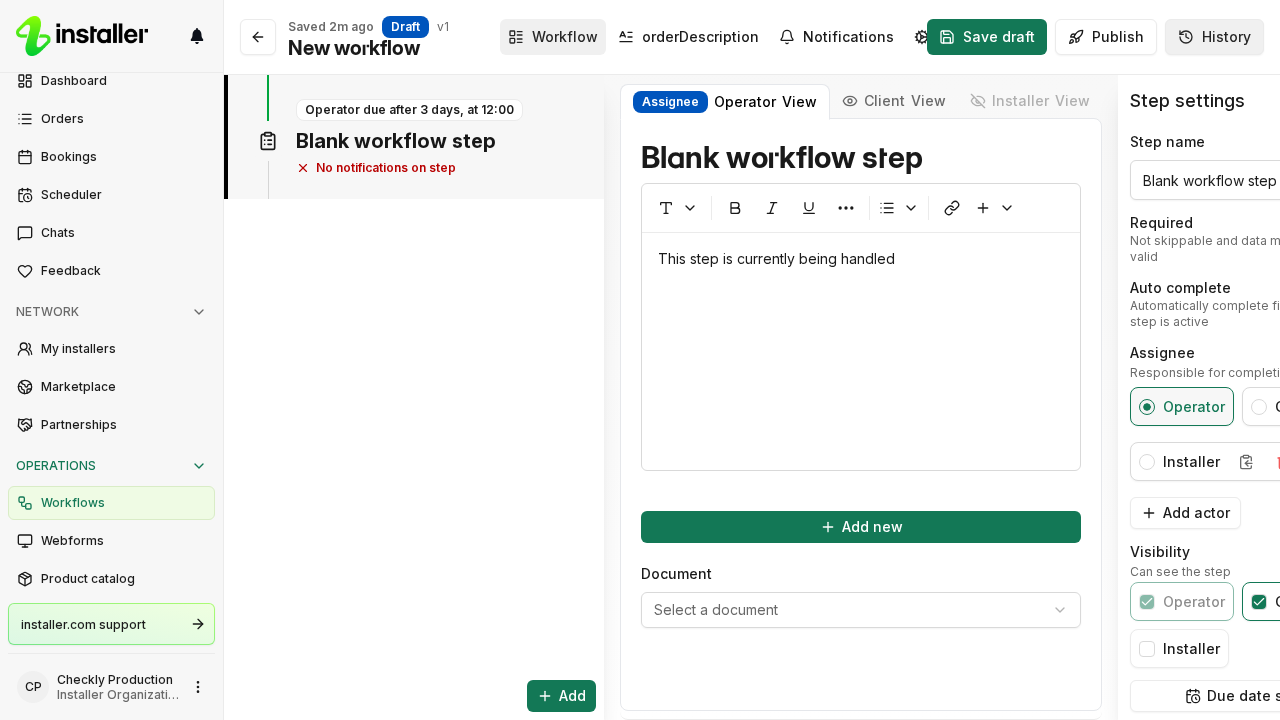
Select a step to open it. Step settings on the right holds:
- Step name. Select the step title to rename it.
- Required. The step cannot be skipped, and its data has to be valid.
- Auto complete. The step completes the first time it becomes active.
- Assignee. Who completes the step. A new workflow starts with Operator, Client and Installer. Select Add actor to add another.
- Visibility. Who can see the step.
- Depends on. The step that has to finish before this one becomes active.
Above the step, the Assignee and Viewer tabs hold separate descriptions: what the assignee reads, and what everyone else reads.
Save and publish
- Select Save to keep the draft.
- Select Publish. The draft saves, then Review changes lists what differs from the published version.
- Select Publish, followed by the version number, to make that version live for new orders.
A published version is read-only. Select Start editing to copy it into a new draft, or Go to draft if a draft already exists.
Related articles
Need help? Contact Installer.com support.
Was this helpful?