Set up a workflow
A workflow is the ordered set of steps an order moves through. You create one, build it as a draft, then publish it so new orders use it.
Workflows is in the sidebar. If it is not there, your organization does not have workflows turned on, or your role cannot edit templates.
Create a workflow
- Select Workflows in the sidebar. The page lists your workflows.
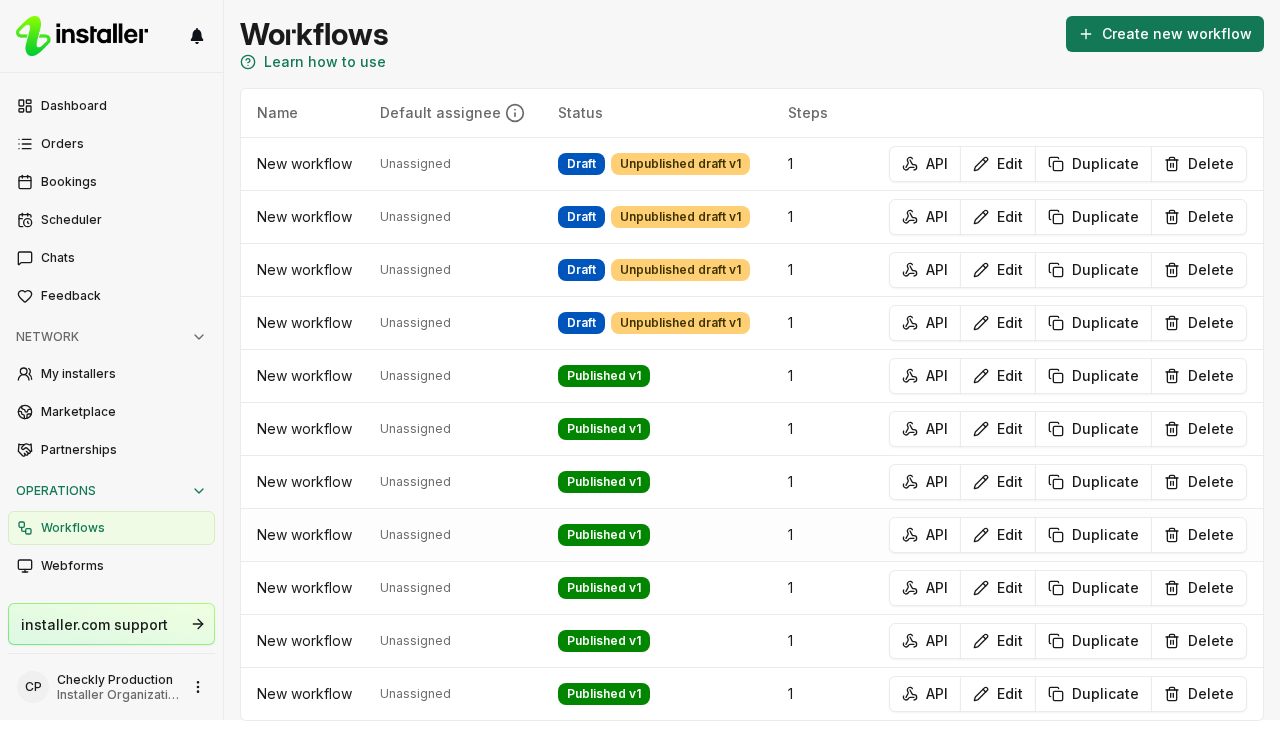
- Select Create new workflow.
- Enter a Name.
- Pick an Installation type. The hint reads “Help us find the best installers by specifying what will be installed”.
- Select Create.
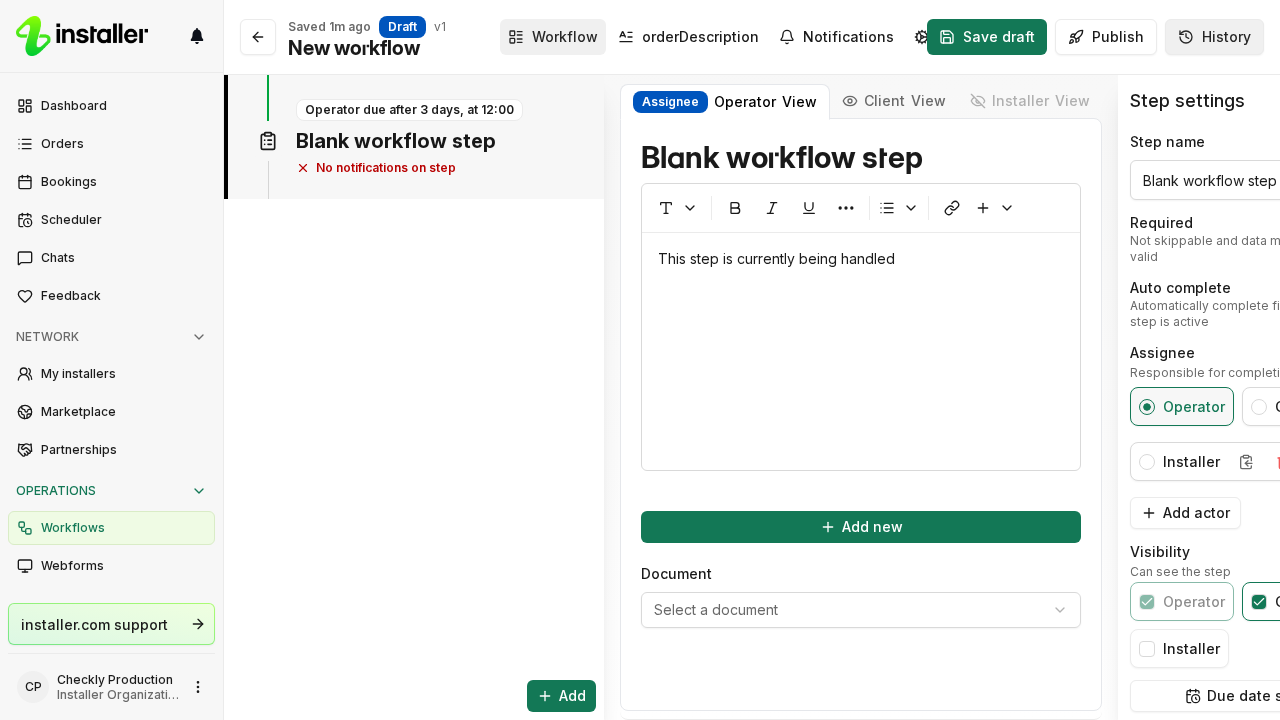
The workflow opens in the editor on the Workflow tab, as a draft with no steps yet.
Find your way around the editor
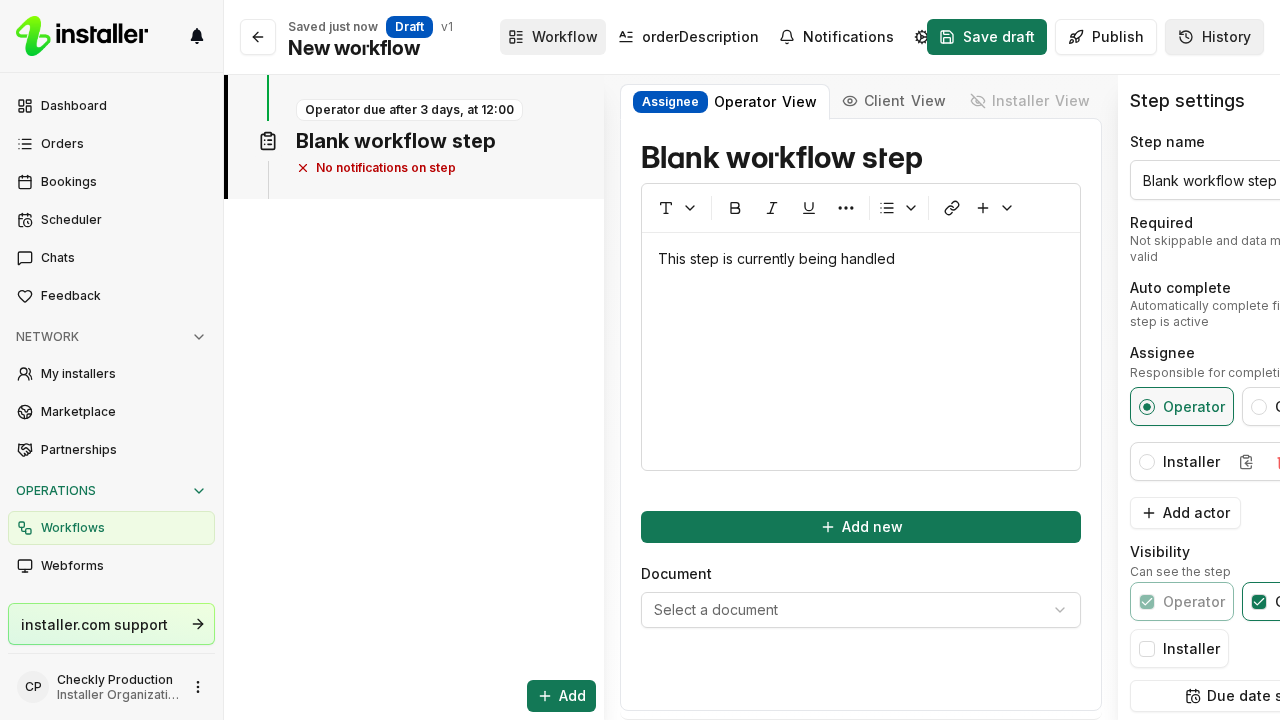
The header carries the workflow name, its version, its status badge, and when it was last saved. Avatars next to them show who else has this workflow open. On the right are Test, Save, Publish and History.
The tab bar sits in the middle of the header.
| Tab | What it holds |
|---|---|
| Workflow | The step timeline on the left, the step content in the middle, Step settings on the right. |
| Description | The order description this workflow produces. |
| Notifications | Notifications and background events. |
| Webforms | The webforms that create orders on this workflow. |
| Settings | Everything that applies to the whole workflow: name, defaults, actors, fields, chats, offers, documents and portal text. |
Every new workflow starts with three actors: Operator, Client and Installer. Operator and Client cannot be deleted. Add and configure actors under Settings > Actors. See Manage workflow settings.
Build the workflow
Select Add at the bottom of the timeline to add steps, then select a step to set its Assignee, Visibility, Required, Auto complete and Depends on. See Add steps to a workflow and Configure workflow step settings.
Save and publish
Select Save to keep working on the draft. The editor confirms with “Draft saved” and the header switches to “Saved just now”.
Select Publish when the draft is ready. This saves first, then opens Review changes, which lists what is added, changed, moved and removed against the published version. Select Publish v and the version number to go live. Publishing makes that version live for new orders.
A published version is read-only. The banner reads “You are viewing the published version. To make changes, go to the draft.” Select Start editing to copy it into a new draft, or Go to draft if a draft already exists.
Work with versions
Select the history icon in the header to open History. Each entry shows the version number, its status, who published it, and how many orders were created from it, broken down by status.
- Show all versions is off by default, so the list hides versions that no orders were created from. With nothing to show, the drawer reads “No versions with orders yet”.
- View opens that version in the editor.
- Discard removes a draft. Confirm “Discard draft v” and the version number. This permanently discards the draft and does not affect the published version.
- Publish on an archived version makes that version live again.
Related articles
Need help? Contact Installer.com support.
Was this helpful?