Set a deadline on a workflow step
A deadline tells you when a step is late. You set it per step in the workflow editor. When the deadline passes, the step becomes Overdue.
Set a deadline
- Select Workflows in the sidebar.
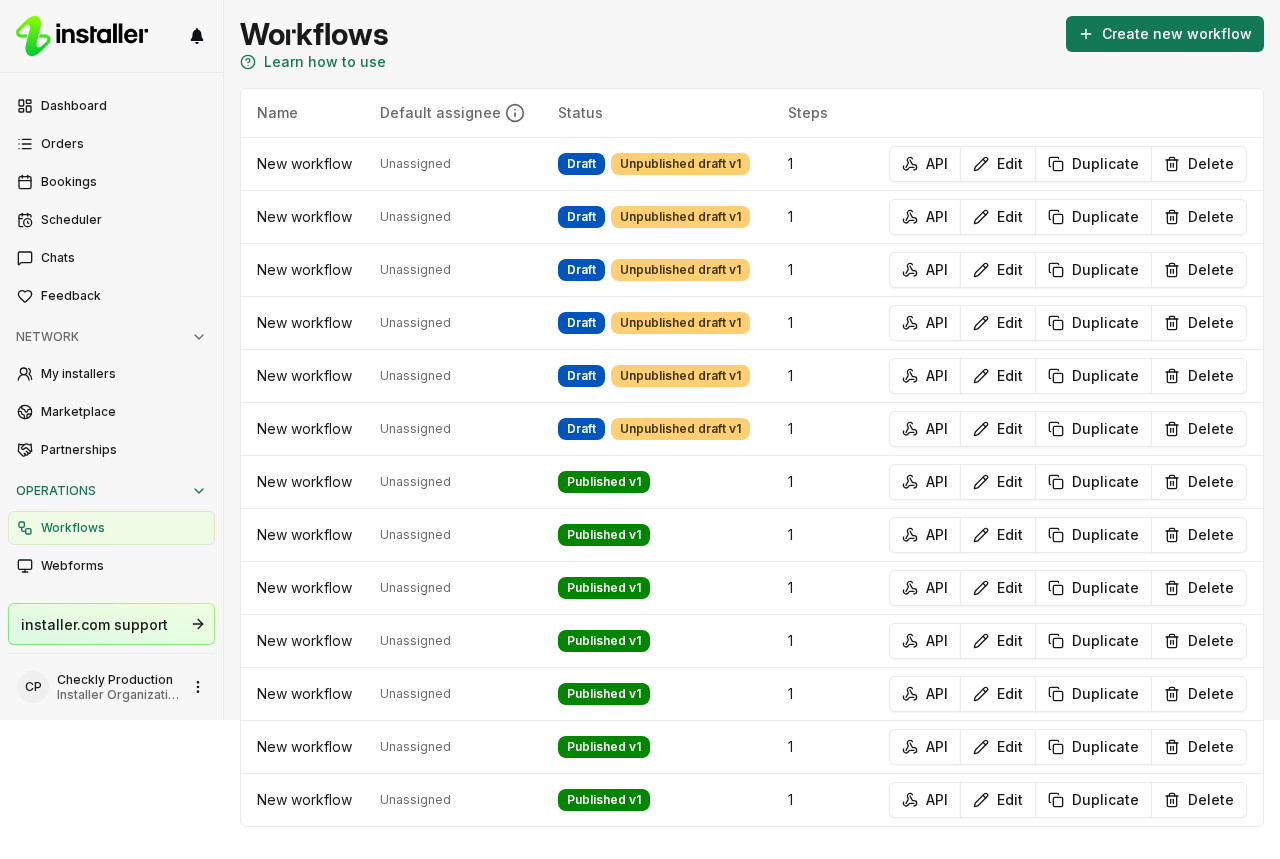
- Select the workflow you want to change. A published version is read-only, so select Start editing or Go to draft to work on the draft.
- Select the Workflow tab, then select a step in the list on the left. Step settings opens in the panel on the right.
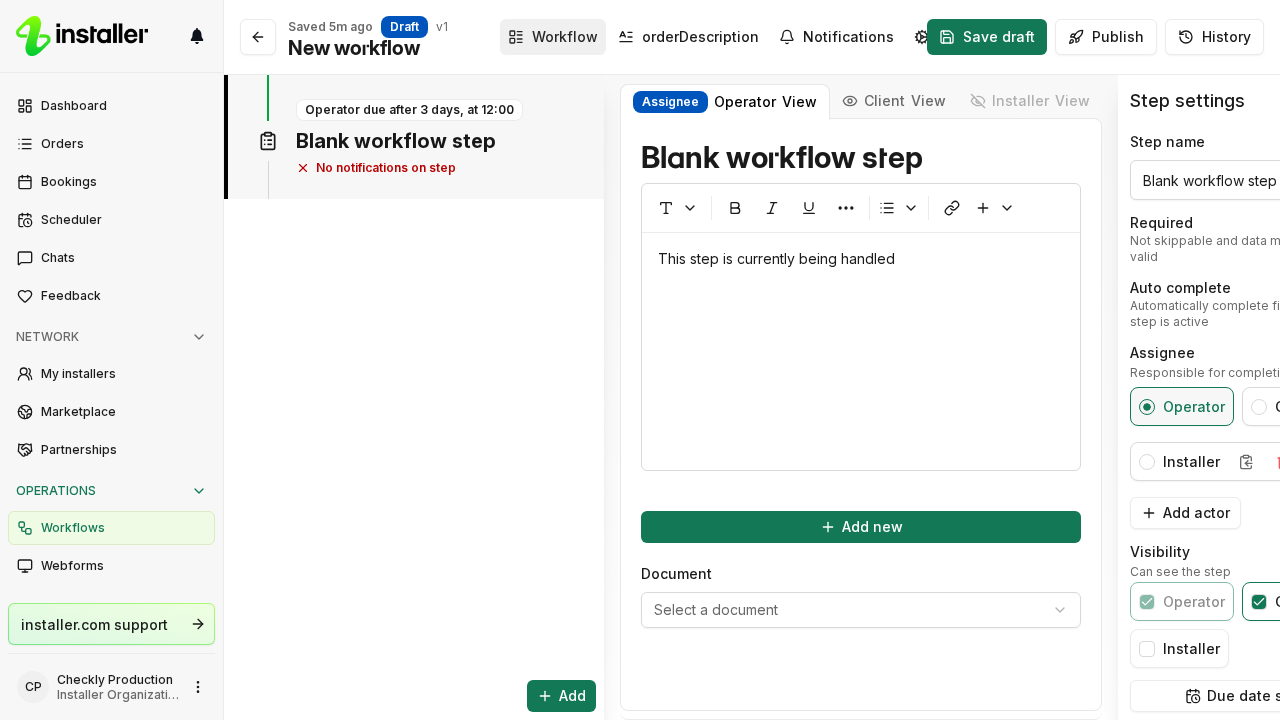
- Select Due date settings near the bottom of Step settings.
- In the Due date dialog, set the fields you need.
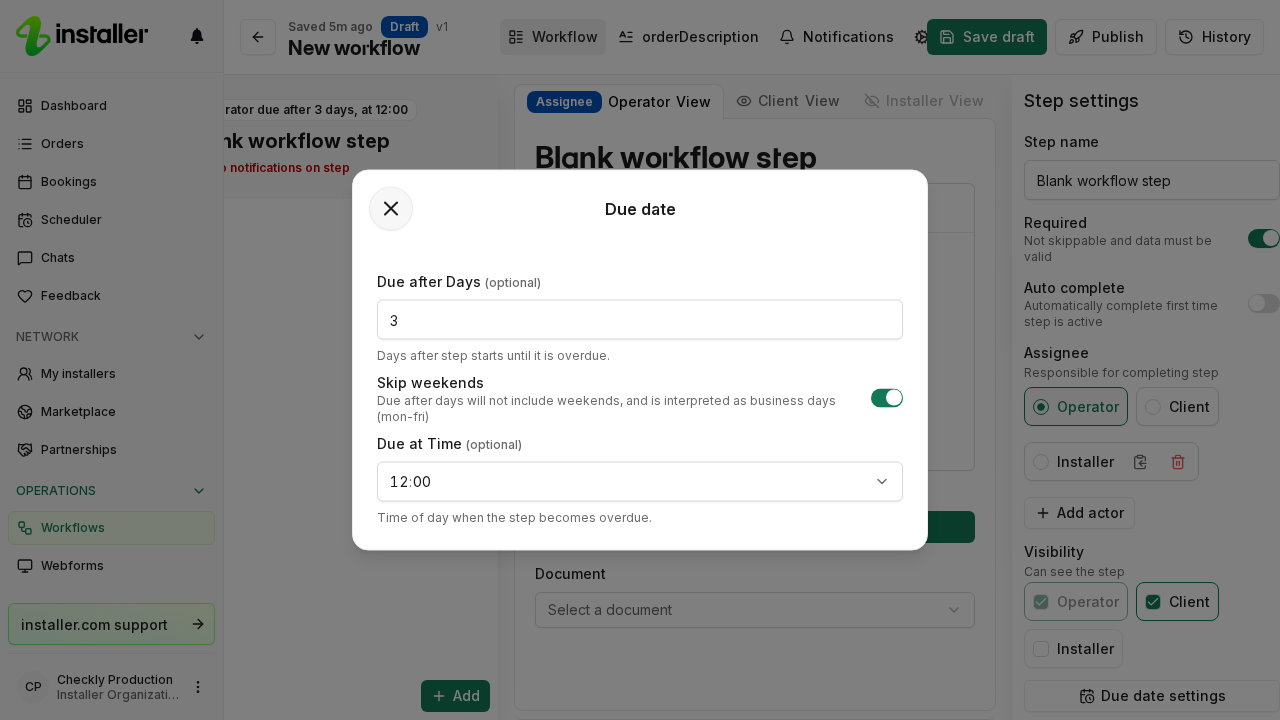
- Close the dialog, then select Save. The change stays in the draft until you select Publish.
The fields
| Field | What it does |
|---|---|
| Due after Days | Days after step starts until it is overdue. Between 1 and 365. |
| Skip weekends | Due after days will not include weekends, and is interpreted as business days (mon-fri). |
| Due at Time | Time of day when the step becomes overdue. |
The count starts when the step becomes active, not when the previous step starts. Due at Time is optional; a step with no time set is due at 12:00.
When you add a step, it starts with 3 days, 18:00 and Skip weekends on. You can clear Due after Days to leave the step with no deadline.
The step timeline shows the deadline on each step, for example “Operator due after 3 days, at 12:00”. A step with no deadline reads “Operator has no due date”.
Steps that perform a booking
Due date settings is unavailable on Perform booking, Inspection and Work steps. These steps take their deadline from the booking instead: the deadline is the booking’s end time, and the time of day is 18:00 unless the booking ends later. Their timeline entry reads “Operator will complete booking”.
Notify someone about a deadline
A deadline is what makes the Overdue state available to notifications. On the Notifications tab, add a notification, select the step, and select Overdue under States.
When Overdue is the only state selected on a step that has a due date, you can also set When to Before state and enter a number of Days, so the notification goes out ahead of the deadline.
Related articles
Need help? Contact Installer.com support.
Was this helpful?