Book your payouts in QuickBooks
This guide is for merchants, installers and their accountants who use QuickBooks Online UK. Each month you import your invoices from Installer.com, already paid through one clearing account, and book the payouts against your bank. Bills need QuickBooks Online Essentials, Plus or Advanced.
| You are | You do |
|---|---|
| A merchant or an installer | Set up QuickBooks once, Set up Installer.com once and Before your first month, then each month Book a month. An installer gets only the sales files and has no bills to settle. |
| An accountant | Read For your accountant before the first month. |
Set up QuickBooks once
- In Accounting → Chart of accounts, create the account Installer.com clearing: type Cash at bank and in hand, detail type Current. The other accounts in Account codes must exist with the names you enter there. Some companies have no Bank charges account; create it, or enter your own account.
- Go to Accounting → Rules and select New rule.
- Name the rule
Installer.com payouts. - Apply it to Money in in the bank account that receives the payouts.
- Set Bank text Contains
INST-PO. - Set Transaction type to Transfer and Account to Installer.com clearing. Keep Auto-post on, and select Save. Each payout from your bank feed, or from a bank file you upload, is then booked as a transfer.
- Go to Sales → Products and services and select New → Service.
Name it after your sales account,
Salesby default, and set Income account to that account. Do this for each sales account in Account codes. Otherwise the import creates the product with another income account, and your sales are booked there. - Go to Settings → Account and settings → Sales. Make sure that Custom transaction numbers is On. Otherwise QuickBooks replaces the invoice numbers with its own.
Set up Installer.com once
- Go to Wallet → Settings and find the Accounting card.
- Set Accounting system to QuickBooks and select Save.
- Account codes opens. In QuickBooks, an account code is the account name. If your account names are different from the defaults below, enter your names.
- Choose the Transaction fee tax rate with your accountant. Then select Save. The QuickBooks files show only after you choose it.
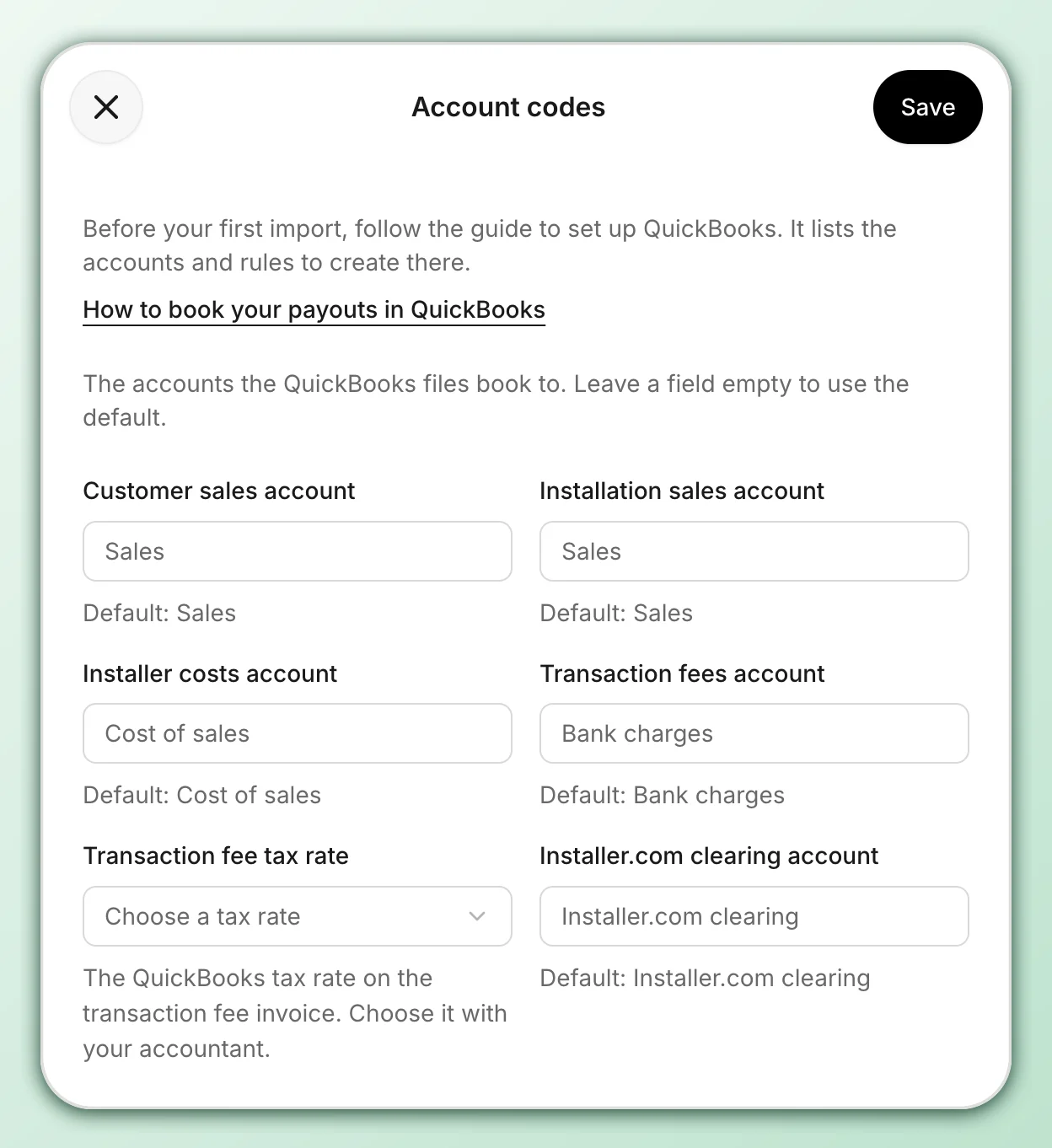
QuickBooks is available for organisations that operate in the UK. If you do not see it, contact support. To change the account codes later, select Edit next to QuickBooks on the Accounting card.
| Field | Default account | VAT code | Used for |
|---|---|---|---|
| Customer sales account | Sales | The VAT rate of each line | Your invoices to customers |
| Installation sales account | Sales | The VAT rate of each line | Your invoices to merchants, as an installer |
| Installer costs account | Cost of sales | The VAT rate of each line | Invoices from installers |
| Transaction fees account | Bank charges | The Transaction fee tax rate you choose | The transaction fee invoice from Installer.com |
| Installer.com clearing account | Installer.com clearing | None | Payments on their way to you through Installer.com |
For your accountant
Make these decisions before the first month. Installer.com is the payment and invoicing platform. Your accountant decides how you book and report VAT.
- Account names. The defaults follow the standard chart of accounts in QuickBooks Online UK. They are suggestions.
- VAT codes. Lines use the QuickBooks UK VAT codes 20.0% S, 5.0% R, 0.0% Z and No VAT. The VAT on each document matches the VAT on its PDF.
- The transaction fee invoice. The Norwegian Installer.com company issues it without VAT, and it states reverse charge. Your accountant decides how to book it. The file uses the tax code chosen in Account codes.
- Installer invoices. The installer’s invoice to the merchant is created in Installer.com. Do not book another invoice for the same work as well.
- Dates. Each document has the date on its PDF, in your organisation’s Timezone. The fee invoice has the last day of the month that it charges for; its PDF is dated the 1st of the next month. Payments of credit notes and bills use the last day of the month. Your accountant decides if these dates are correct for you.
- Construction services. Installer.com invoices use the VAT rate of each line. They do not apply the domestic reverse charge for construction services, or Construction Industry Scheme (CIS) deductions. Your accountant decides whether those apply to you. If they do, contact support before the first month.
- Installer.com clearing. It is a bank account type, so it can take sales receipts and payouts.
- Numbers. Each document has its invoice number. QuickBooks takes numbers
up to 21 characters, so a longer one keeps its start and its end, for
example
INST-TFI-ROUT-2026-09for a transaction fee invoice. The memo has the full number and, for invoices other than the transaction fee invoice, their orders. - Currency. Documents use your payout currency. Use a QuickBooks company with that home currency.
- Installer credit notes. QuickBooks has no import for a supplier credit. Enter them by hand as in 2. Settle the credit notes and bills. You find them in Monthly invoices (ZIP).
- A transaction fee invoice with a negative total. Enter it by hand as in 2. Settle the credit notes and bills.
- Negative lines. The import takes no negative amounts. The files add the lines of each invoice up per account and VAT code, so a discount is part of its line. The VAT per rate stays the same as on the PDF.
Before your first month
- Start with a month that you did not book by hand.
- Payouts at the start of the first month can pay invoices that you booked by hand. The Installer.com files do not book those invoices. Your accountant decides how to book that part of the payout.
- Book each Installer.com document once. Do not also enter a document that the files book, by hand or through a tool that reads your email.
Book a month
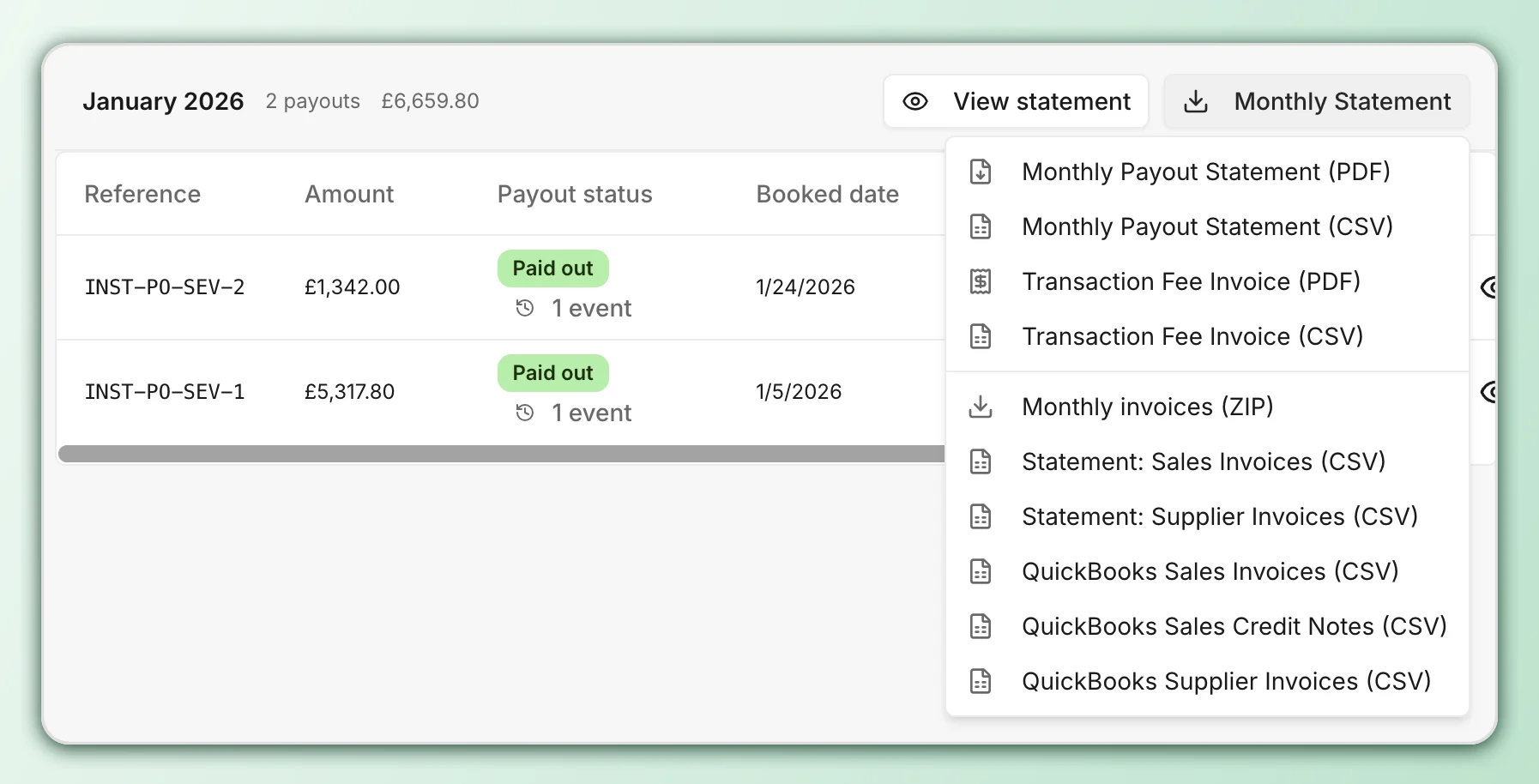
Each month’s files are in Wallet → Payout overview, in the Monthly Statement menu of that month. A file shows when the month has ended and Adyen has booked all payouts of that month, usually on the 1st of the next month, and only if the month has documents for it. If the files do not show after a few days, contact support. Import each file once. If QuickBooks already has the number of its first document, the file is already imported. Use only the three QuickBooks files. The other files in the menu are documents and statements, not import files.
1. Import the files
| File | Import it in QuickBooks under |
|---|---|
| QuickBooks Sales Invoices (CSV) | Settings → Import data → Sales Receipts |
| QuickBooks Sales Credit Notes (CSV) | Settings → Import data → Credit Notes |
| QuickBooks Supplier Invoices (CSV) | Settings → Import data → Bills |
For each file:
- Choose the file. Tick Add new contacts and Add new products/services, or Add new suppliers for bills.
- Set the date format to D/M/YYYY and the amounts to Exclusive of tax.
- Set Item CIS Tax Code to Not applicable, if QuickBooks asks.
- Check the VAT codes, select Next and Start import.
2. Settle the credit notes and bills
Sales come in as sales receipts, already deposited to Installer.com clearing. Credit notes and bills are not paid yet. Use the last day of the month as the date of each expense and payment. No money goes out of your bank. These were settled in your payouts.
Settle each credit note to a customer:
- Select Create → Expense.
- Set the payee to the customer, the payment account to Installer.com clearing and Payment Date to the last day of the month.
- On the line, set the category to Debtors, the amount to the credit note’s total as a positive number, for example 300.00, and the VAT to No VAT. Select Save and close.
- Select Create → Receive payment, choose the customer and set Payment Date to the last day of the month.
- Tick the credit note and the expense. The payment is 0.00. Select Save and close.
Enter each credit note from an installer, and a transaction fee invoice with a negative total, as a supplier credit. An installer’s credit note is a credit note PDF in Monthly invoices (ZIP) with the installer under From. The transaction fee invoice is Transaction Fee Invoice (PDF).
- Select Create → Supplier credit and choose the supplier that sent it.
- Set the date to the date of its PDF. For the transaction fee invoice, use the last day of the month it charges for.
- Set Ref no. to its number. If the number is longer than 21 characters, use its first 13 and last 8 characters, as the files do.
- Set Amounts are to Exclusive of Tax. For an installer’s credit note, enter the net amounts from the PDF’s VAT Specification as positive numbers, with the installer costs account and the VAT code on its PDF. For the transaction fee invoice, enter its total as one positive amount, with the transaction fees account and the Transaction fee tax rate chosen in Account codes. Its PDF has no VAT Specification.
- Check that the total equals the PDF’s total without the minus sign, and select Save and close.
Then pay the bills:
- Select Create → Pay bills.
- Set Payment account to Installer.com clearing and Payment date to the last day of the month.
- Tick the
INST-bills. Check that Credit applied shows the supplier credit of the same installer, then select Mark as paid. - If the installer or Installer.com has no open bill, select Create → Bank deposit to Installer.com clearing instead, with the installer or Installer.com under Received from and the account Creditors, and link it to the credit in Pay bills.
The transaction fee invoice also holds the fee of a payment that was refunded in full before it was invoiced. Installer.com keeps that fee, so the payout is lower by the fee. The fee invoice books this difference.
3. Book the payouts
Each payout comes to your bank from Adyen with its payout reference, for
example INST-PO-ABC-12. A payout of 0.00 or less sends no money. The bank
rule books each payout from your bank feed, or from a bank file you upload,
as a transfer from Installer.com clearing to your bank.
4. Close the month
- Make sure that QuickBooks has one document for each PDF in Monthly invoices (ZIP) that is not 0.00, and one for the transaction fee invoice if you have one. The installer credit notes you entered by hand are among those PDFs.
- Open Installer.com clearing in Accounting → Chart of accounts.
- Make sure that the table below explains the balance at the end of the month.
| Balance of Installer.com clearing | Cause |
|---|---|
| 0.00 | The month is booked. |
| A debit | Money of this month that your bank receives in the next month: invoices from the last days of the month, and payouts that reach your bank after the month ends. |
| A debit that stays for more than a month | A payment or payout did not arrive. Contact support. |
| A credit | Refunds or installer invoices after the month’s last payout were larger than its sales, or a payout ended with a deficit. The next payout takes it off. Wallet → Payout overview shows it under Approved, awaiting next payout. |
Wallet → Payout overview and the Monthly Payout Statement (PDF) show the documents and payouts that make up the balance.
When an import fails
| What happens | Do this |
|---|---|
| An account is invalid | Create the account in QuickBooks, or enter your account name in Account codes, and import the file again. |
| A file has more than 100 documents or 1,000 rows | QuickBooks imports up to 100 documents and 1,000 rows at a time. Contact support. |
| The file does not download | An invoice has a discount at a different VAT rate from the lines it reduces. Contact support. |
Was this helpful?