Book your payouts in Xero
This guide is for merchants, installers and their accountants who use Xero UK.
Each month, Installer.com gives you import files with your invoices. You
import them, mark them as paid, and match the payouts in your bank. You mark
all documents as paid through one clearing account, INSTCLR. A bank rule
books each payout from INSTCLR to your bank.
| You are | You do |
|---|---|
| A merchant or an installer | Set up Xero once, Set up Installer.com once and Before your first month, then each month Book a month. An installer gets only the sales invoices file and does steps 1, 2, 4 and 5 of Book a month. |
| An accountant | Read For your accountant before the first month. |
Set up Xero once
- Go to Accounting → Chart of accounts and select Add Account.
- Set Account Type to Current Asset.
- Set Code to
INSTCLR, Name to Installer.com clearing and Tax to No VAT. - Tick Enable payments to this account, and save the account.
- Go to Accounting → Bank rules and create a Receive money rule.
- Set the rule to Any text field contains
INST-PO. - Set the contact to Installer.com, the account to
INSTCLRand the tax to No VAT. If the contact does not exist, create it from the rule.
Do not make INSTCLR a bank account.
Set up Installer.com once
- Go to Wallet → Settings and find the Accounting card.
- Set Accounting system to Xero and select Save.
- Account codes opens. If your account codes are different from the defaults below, enter your codes.
- Choose the Transaction fee tax rate with your accountant. Then select the check mark at the top right. The Xero files show only after you choose it.
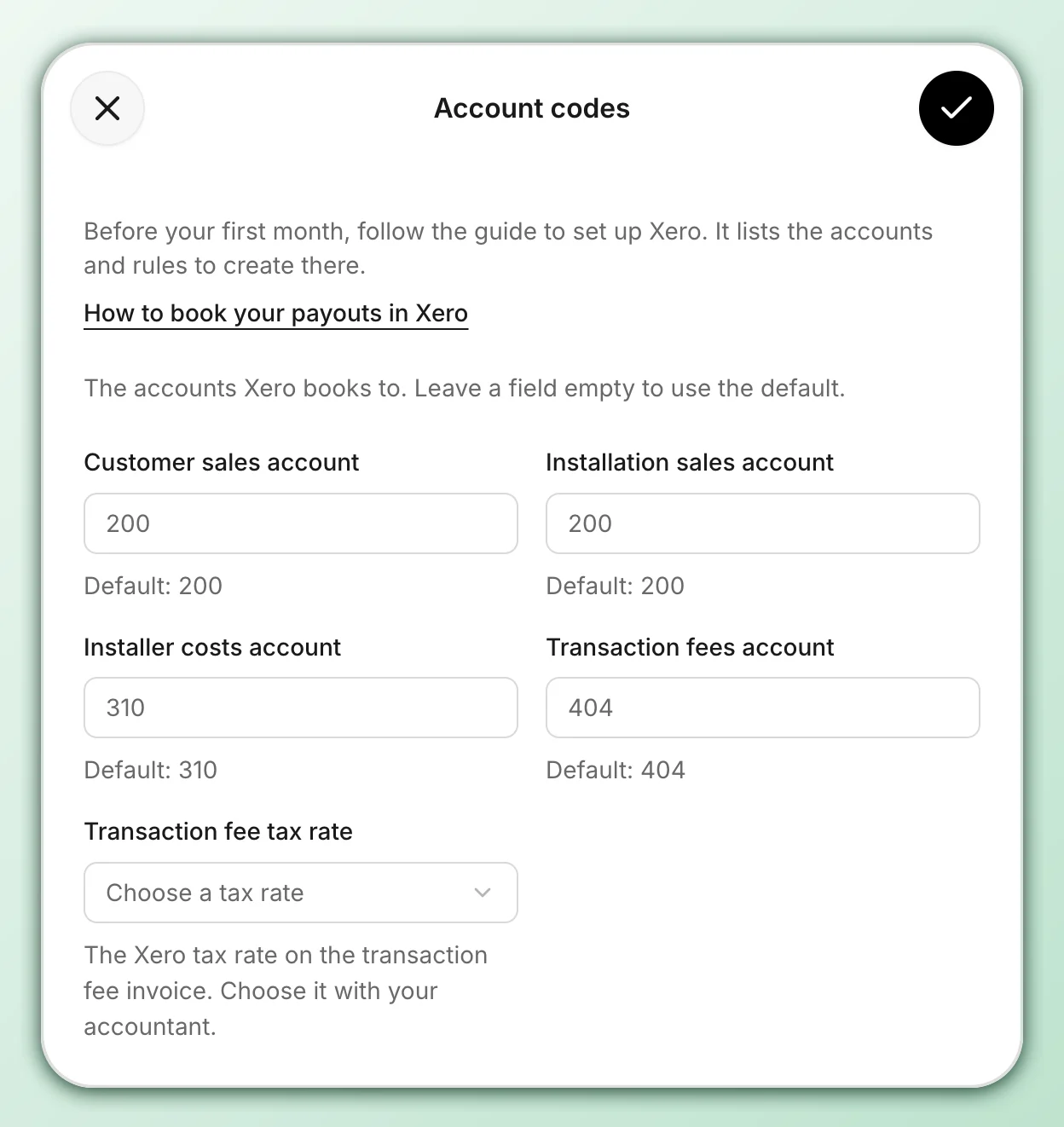
Xero is available for organisations that operate in the UK. If you do not see it, contact support. To change the account codes later, select Edit next to Xero on the Accounting card.
| Field | Default account | Tax rate | Used for |
|---|---|---|---|
| Customer sales account | 200 | The VAT rate of each line | Your invoices to customers |
| Installation sales account | 200 | The VAT rate of each line | Your invoices to merchants, as an installer |
| Installer costs account | 310 | The VAT rate of each line | Invoices from installers |
| Transaction fees account | 404 | The Transaction fee tax rate you choose | The transaction fee invoice from Installer.com |
For your accountant
Make these decisions before the first month. Installer.com is the payment and invoicing platform. Your accountant decides how you book and report VAT.
- Account codes. The defaults follow the standard chart of accounts in Xero UK. They are suggestions.
- The transaction fee invoice. The Norwegian Installer.com company issues
it without VAT, and it states reverse charge. The files use the
Transaction fee tax rate you choose in Account codes. Your accountant
decides how to book it. For any other treatment, change the tax
rate on the draft
INST-TFI-bill before you approve it. - Installer invoices. The installer’s invoice to the merchant is created in Installer.com. Do not book another invoice for the same work as well.
- Dates. Each invoice has the date on its PDF, in your organisation’s Timezone. The fee invoice’s PDF is dated the 1st of the next month; in Xero it has the last day of the month it charges for. Deposits and payments use the last day of the month. Your accountant decides if these dates are correct for you.
- Construction services. Installer.com invoices use the VAT rate of each line. They do not apply the domestic reverse charge for construction services, or Construction Industry Scheme (CIS) deductions. Your accountant decides whether those apply to you. If they do, contact support before the first month.
- Currency. The files use your payout currency. Import them into a Xero organisation with that base currency.
Before your first month
- Start with a month that you did not book by hand.
- Payouts at the start of the first month can pay invoices that you booked by hand. The Installer.com files do not book those invoices. Your accountant decides how to book that part of the payout.
- Book each Installer.com document once, from the files. Do not also enter them in Xero by hand or through a tool that reads your email.
Book a month
| File | Holds | For |
|---|---|---|
| Xero Sales Invoices (CSV) | Your invoices and credit notes of the month | Merchants and installers |
| Xero Supplier Invoices (CSV) | The invoices and credit notes from installers to you in the month, and the monthly transaction fee invoice from Installer.com | Merchants |
Each file holds the documents of one month, by their invoice date. A document is in one month only. Invoices and credit notes do not change after they are created.
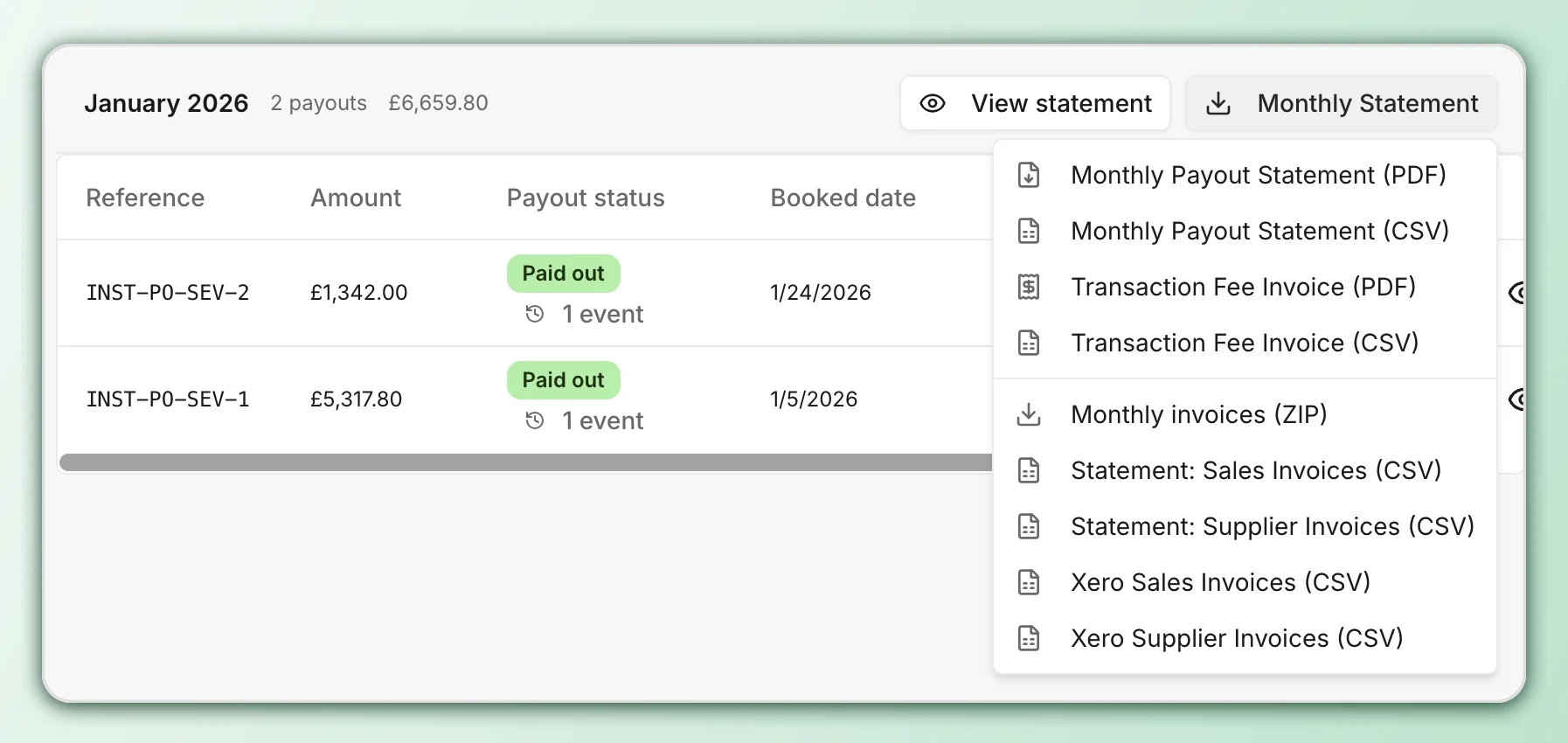
The files for a month show in Wallet → Payout overview, in the Monthly Statement menu of that month. They show when the month has ended and Adyen has booked all payouts of that month. This is usually on the 1st of the next month. From then, the transaction fee invoice normally does not change. If they do not show after a few days, contact support.
Use only the two Xero files. The other files in the menu are documents and statements, not import files.
In each step, use the last day of the month as the date for deposits, refunds and payments.
Before you select documents, show more items on each page at the bottom of the list, so that you can select up to 50 at a time.
1. Import the sales invoices and mark them as paid
-
Download Xero Sales Invoices (CSV).
-
In Xero, go to Sales → Invoices → Import.
-
Choose the file and select Tax Exclusive.
-
Complete the import. Xero matches customers by name. A customer whose name in Xero is different from the name in the file gets a new contact.
-
Select all the imported drafts and select Approve.
Do not use Approve & email or Email. Your customers already got these invoices through Installer.com.
-
On the Awaiting Payment tab, select Search and enter
INST-. -
Select up to 50 invoices, but not the credit notes, and select Deposit. Xero accepts a maximum of 50 invoices for each deposit.
-
Set the date to the last day of the month, the account to
INSTCLRand the reference to the month, for exampleInstaller.com 2026-07. Then save the deposit. -
Do steps 6 to 8 again until only credit notes stay in the list. You settle the credit notes in 2. Settle the sales credit notes.
If Xero shows a tax adjustment on an invoice, do not change the invoice. The VAT is the same as on the PDF.
2. Settle the sales credit notes
Xero does not include credit notes in a deposit. Settle each credit note:
- Open the credit note.
- Select Add cash refund.
- Set the date to the last day of the month and the account to
INSTCLR, and save.
No money goes out of your bank. The refund was taken from your payout.
3. Import the supplier invoices and mark them as paid
This step is for merchants. Xero calls a supplier invoice a bill. These invoices were already settled in your payouts. In Xero, you only record that payment.
- Download Xero Supplier Invoices (CSV).
- In Xero, go to Purchases → Bills and search for the first invoice number in the file.
- If a bill with exactly that number exists, the file is already in Xero. Stop here. Xero does not stop a second import of a bills file.
- Go to Purchases → Bills, select New bill, then Import from CSV.
- Choose the file and select Tax Exclusive.
- Complete the import. Xero matches installers by name. An installer whose name in Xero is different from the name in the file gets a new contact.
- Select all the imported drafts and select Approve.
If the file has a credit note from an installer, settle it before you pay the bills. The import already created the credit note, so do not create another one:
- Open the unpaid
INST-bill named aftercreditsin the credit note’s description, or another unpaidINST-bill from that installer. - Select Credit this bill. Enter the total of the credit note including VAT, for example 150.00 for a credit note of -150.00, and select Allocate Credit.
- If that installer has no unpaid
INST-bill, open the credit note instead. Select Add Refund, and set the date to the last day of the month and the account toINSTCLR.
Then mark the bills as paid:
- On the Awaiting payment tab, search for
INST-. - Select up to 50 bills and select Make payment.
- Select Continue with manual payment.
- Set Pay from to Installer.com clearing and Payment method to Mark as paid.
- Set the date to the last day of the month and select Create payment.
- Do steps 1 to 5 again until no
INST-bills stay in the list.
The transaction fee invoice is one of these bills. Its number starts with
INST-TFI-. If its total is negative, Xero imports it as a credit note. Settle
it like a credit note from an installer. The transaction fee invoice also
holds the fee of a payment that was refunded in full before the payment was
invoiced. Installer.com keeps that fee, so the payout is lower by the fee. The
fee bill books this difference.
4. Book the payouts
Each payout comes to your bank from Adyen, with its payout reference, for
example INST-PO-ABC-12. A payout of 0.00 or less sends no money.
- Open Reconcile for the bank account that receives the payouts.
- For each payout line, Xero suggests the bank rule. Select OK.
5. Close the month
- Make sure that Xero has one invoice, bill or credit note for each PDF in Monthly invoices (ZIP) that is not 0.00, and one for the Transaction Fee Invoice (PDF) if you have one.
- Go to Reporting → All reports and open Account Transactions for
INSTCLR. - Make sure that the table below explains the balance.
Balance of INSTCLR |
Cause |
|---|---|
| 0.00 | The month is booked. |
| A debit | Money of this month that your bank receives in the next month: invoices from the last days of the month, and payouts that reach your bank after the month ends. |
| A debit that stays for more than a month | A payment or payout did not arrive. Contact support. |
| A debit from a chargeback | A customer’s bank took a payment back, so a later payout was that much lower. The payout statement shows a Chargeback row. The customer’s invoice is unpaid again: book it as you would any unpaid invoice. |
| A credit | Refunds or installer invoices after the month’s last payout were larger than its sales, or a payout ended with a deficit. The next payout takes it off. Wallet → Payout overview shows it under Approved, awaiting next payout. |
Wallet → Payout overview and the Monthly Payout Statement (PDF) show the documents and payouts that make up the balance.
When an import fails
| What happens | Do this |
|---|---|
| An account code does not exist | Create the account in Xero, or enter your code in Account codes. |
| A tax rate does not exist | The files use the tax rate names of Xero UK. Contact support to set your tax codes. |
| The file has more than 500 lines | Xero advises splitting it. Copy some invoices to a second file, and import the two files. Keep all lines of an invoice in the same file. |
| An invoice number already exists | The invoice is already in Xero. Do not import that file again. |
Was this helpful?