How single sign-on works
Single Sign-On (SSO) lets people sign in to Installer.com through your own identity provider, such as Entra ID or Okta. Every SSO sign-in also updates the person’s access, so the organizations and teams they have match what the identity provider says about them.
To connect a provider, see Set up single sign-on. To decide who gets which organizations and teams, see Map SSO claims to organizations and teams.
What the SSO provider status does at sign-in
The status of an SSO provider decides what people with its email domains see on the sign-in page.
| Status | What happens at sign-in |
|---|---|
| Draft | SSO is not offered. People sign in with a password. |
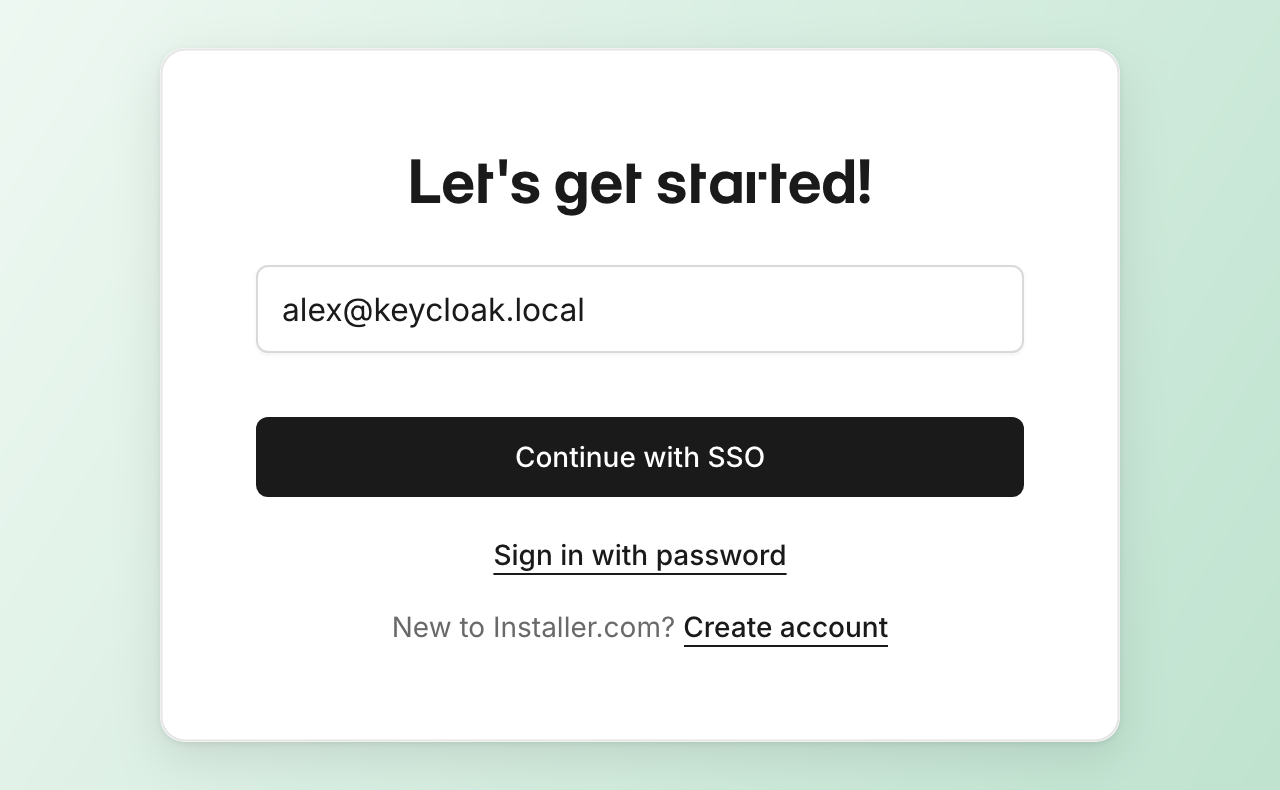
| Active | The sign-in page offers Continue with SSO and Sign in with password. |
| Enforced | People go straight to the identity provider. Password sign-in and new password accounts are blocked for the email domains. |
| Disabled | SSO is not offered. The provider configuration is kept. |
People enter their email address first. When the email domain belongs to an Active SSO provider, the sign-in page offers Continue with SSO and, below it, Sign in with password.
When a provider is Enforced, the person who created the provider can still sign in with a password. This is the break-glass fallback if the identity provider stops working.
What every SSO sign-in does to a person’s access
Each time someone signs in with SSO, Installer.com reads the claims the identity provider sends about them, such as their groups or their store number. The claim rules on the SSO provider turn those claims into organizations and teams. Then the person’s access is set to match:
- The person is added to every organization the claims grant.
- In each of those organizations, the person is in exactly the teams the claims name. A team the claims no longer name is taken away.
- Access in your organization and its sub-organizations that the claims do not grant is removed. This includes access an admin gave the person by hand.
- Access outside your organization tree is not changed. Access that a different SSO provider manages is not changed either.
Who keeps access that an admin added by hand
Two people keep the memberships an admin added by hand, even when their SSO claims do not grant them:
- The owner of the organization the SSO provider belongs to.
- The person who created the SSO provider.
Their memberships that SSO granted still follow the claims. The exception stops an SSO sign-in from locking your own admins out of the organization.
When an SSO sign-in is refused
Installer.com refuses an SSO sign-in in two cases:
- The person’s email domain is not one of the SSO provider’s email domains. They see “Access denied: your email domain does not match the SSO provider configuration.”
- The claims grant no organization. They see “Access denied: your account is not in a group that has been granted access. Contact your administrator.”
When the claims grant no organization, the person’s access in your organization tree is removed before the sign-in is refused. The owner of the SSO provider’s organization and the person who created the provider keep access an admin added by hand. A session that is still open on another device loses the removed access too.
SSO sign-in before claim rules are set
An SSO provider without claim rules adds the person to the provider’s organization without a team. Access the person already has is not changed. An admin then puts them in a team. See Change team member roles.
When access changes take effect
Access changes when the person signs in with SSO, not when you change something in the identity provider. A person who is removed from a group keeps the access it gave until their next SSO sign-in.
While the SSO provider is Active, a person who signs in with a password does not get the update. When the provider is Enforced, everyone except the provider’s creator signs in with SSO.
To remove someone’s access before their next sign-in, remove them in your identity provider, then delete them on the Users page of each organization they are in. See Manage team members.
Need help? Contact Installer.com support.
Was this helpful?