Change team member roles
A team member’s role comes from the teams they belong to. You cannot set a role on a member directly. To change what someone can do, change which teams they are in, or change what one of those teams is allowed to do.
Where a member’s role comes from
Team membership is the only source of a member’s role. Every time a team’s membership changes, the roles of the members involved are rewritten to match the teams they now belong to.
The Role column on the Users page shows the roles each member holds. The Admin, Member and On-site installer teams carry the roles Admin, Member and Engineer. Every other team carries its own name as the role.
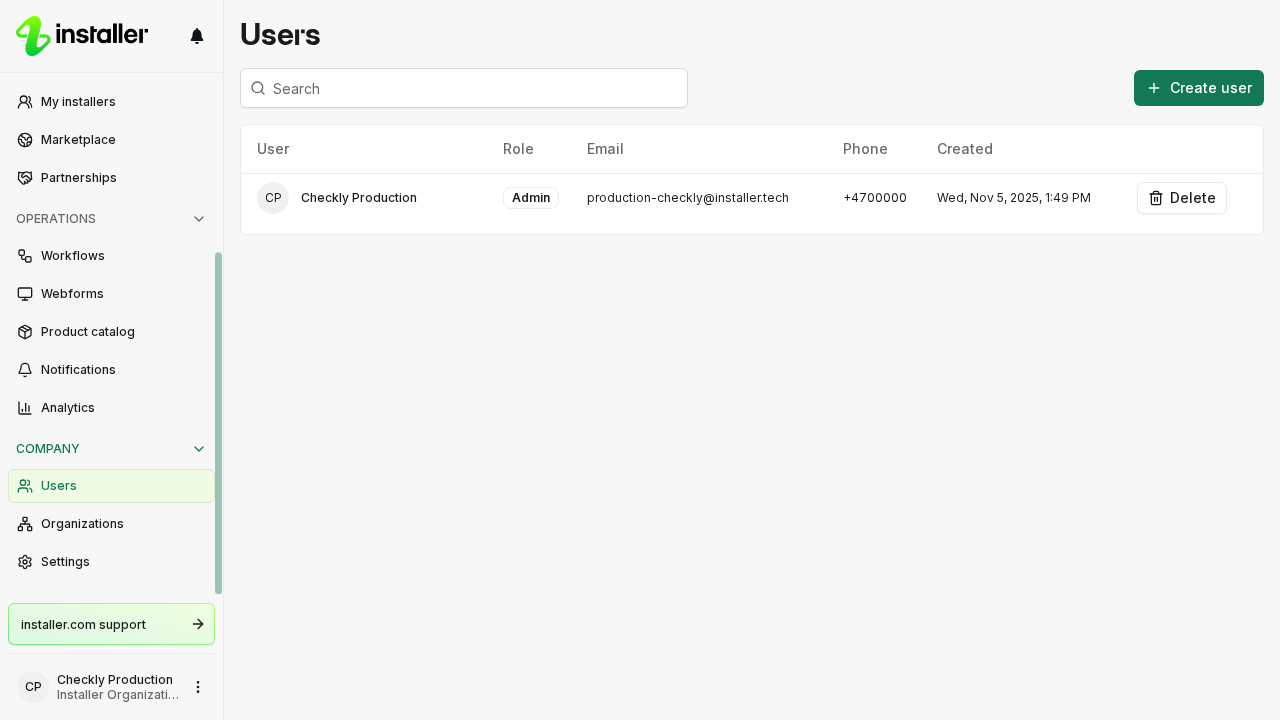
To see who is in your organization and how to invite or remove people, read Manage team members.
Add or remove a member from a team
- Open Settings.
- Select Teams under “Organization”.
- Select the team you want to change. Admin and Member sit under Non-operational teams; the rest sit under Operational teams.
- In the “Members” card, search by name or email, then check or uncheck each person.
- Select Save.
The member’s roles change when the team saves.
Teams appears in settings only if your own role includes managing teams.
Change what a team is allowed to do
- Open Settings.
- Select Teams under “Organization”.
- Select the team.
- In the “Role” card, set a level for each row. The rows are grouped under “Orders”, “Bookings”, “Workspace”, “Insights” and “Organization”.
- Select Save.
The levels are None, View and View & edit, and each row offers the ones that apply to it. A level includes everything below it, so View & edit also grants viewing. “Create new orders” is the one row with a Create level, and it is either off or on.
Some rows cover others. “All orders” already grants everything “Assigned orders” would, so once the wider row grants a level, the narrower row’s levels are locked and read “Already granted by All orders”.
Teams your organization starts with
| Team | What it is for |
|---|---|
| Admin | Full access to organization settings |
| Member | Baseline access for every member |
| Order manager | Manages and assigns incoming orders |
| Sales | Creates offers and closes deals |
| Bookings | Schedules and confirms customer bookings |
| On-site installer | Carries out the installation on site |
| Quality assurance | Inspects the work and reviews documentation |
Admin and Member are managed by the platform. You can change who is in them and what they are allowed to do, but not their name or description.
Need help? Contact Installer.com support.
Was this helpful?