Map SSO claims to organizations and teams
Claim rules decide which organizations and teams a person gets when they sign in with Single Sign-On (SSO). A claim is a value your identity provider sends about the person, such as their groups or their store number. Only people whose claims match a rule get access. A person that no rule maps to an organization cannot sign in.
What a sign-in does with these rules is in How single sign-on works.
Open the SSO claim rules
- Open Settings.
- Under Advanced, select Single Sign-On.
- Select the SSO provider.
- Scroll to the Provisioning & Access section.
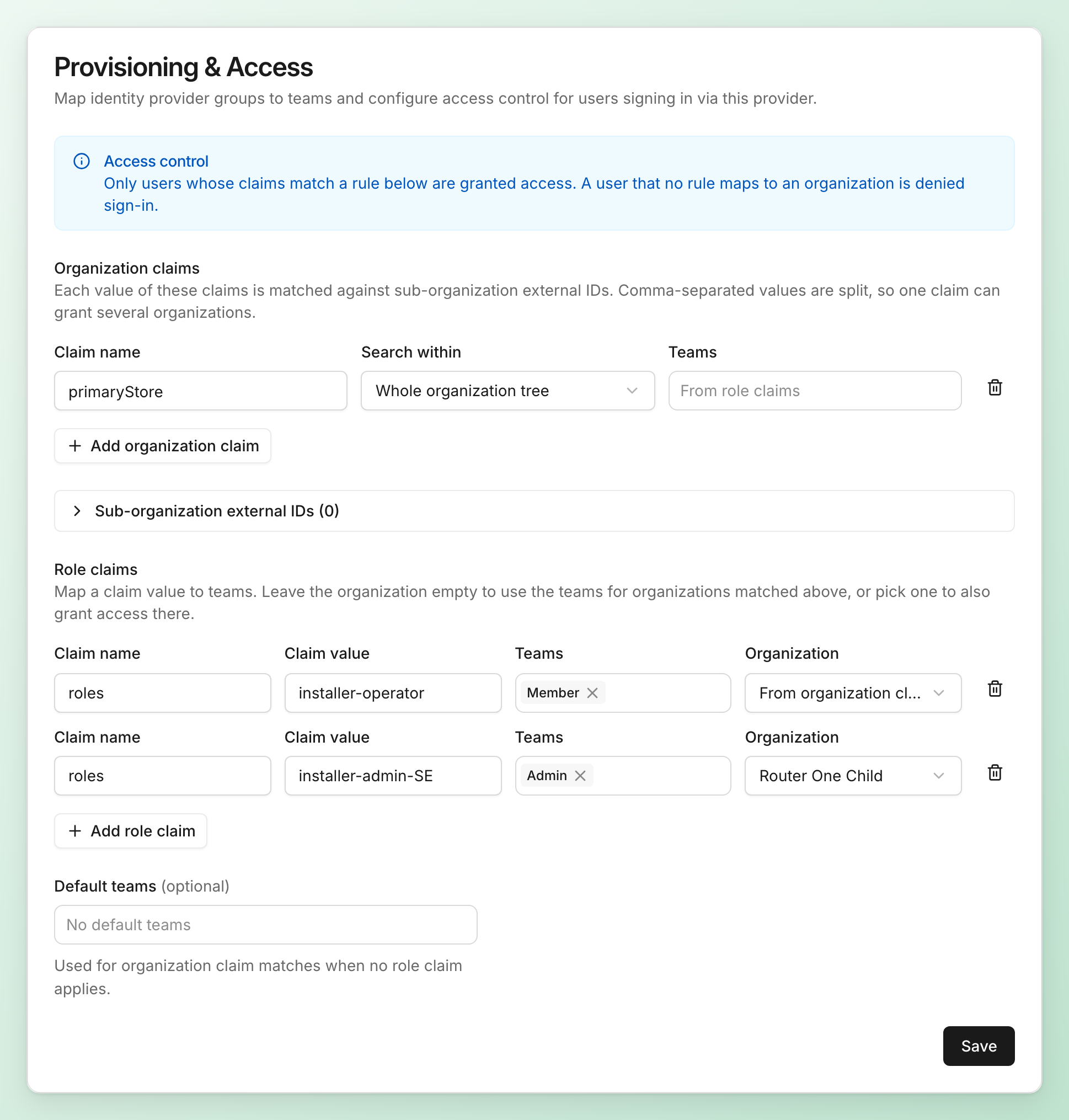
The section has three parts: Organization claims, Role claims and Default teams. Each rule is one row:
- An organization claim row has Claim name, Search within and Teams.
- A role claim row has Claim name, Claim value, Teams and Organization.
Add rows with Add organization claim and Add role claim, and remove one with the bin icon at the end of its row. Select Save at the bottom of the section to store your changes.
Organization claims
An organization claim finds organizations by their external ID. Each value of the claim is compared with the External ID of the sub-organizations under yours. The person joins every sub-organization that matches.
Fill in each organization claim:
- Claim name: the claim to read, for example
primaryStore. - Search within: Whole organization tree, or one sub-organization to match only the organizations under it.
- Teams: the teams the person gets in each matched organization. Leave the field empty, shown as From role claims, to use the teams from the role claims.
How values are matched:
- Upper and lower case do not matter.
- A value with commas is split, so
1042,1043matches two organizations. - A value written as a path, such as
/stores/1042orCONTOSO\1042, is matched on its last part:1042. - A value that matches no organization is ignored.
- A value that matches more than one organization is skipped. External IDs only have to be unique under one parent, so two sub-organizations under different parents can share one.
An organization claim never matches your own organization, only the sub-organizations under it. To grant your own organization, use a role claim and pick it as the Organization.
Expand Sub-organization external IDs to see every external ID the claims can match. You set an organization’s external ID when you create it. See Create a new organization.
Role claims
A role claim gives teams to everyone whose claim contains a given value.
Fill in each role claim:
- Claim name: the claim to read, for example
rolesorgroups. - Claim value: the value to look for, for example
installer-admin-SE. Matching ignores case and reads only the last part of a path, the same as organization claims. The value*matches everyone your identity provider signs in. - Teams: one or more teams.
- Organization: where the teams apply.
The Organization field works in two ways:
- From organization claims: the teams apply in every organization the organization claims matched.
- A specific organization, including your own: the person joins that organization with these teams, whether or not an organization claim matched it.
Default teams
Default teams apply in the organizations the organization claims matched when no role claim set to From organization claims matched the person. Leave Default teams empty, shown as No default teams, to grant nothing in that case.
How teams combine when several SSO claim rules match
Several claim rules can match the same person. The teams combine like this:
- All role claims set to From organization claims that match give their teams together. If none match, Default teams apply instead.
- An organization claim with its own Teams uses those teams instead.
- When several rules grant the same organization, the person gets every team those rules name.
Example: a role claim gives Member for the value installer-operator, and a second role claim gives Admin in the organization Sweden for the value installer-admin-SE. A person with both values, whose organization claim also matches Sweden, gets Member and Admin in Sweden.
Which teams an SSO claim rule can give
The Teams list shows the teams of your organization. In a sub-organization, the person joins the team of the same kind:
- Every organization starts with the same default teams: Admin, Member, Order manager, Sales, Bookings, On-site installer and Quality assurance. Admin and Member cannot be deleted, so every organization has them.
- A team you created matches the sub-organization’s team that was created with the same name. Renaming a team later does not change the match.
When a matched organization has no team of that kind, the team is skipped there. What each team may do is in Change team member roles.
Test the SSO claim rules
After you save, run a test sign-in:
- In the Status & rollout section, select Test login.
- Sign in with your identity provider in the new tab.
The result page shows what a real sign-in would grant:
- Organizations and teams granted: each organization with its teams.
- Values read from your claims: every value read per claim name.
- Values that matched no organization.
- Values that matched several organizations (skipped).
When no rule matches, the page reads “No claim mapped you to an organization. A real sign-in would be denied.”
SSO claim rules saved before teams
Claim rules saved before rules could name teams gave a role instead: Admin, Operator or Limited. The Provisioning & Access section then shows Saved before teams. The rules keep working, and the roles show as teams:
| Role | Team |
|---|---|
| Admin | Admin |
| Operator | Member |
| Limited | On-site installer |
Until you save, a person that several rules match gets only the highest of these teams. Select Save to switch the rules to teams. From then on, the person gets every team the matching rules name.
Need help? Contact Installer.com support.
Was this helpful?