Edit your company profile and logo
Your company name, legal details and address live on the Company settings page. Your logo, brand color and sender names live on the Branding page. Both appear only if you can configure the organization.
Edit your company profile
-
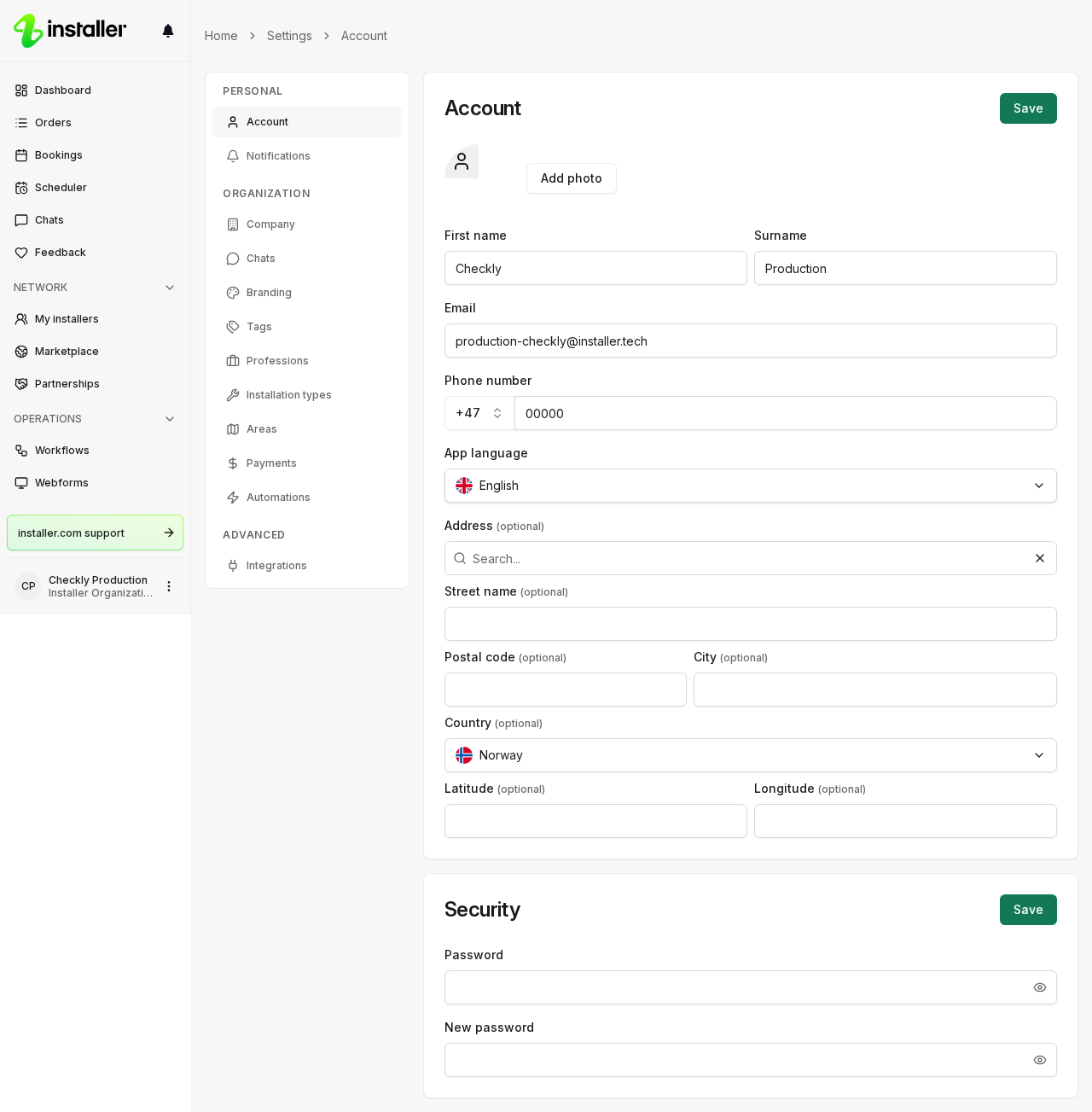
Select Settings in the sidebar.
-
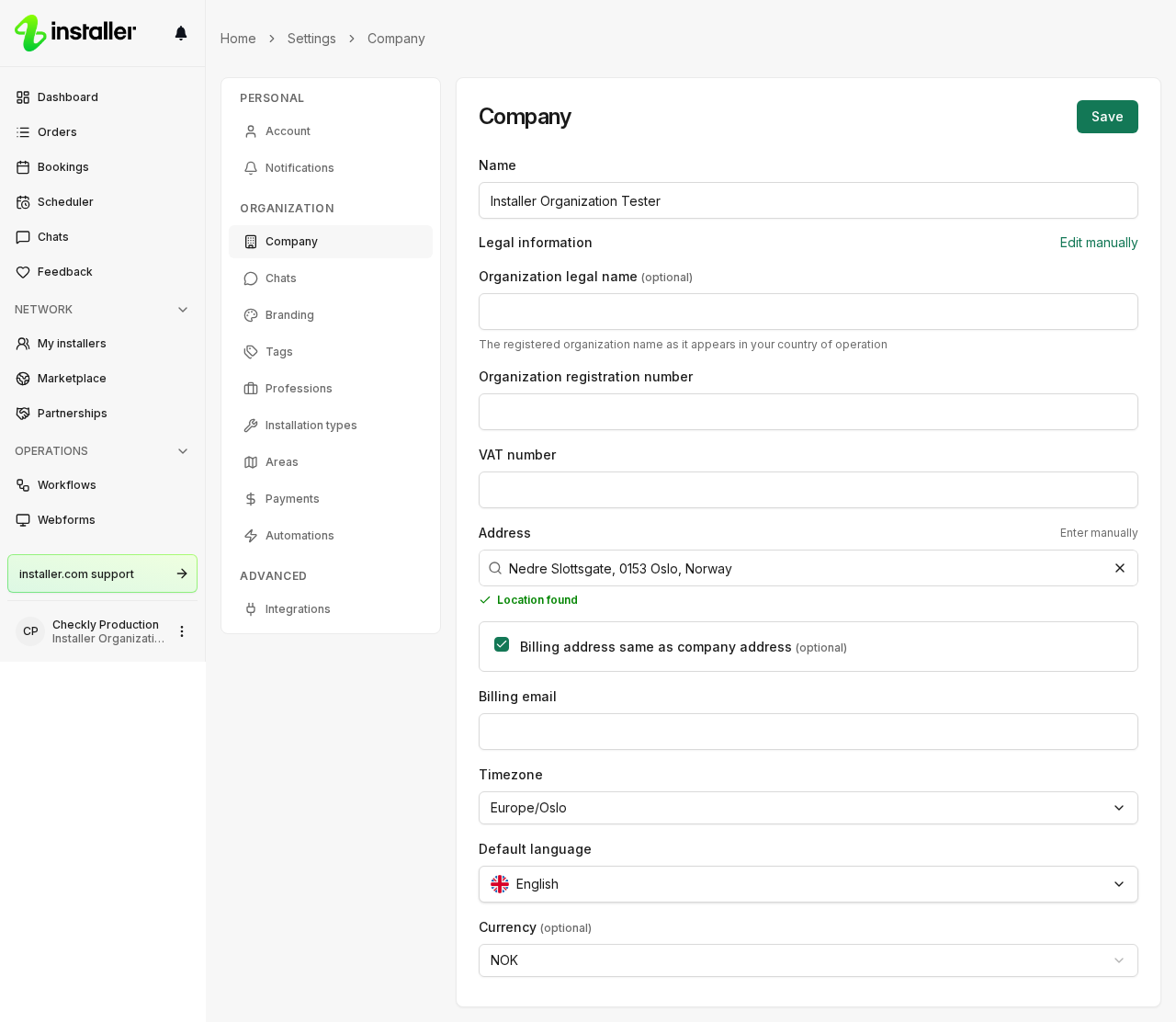
Select Company under Organization.
-
Edit Name.
-
Fill in Legal information: Organization legal name, Organization registration number and VAT number. Invoices and payout statements use the legal name, and fall back to Name when it is empty.
-
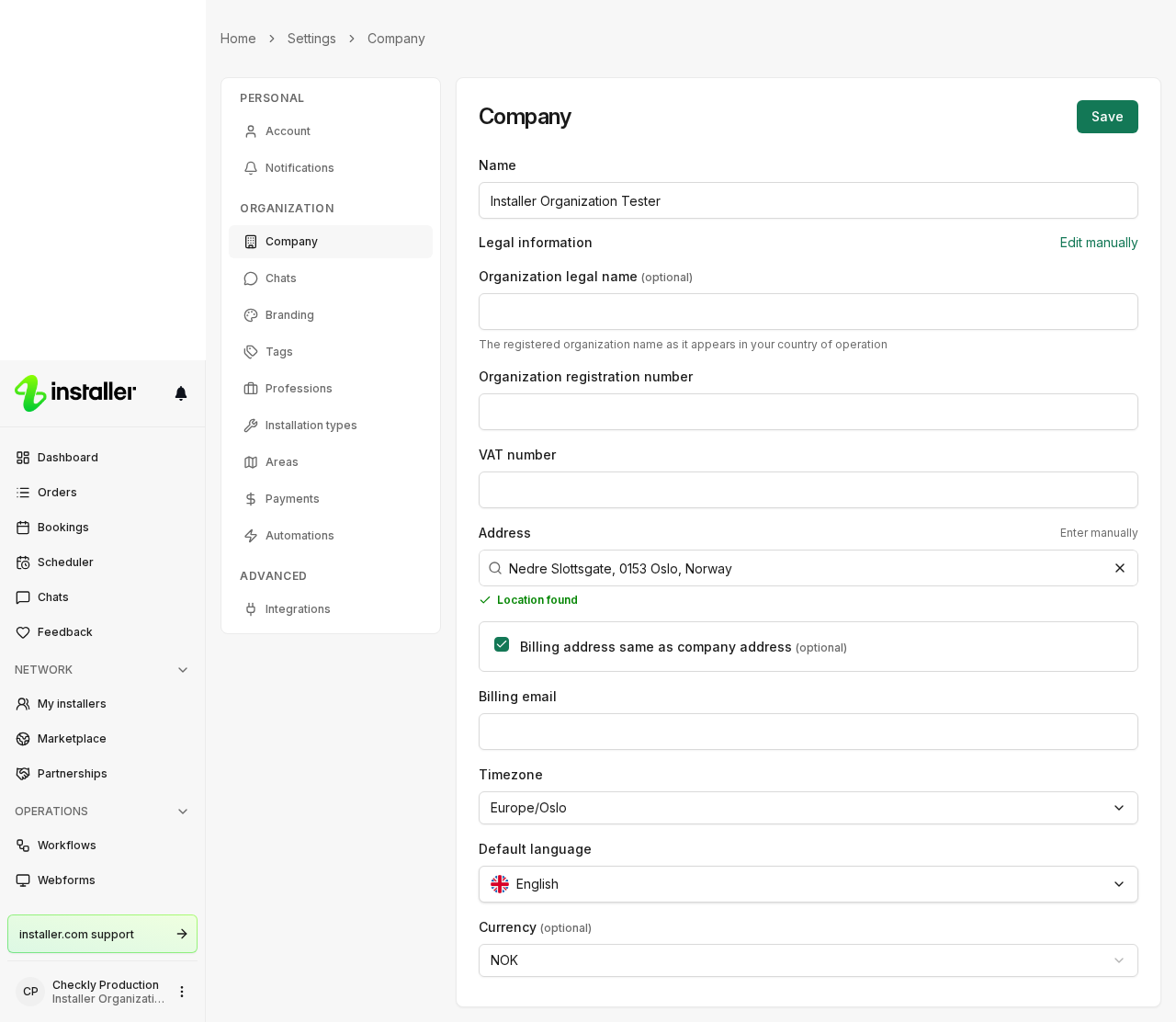
Set the company address. Select Enter manually if the search does not find it. State / province appears for addresses in the United States and Canada, and payment setup requires it there.
-
Select Save. A Changes saved message confirms the update.
For every field on the page, see Manage your organization profile.
Upload your company logo
-
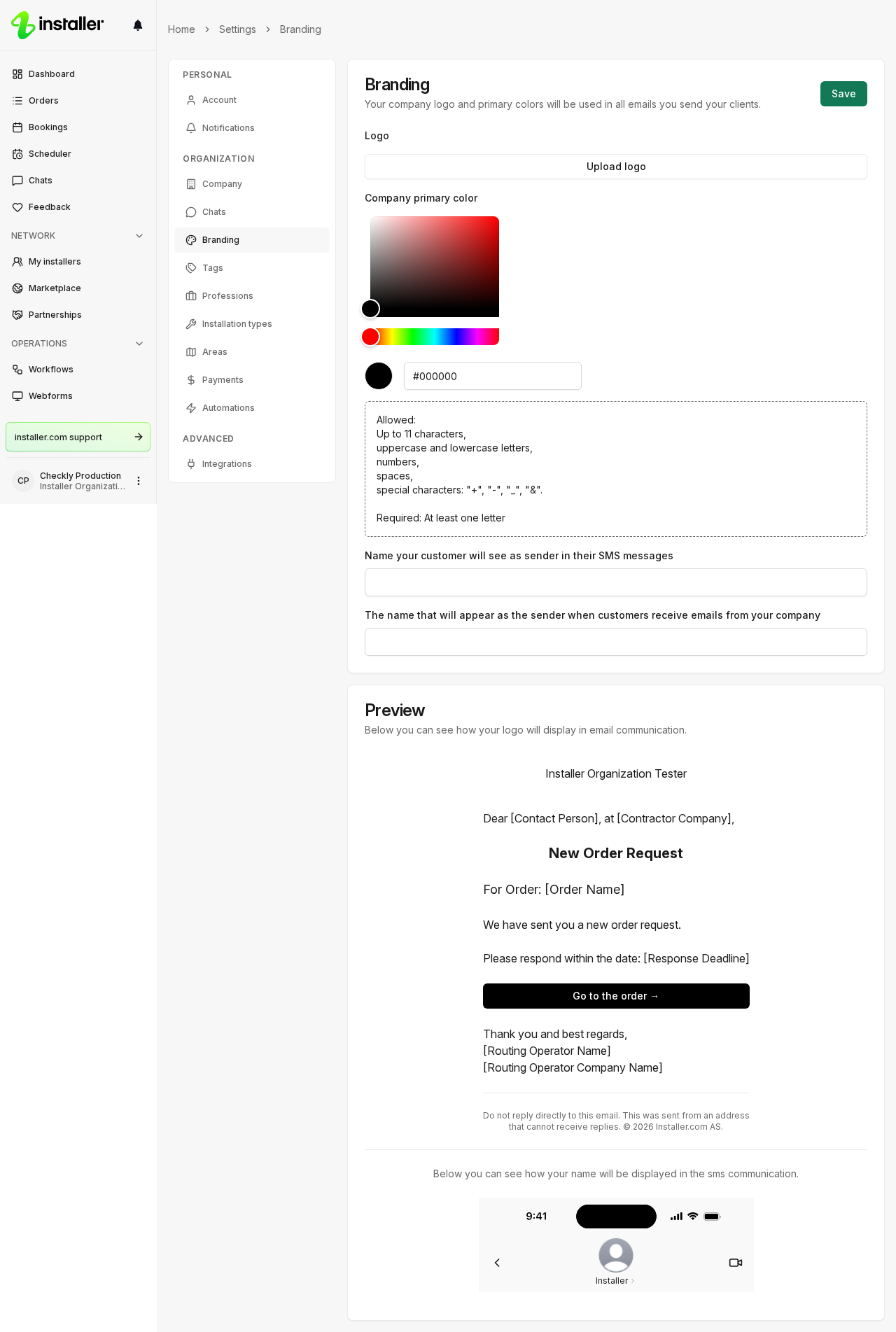
Select Branding under Organization.
-
Select Upload logo, or Change logo if the organization already has one, and pick an image file.
-
Turn on Crop to trim the image, then select Save in the photo window.
-
Set Company primary color to your brand color.
-
Select Save.
The Emails card shows how the logo and color read in email. The SMS card previews your sender ID.
To remove the logo, select the trash icon on the logo preview, then Save.
Sender names
Two fields on the Branding page set who your messages come from.
| Field | What it sets |
|---|---|
| Sender ID, on the SMS card | The name customers see as the sender of your SMS. Up to 11 characters, at least one letter. Letters, numbers, spaces and +, -, _, &. When it is empty, SMS are sent as Installer. |
| The name that will appear as the sender when customers receive emails from your company, on the Emails card | The email sender name. When it is empty, your organization’s name is used instead. |
Some countries block or replace a sender ID that is not registered with their carriers. If your organization operates in one of them, the SMS card has no Sender ID field. Instead:
- Select Register sender ID on the SMS card and send the application.
- When the registration shows Approved, select Use next to it.
Until then, SMS are sent as Installer.
Where your logo appears
Your logo goes on the emails your organization sends to clients, including invoices, payment confirmations, refund statements, new chat message notifications and rating requests. Emails that come from Installer.com itself, such as password resets and payout statements, carry the Installer.com logo.
Related articles
Need help? Contact Installer.com support.
Was this helpful?