Configure installation types
Installation types say what your organization installs, such as EV charger or Solar. You pick them when you create the organization, and you can change them here at any time.
Select your installation types
- Open Settings. If the scope switcher at the top shows My settings, switch it to your organization.
- Select Installation types under Organization.
- Use the Search installations… field to find a type by name, or read the full list. The types are grouped, with Interior and Exterior as their own groups.
- Select every type your organization installs. Each type is a card you tick.
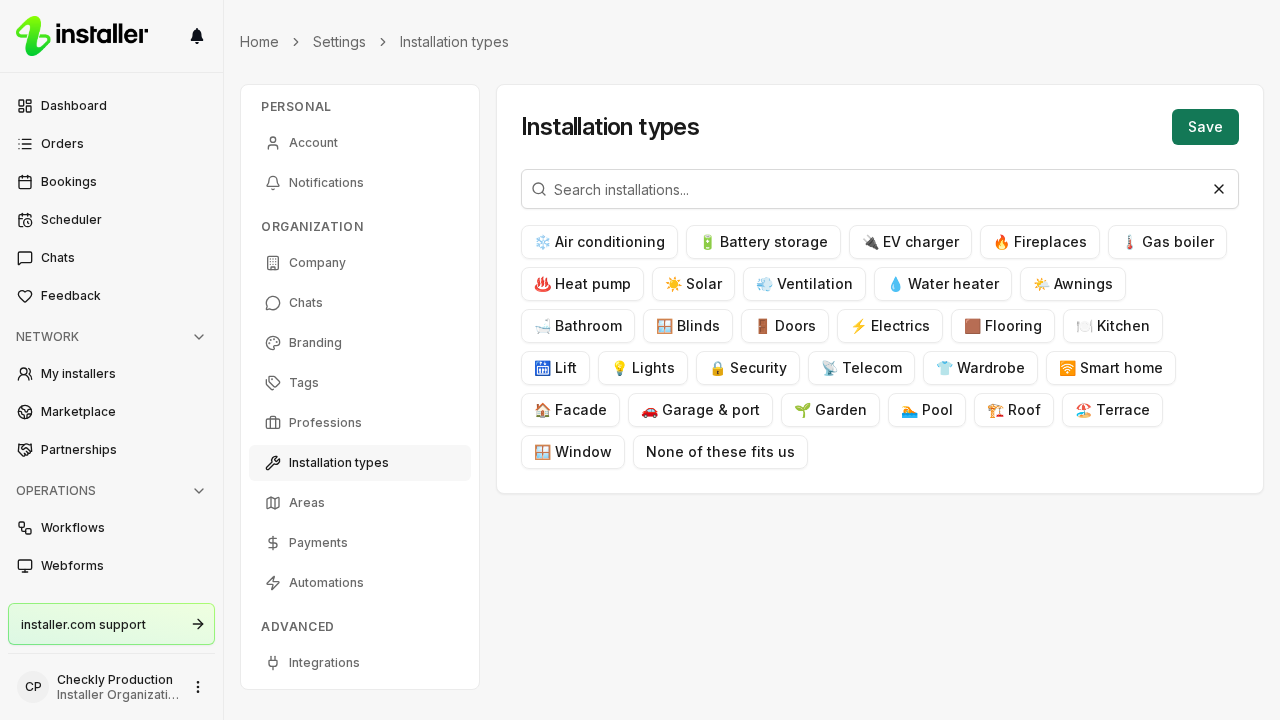
- Click Save. A message confirms Changes saved.
If none of the types fit
Select None of these fits us. It clears every other selection, and selecting any installation type clears it again.
What your selection changes
Your installation types appear as badges on your organization’s card in the network. Operators who filter the network by Installation types see your organization only when they select a type you offer.
If Installation types is missing
Your role needs View & edit on Organization settings, in the Organization group. See Change team member roles.
Related
Need help? Contact Installer.com support.
Was this helpful?