Manage tags
Tags label orders, partners and products so you can group them, filter them and find them again. You create and edit every tag in one place.
Open tag settings
- Open Settings.
- Select Tags under Organization.
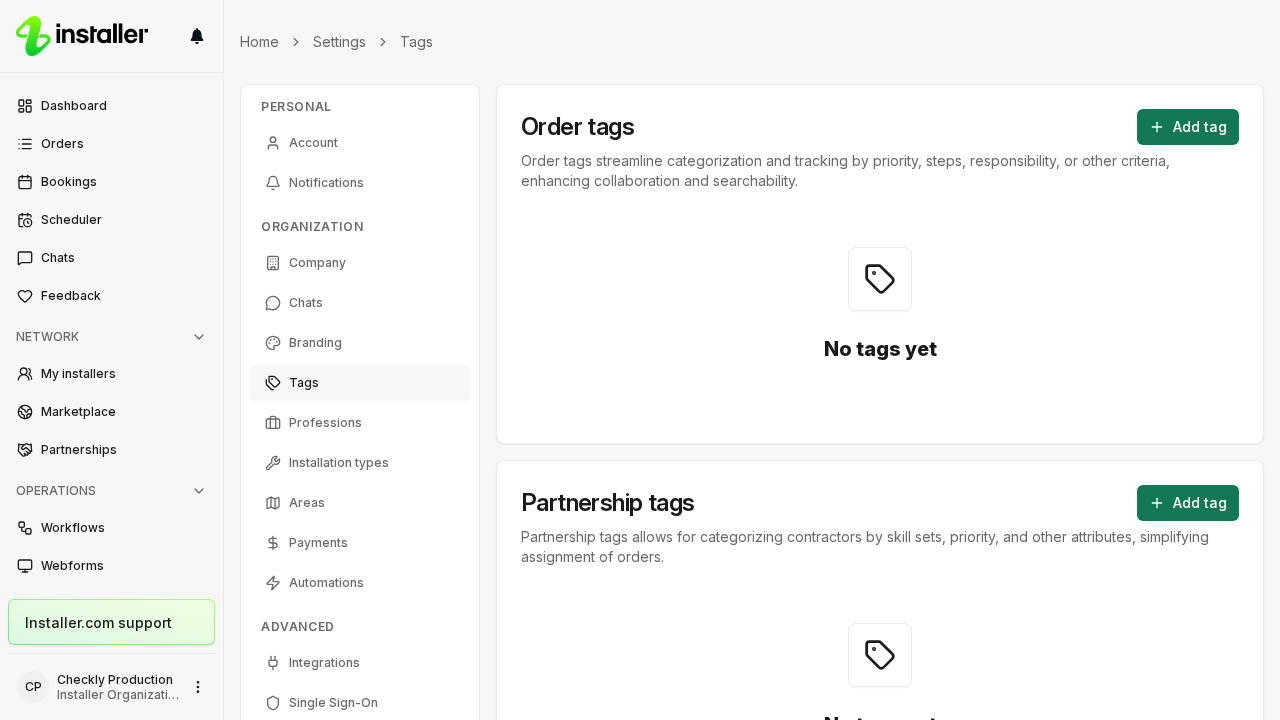
The page holds one section per tag type. Order tags is always there. Partnership tags appears if your organization has partnerships, and Product tags if it has products. If Tags is missing from the settings navigation, your role cannot edit tags.
Order tags
Order tags categorize and track orders by priority, steps, responsibility or other criteria.
- In the Order tags section, select Add tag.
- Enter a Name.
- Turn on Share with contractor if the contractors working on the order should see the tag. Leave it off and the tag stays inside your organization.
- Select Add tag.
To tag one order, open it and select Add tags. To tag several, select them in the order list and use Add tags. Automations can add and remove order tags as well.
Partnership tags
Partnership tags categorize contractors by skill set, priority and other attributes.
- In the Partnership tags section, select Add tag.
- Enter a Name.
- Select Add tag.
To assign them, open the partner and use the tag field under Tags management.
Auto-dispatch matches on these tags. A tag marked as required on a dispatch step rules out every partner that does not carry it. A tag that is not required makes matching partners preferred, so they are offered the order ahead of the rest.
Product tags
Product tags categorize products and act as filters when you search.
- In the Product tags section, select Add tag.
- Enter a Name.
- Select Add tag.
To assign them, open a product or a bundle and use the Tags field.
Edit or delete a tag
- Select the tag in its section.
- Change the Name, or the Share with contractor switch on an order tag.
- Select Save.
To remove the tag, select Delete in the same dialog and confirm. Deleting a tag removes it from every order, contractor or product it is assigned to. If the tag is in use, the dialog tells you how many records carry it before you confirm.
Related articles
Need help? Contact Installer.com support.
Was this helpful?