Configure service areas and professions
Your service area is the part of the map where your organization works. Your professions are the trades your organization covers. An operator dispatching an order can require a profession and can check whether the installation address falls inside an organization’s area, so both settings affect which orders reach you.
Set your service area
- Click Settings in the sidebar.
- Click Areas, under Organization.
- Select your country in the Area of operation dropdown. This restricts address searches to that country, and it saves as soon as you select it.
- Turn Show sub-organization areas on to draw your sub-organizations’ areas on the map as well as your own.
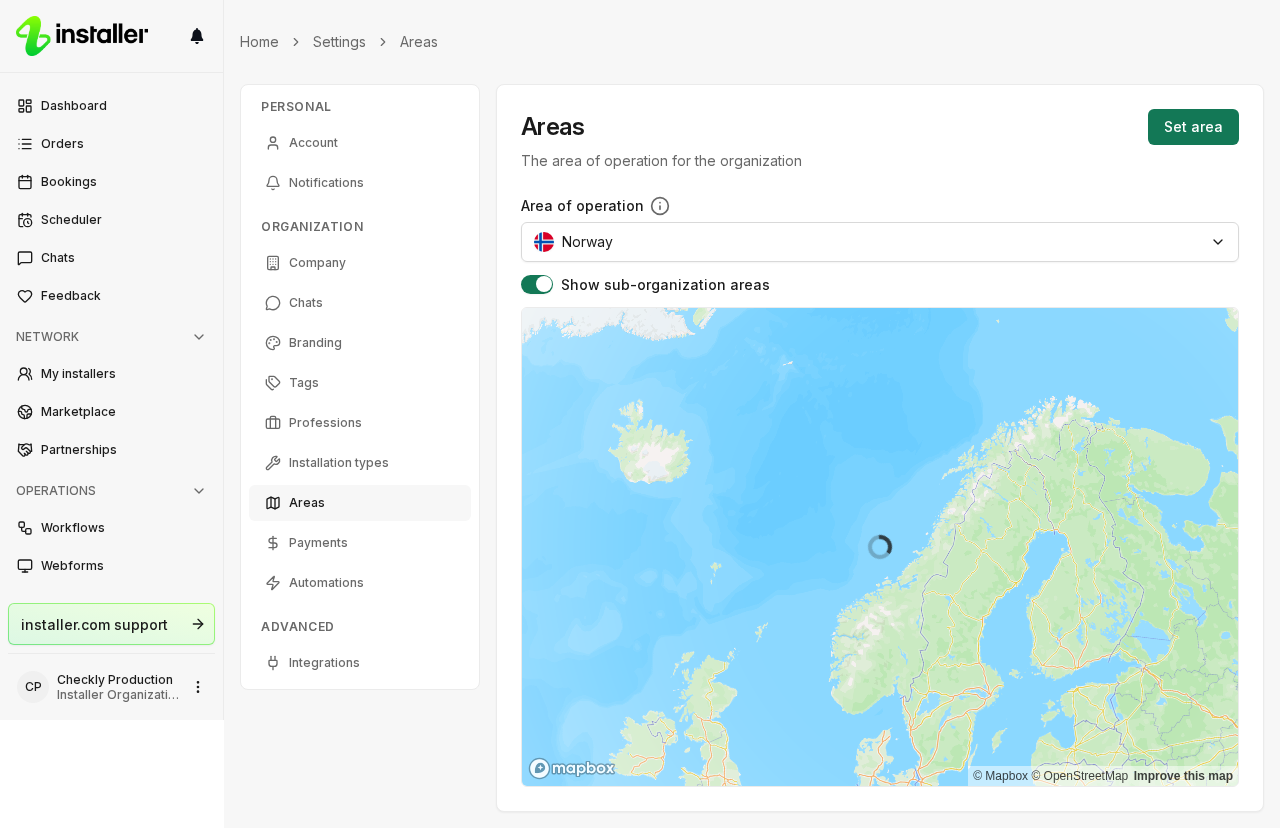
- Click Set area. The map opens full screen. The button reads Edit area once you have an area.
- Click on the map to start drawing a region, then press Enter to close it. Draw as many regions as you need. The map controls zoom, delete the region you have selected (Delete area), and open the drawing tutorial (Show guide).
- Click Save. Close leaves the map without saving.
The area you draw is where you want to receive orders. The Area of operation country is a separate setting and only affects address search.
If the map refuses your area
Two rules apply to the regions you draw:
- A region cannot cross itself. Redraw it as a simple outline, or split it into two regions.
- All your regions together can use at most 1,000 points. Remove overlapping regions or draw them with fewer points.
Each failure shows as an error message on the map, and the area is not saved until you fix it.
Choose your professions
You pick your professions when you sign up. Change them at any time.
- Click Settings in the sidebar.
- Click Professions, under Organization.
- Type in Search professions… to narrow the list. The search matches the profession name and its description.
- Click a profession to select it, and click it again to clear it. Each profession is a card with an icon and a name, for example Electrician, Plumber or HVAC Technician. Selected cards are outlined.
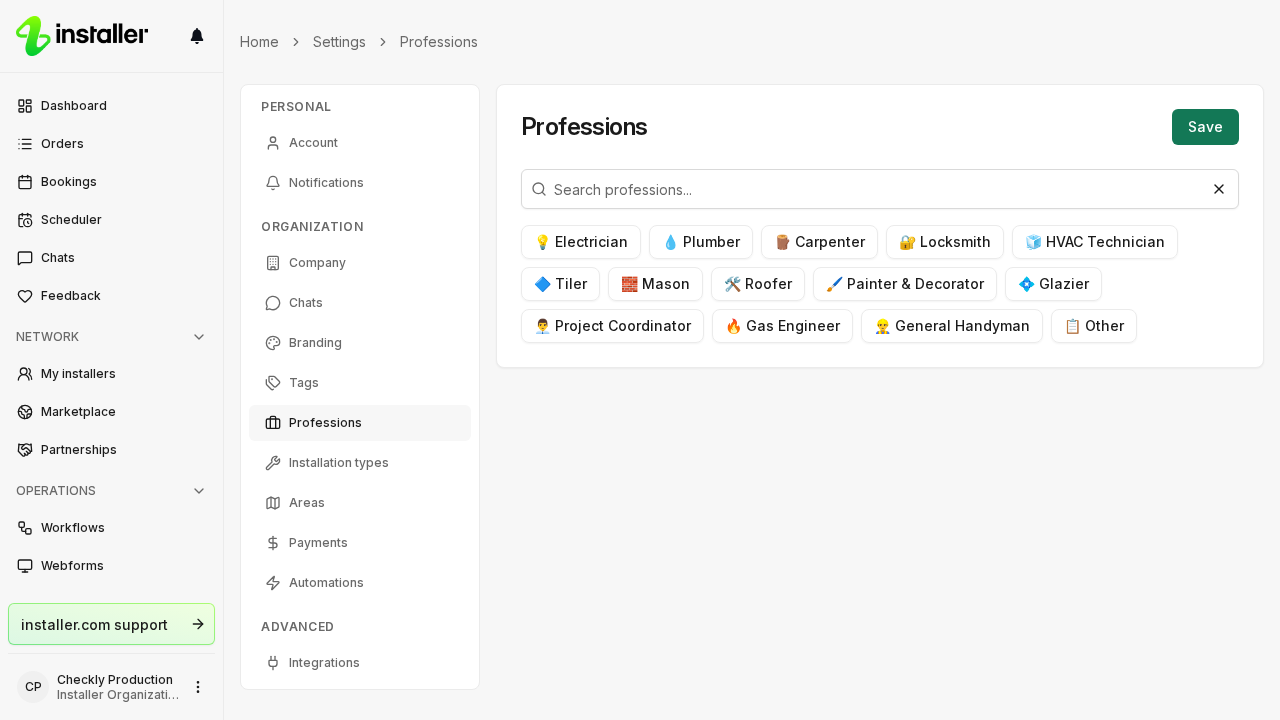
- Click Save.
Installation types are a separate setting. See Configure installation types.
Professions on a user account
A user’s professions are their own, not a subset of your organization’s. Everyone picks from the full list of professions, whatever your organization has selected.
A user does on-site installations when they have at least one profession. Saving that answer requires at least one profession and at least one installation type.
To set your own:
- Click Settings in the sidebar, then Account.
- Find Do you do on-site installations? and select Yes, I do installations.
- Select your trades under What is your expertise? and the installation types you work on under What do you install?.
- Click Save.
To set someone else’s:
- Click Settings in the sidebar, then Users, under Organization.
- Click the user’s row to open their profile.
- Find Does on-site installations? and select Does install.
- Select their trades under What is their expertise? and the installation types under What do they install?.
- Click Save.
Selecting No, I do not or Does not install clears both fields.
Need help? Contact Installer.com support.
Was this helpful?