Filter and search orders
The order list always opens on a view. Filters narrow what that view shows. Search finds one order by its details.
Filter orders
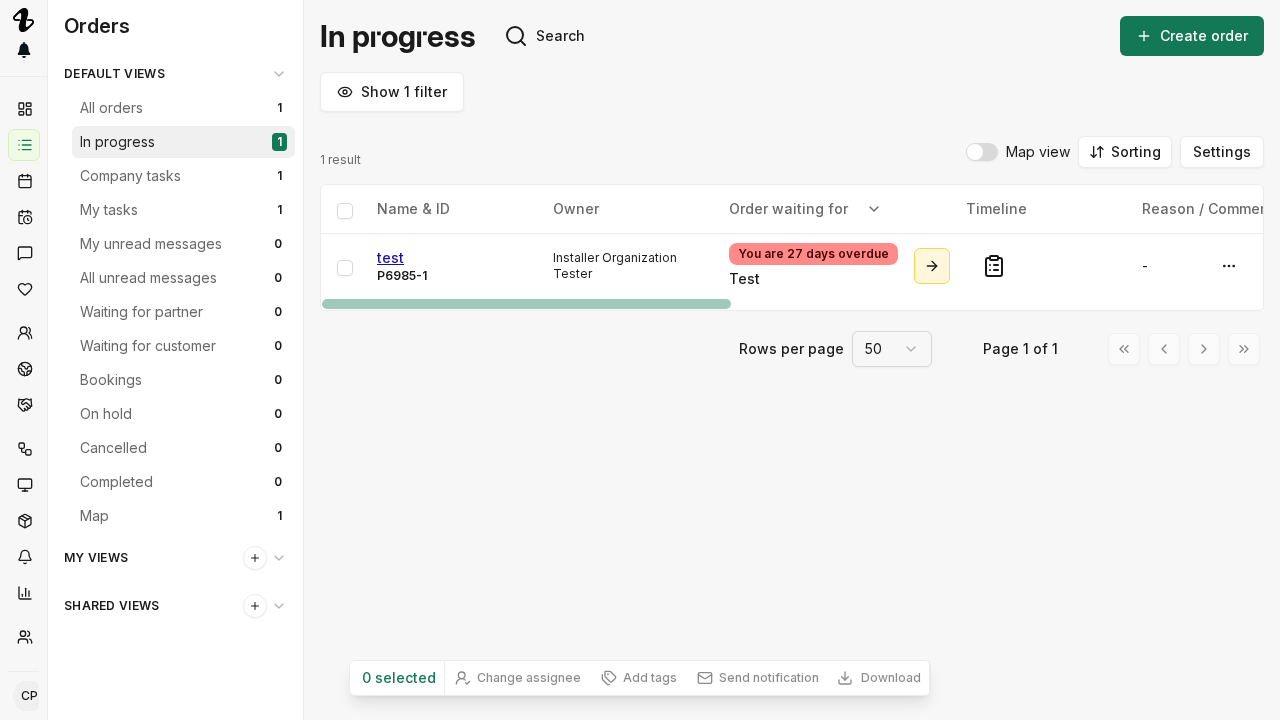
- Select Orders in the sidebar.
- Select Show filters. The button counts the filters already applied and becomes Hide filters while the filter row is open.
- Select Add filters, then choose the field you want to filter on. Fields that do not fit on the row sit under Show more.
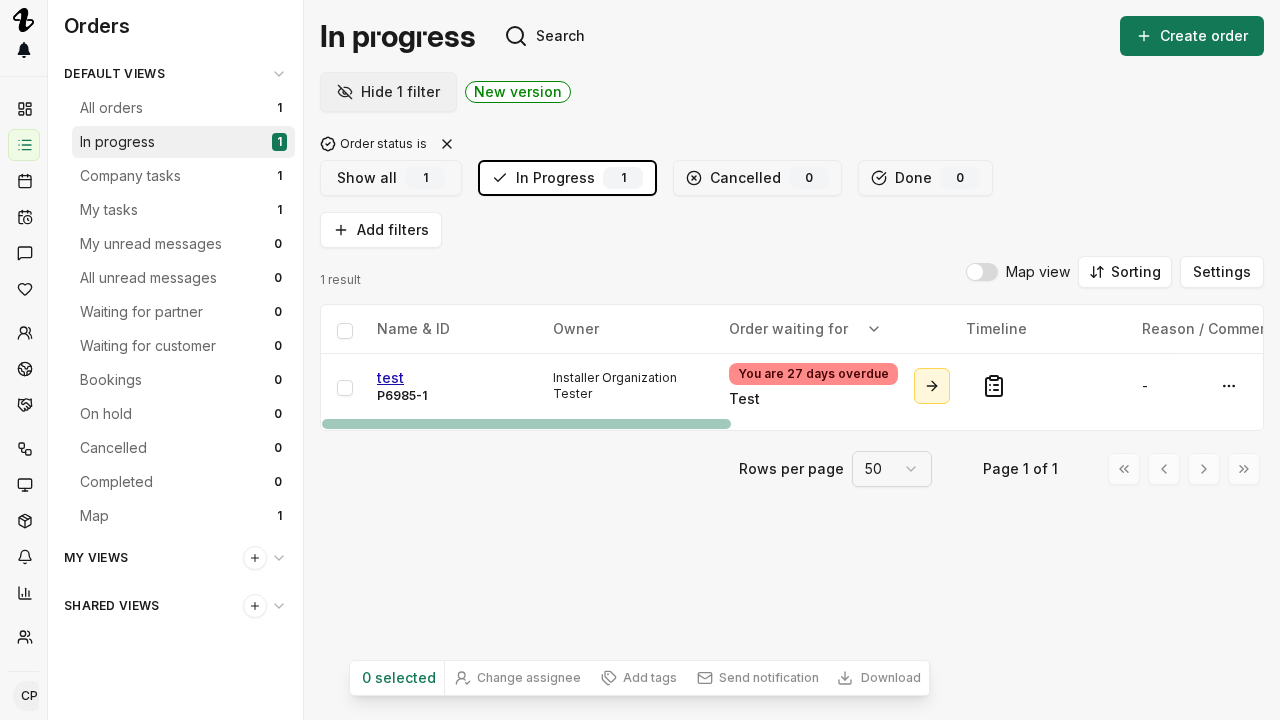
- Choose the values to keep. Each applied filter stays on the row, so you can reopen it to change the values or remove it.
The filter row is only available while search is scoped to the current view. If you switch the scope to Active orders or All orders, the row is hidden.
Fields you can filter on
| Field | What it matches |
|---|---|
| Order status | In Progress, Completed or Cancelled. |
| Step status | The state of the order’s current step: In Progress, On hold, Overdue or Waiting for booking. |
| Current step actor | Who the current step waits on: Operator, Installer, Client, Intelligence or Other. |
| Installer | The contractor on the order, or Unassigned. |
| Assignee | The person in your organisation the order is assigned to. |
| Workflow | The workflow the order runs. |
| Installation type | What is being installed, or Unspecified. |
| Step in workflow | A named step of the workflow. |
| Tags | The tags on the order. |
| Last activity | When something last happened on the order. |
Show more holds the rest: Step type, Step organization, Step due time, Order created, Creator organization, Owner organization, Organization, Booking start, Booking status, Unread messages and Workflow version.
Assignee appears only if you can see your whole organisation’s orders.
For what each order status means, see Order statuses.
Sort orders
- Select Sorting above the list.
- Choose what to sort by. Step due status, Status, Order created, Last activity, Booking start and Last chat message are listed first; More holds Owner, Creator organization, Installer, Name, Order ID and Assignee.
- For a date, choose Newest first or Oldest first.
- Select Apply.
Search orders
- Select Search. The view name is replaced by the search box.
- Type what you are looking for. Results update as you type.
Search matches the order name, order ID, external ID, address, postal code, city, contact name, email address, phone number and source, plus the installer name, the current step title, the assignee name, and the creator and owner organisation names.
The dropdown next to the search box sets how wide the search runs. The first option is named after the view you are on, such as Results in “In progress”, and searches only that view. Active orders searches every order with the status In Progress. All orders searches every order you can see.
Select the cross next to the search box to clear the search and go back to the view.
Open an order
Select anywhere on the order row or card to open the order. Buttons and links inside the row still do their own job, and selecting text in a cell does not open the order.
Need help? Contact Installer.com support.
Was this helpful?