Manage notes on orders
Notes sit on an order and stay with it. Each note is either kept inside your organisation or shared with the partners on the order, and you choose which when you write it. Adding and updating a note is recorded in the order’s activity.
Add a note
- Click Orders in the sidebar.
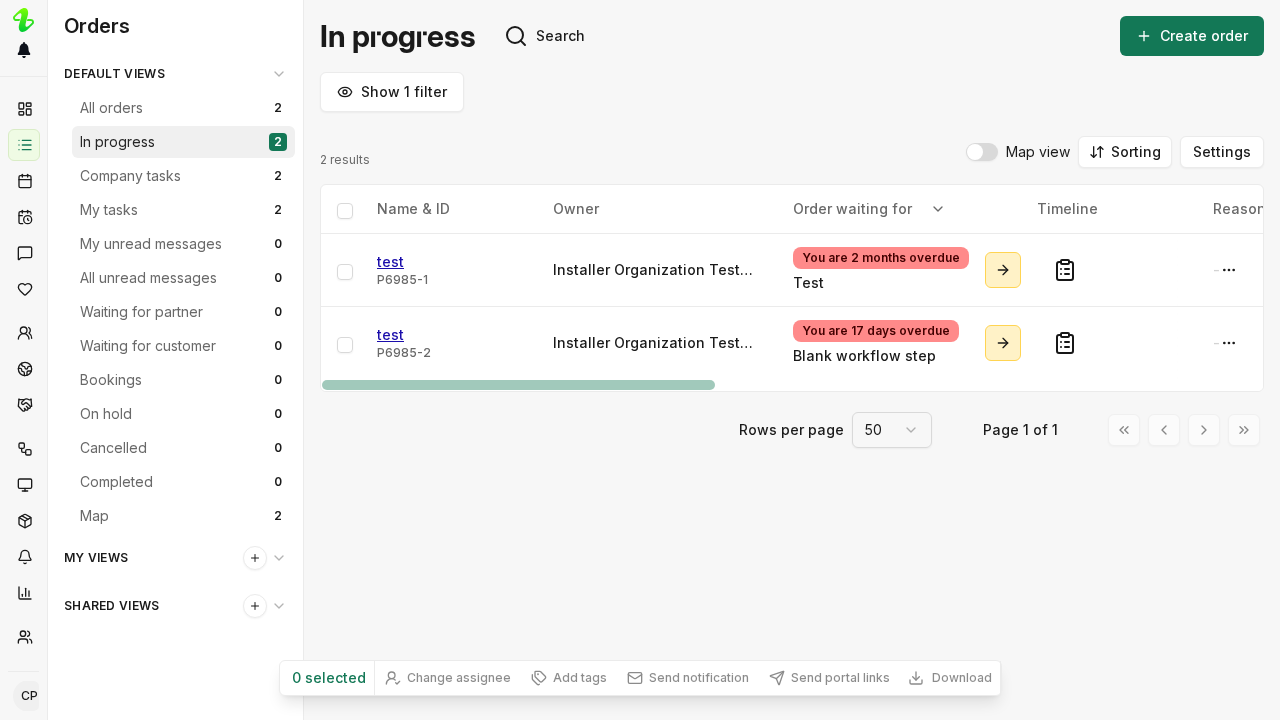
- Open an order from the list.
- Click Notes in the toolbar above the order. The panel opens beside the workflow, and carries the number of notes on the order.
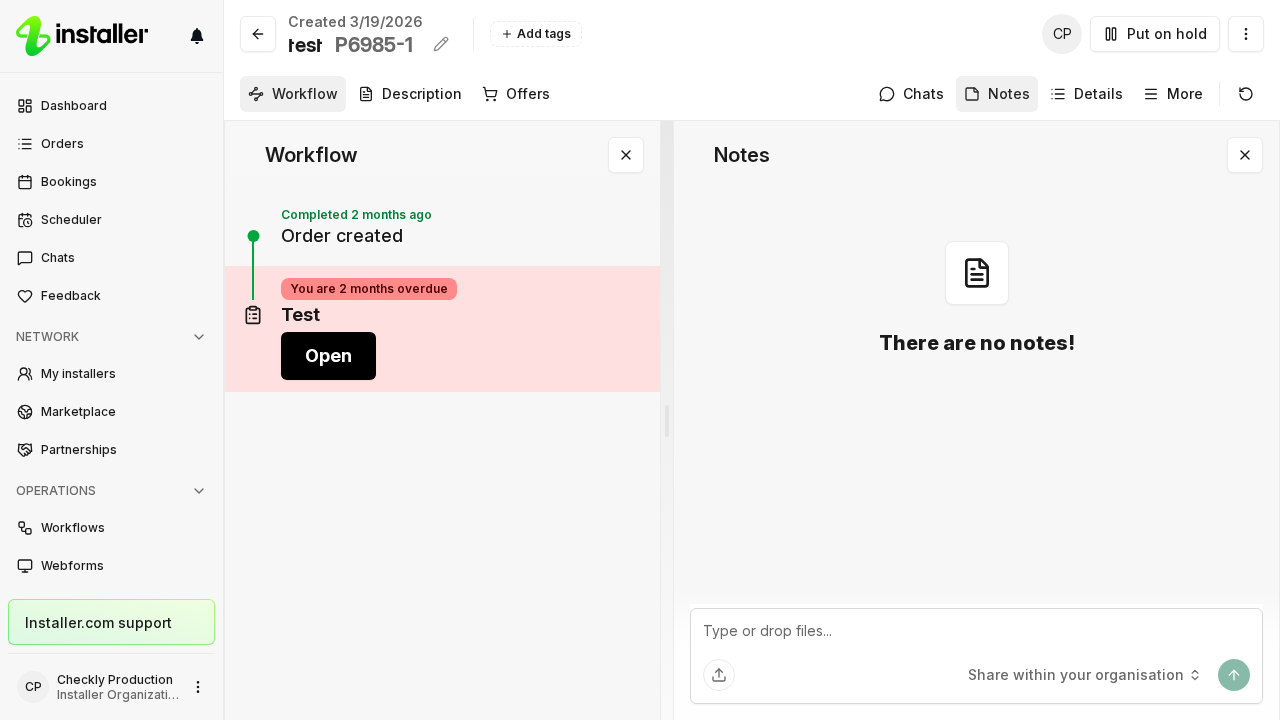
- Write the note in the box that reads Type or drop files….
- To attach files, click the upload button (Attach files), or drop files onto the box. A note holds up to 50 files.
- Choose who the note is for: Share within your organisation or Share with partners.
- Click the send button (Send message).
A note needs text, a file, or both. The next note you write keeps the sharing choice you made on the last one.
An order with no notes yet reads There are no notes!.
Who can see a note
| Choice | Who reads it |
|---|---|
| Share within your organisation | Your own organisation only. This is the default. |
| Share with partners | Every organisation on the order. |
The note itself says which it is, under the author’s name: Shared within your organisation or Shared with partners.
Edit or delete a note
- Open the Notes panel.
- Click the menu button on the note.
- Click Edit to change its text, files or sharing choice, or Delete to remove it. Deleting asks you to confirm.
The menu is only on notes written by someone in your organisation. Editing a note is recorded in the order’s activity; deleting one is not.
Open an order’s notes from the list
- Click Orders in the sidebar.
- Find the order’s row and click the note button at the right end of the row. Pointing at it reads Open notes.
The button carries the order’s note count, and above nine it reads 9+. It is only on rows that already have a note. To write the first note on an order, open the order.
On a wide screen the panel docks to the right of the list. On a narrow screen it opens as a drawer over the list, titled Notes with the order’s name and ID underneath. One panel is open at a time, so opening the notes on another order replaces it.
In the panel header, Open opens the order’s own page and the X closes the panel. The row’s note button closes it too, and reads Close notes while the panel is open.
Related articles
Need help? Contact Installer.com support.
Was this helpful?