Resend client invitations in bulk
Send a fresh customer portal link to the clients on several orders at once from the order list. Use it when a client lost the first invitation or never opened it.
Send portal links
- Select Orders in the sidebar.
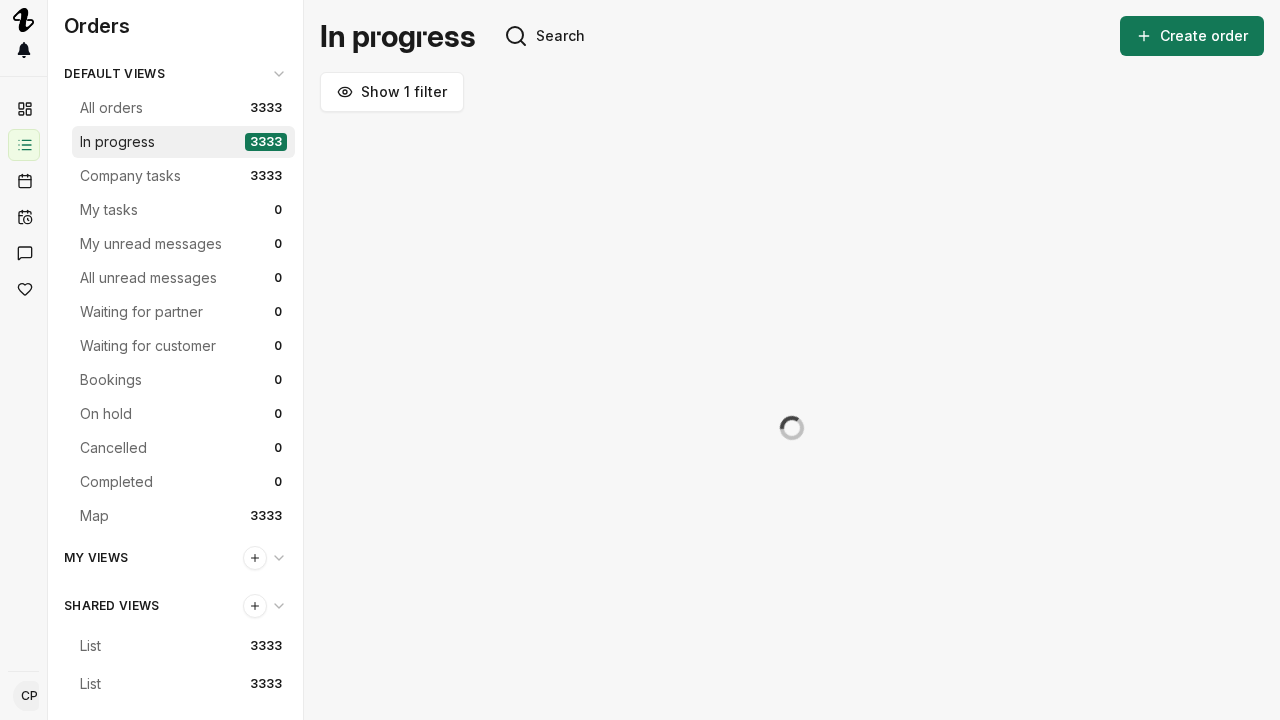
- Select the checkbox next to each order you want to send a link for.
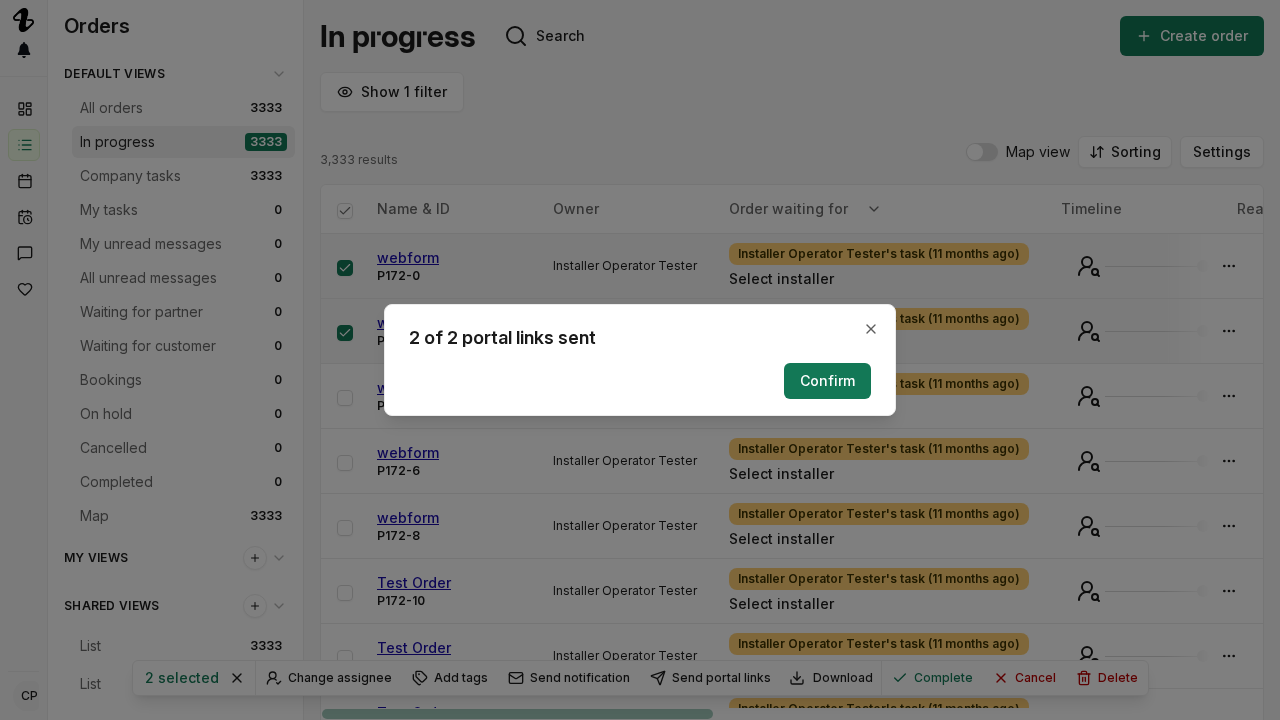
- In the action bar at the bottom of the screen, select Send portal links. With a single order selected the button reads Send portal link.
- The links go out immediately. A dialog reports how many were sent, for example “2 of 3 portal links sent”, and names each order that failed and why. Select Confirm to close it.
What the client receives
The client gets an email with a button to their customer portal. The email names you and your organisation as the sender.
The client also gets an SMS when your organisation owns the order and the order has a phone number. On an order another organisation routed to you, only the email goes out.
When an order fails
An order is listed in the dialog instead of being sent when it has neither an email address nor a phone number. Add contact details to the order and run the action again. See Edit order address and contact details.
An order also fails if its workflow has no active step, or if you are not an actor on its workflow.
Send a link on one order
Open the order, then select Send portal link to customer in the order’s actions menu, the vertical dots button at the top right. The option is available only on an order your organisation owns that has an email address or a phone number.
Related articles
Need help? Contact Installer.com support.
Was this helpful?