Update multiple orders with bulk actions
Select several orders in the order list and act on all of them at once. An action bar appears at the bottom of the screen with every bulk action on it.
Select the orders
- Select Orders in the sidebar.
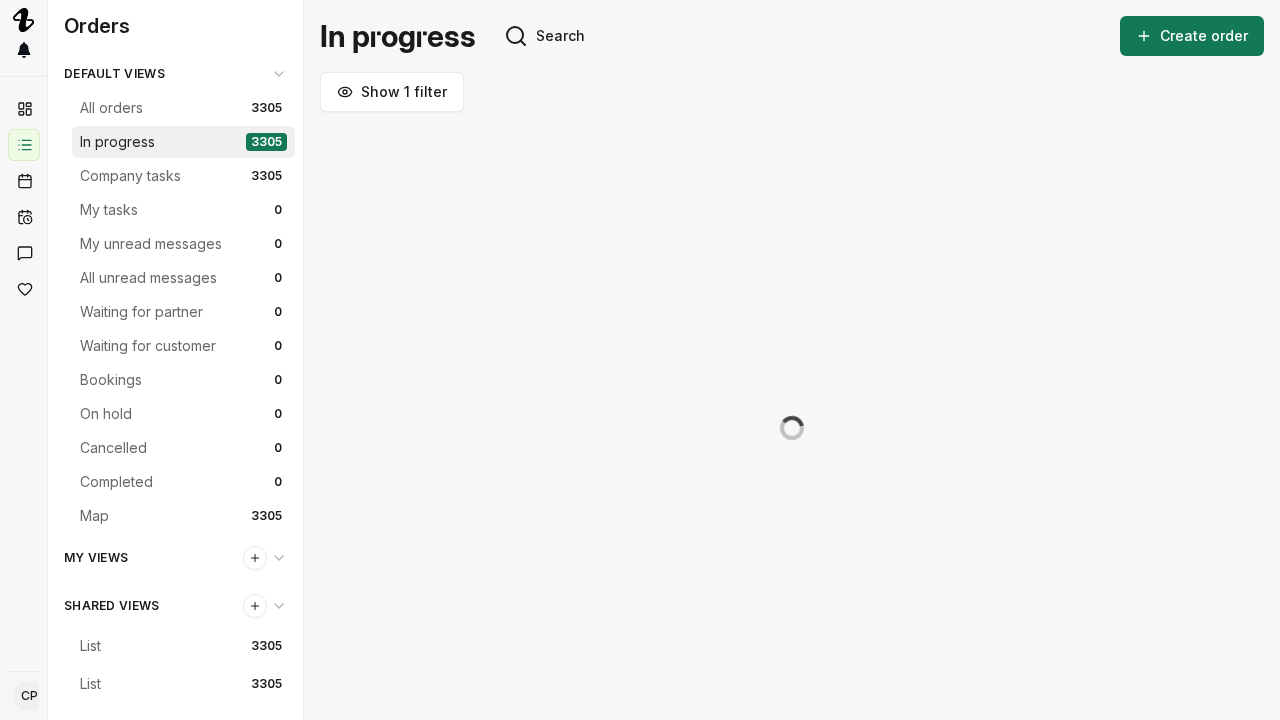
- Select the checkbox next to each order you want to change. Hold Shift while you select to take every order between the last one and this one.
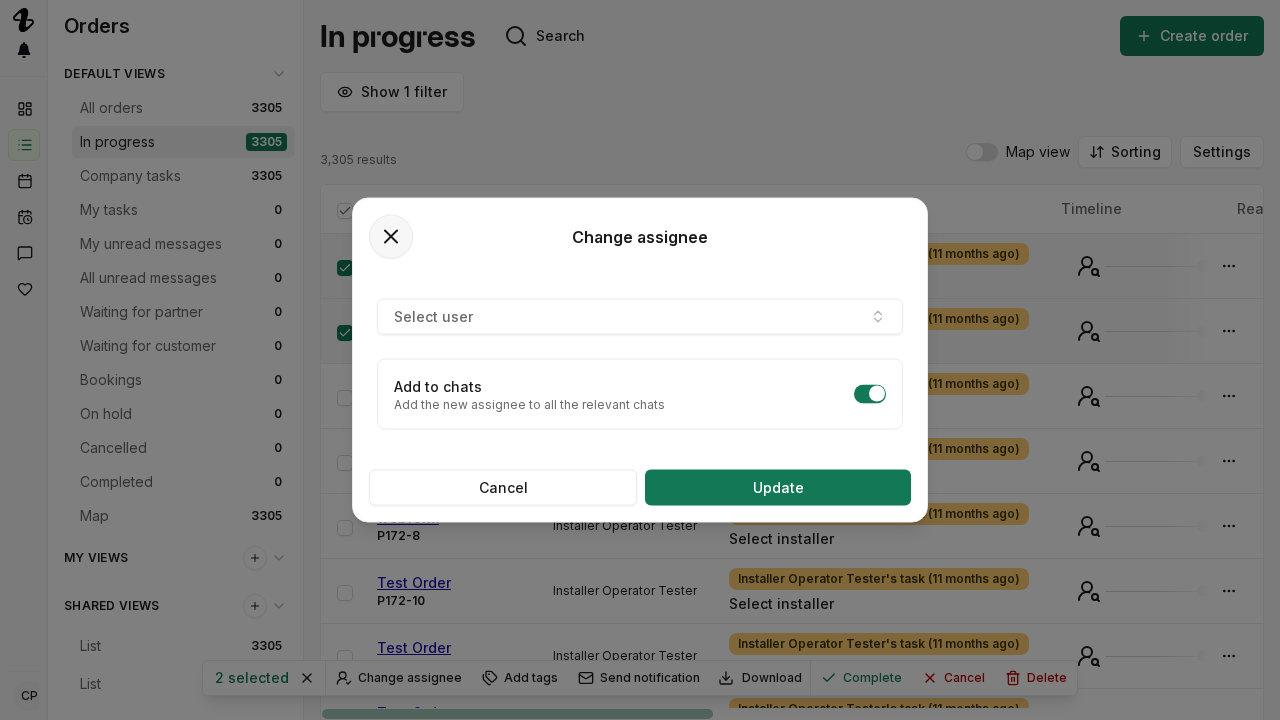
- The action bar appears at the bottom of the screen and counts the selection, for example “3 selected”. Press Esc to clear the selection.
The checkbox is disabled on an order your organisation has lost access to.
What the action bar can do
| Button | What it does |
|---|---|
| Dispatch | Offers the orders to an installer company. Shown only when a selected order is waiting on a dispatching step assigned to your organisation. |
| Change assignee | Moves the orders to another operator in your organisation. |
| Add tags | Adds tags to the orders. |
| Send notification | Sends one notification about each order. |
| Send portal links | Sends each client a fresh link to their portal. |
| Download icon | Exports the selected orders as CSV. |
| Step actions | Complete or Skip the step each order is waiting on. |
| Order actions | Complete, Put on hold, Close or Delete the orders. Shown only when your organisation owns one of the selected orders. |
Step actions and Order actions reveal their choices when you hover the button.
After an action, a dialog reports the result, for example “2 of 3 orders assigned”, and names each order that failed and why. Select Confirm to close it.
Change the assignee
- Select the orders, then select Change assignee.
- Pick the new assignee from the Select user list, or select Assign to me.
- Under Chat responsibility, pick what happens to the chats on those orders:
- Replace adds the new assignee to the chats and removes the previous assignee.
- Add adds the new assignee and keeps the previous one.
- No changes leaves the chat members as they are.
- Select Update.
Put orders on hold
- Select the orders, hover Order actions, then select Put on hold.
- Set the date the hold ends. The order resumes automatically on that date.
- Add a reason. This is optional.
- Select Confirm.
The hold applies to the step each order is waiting on. An order with no active step fails and is named in the result dialog.
Complete or skip the current step
Hover Step actions, then select Complete or Skip. Both act on the step the order is waiting on right now and move the workflow to the next step.
You can complete a step only if it is assigned to your organisation. You can skip a step only if it is optional and assigned to your organisation. Every other order in the selection is reported as a failure.
Complete, close or delete orders
Hover Order actions, then select the action you want.
Complete forces the orders done. It skips every remaining step and sends no notifications or emails.
Close asks for a reason, then for an optional comment. The orders end up with the status Cancelled.
Delete asks you to confirm. A deleted order cannot be recovered.
Close and Delete both fail on an order that still has money in flight. The reason reads “payments must be refunded or paid out first”. Refund or pay out that order’s payments, then run the action again.
Related articles
Need help? Contact Installer.com support.
Was this helpful?