View an order's workflow
The workflow is the ordered list of steps an order moves through. Open an order to see which step it is on, who it is waiting on, and what already happened.
Open the workflow
- Select Orders in the left navigation.
- Select an order to open it.
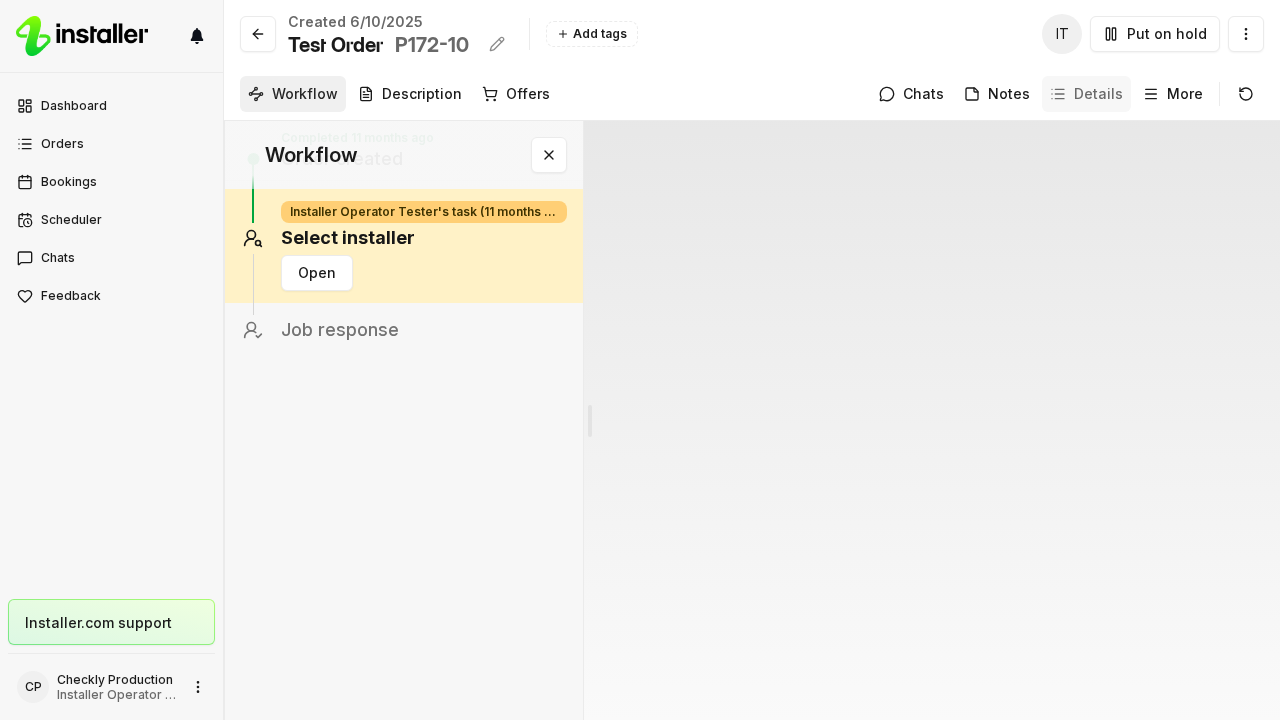
- The Workflow panel lists the steps in order, starting with Order created.
On a narrow screen the workflow sits at the top of the order and shows only the active step and the one before it. Select Expand timeline to see the rest, and Minimise timeline to collapse it again.
If the order is a test order, a This is a test order banner sits above the header, with a button that opens the client’s portal.
What a step shows
Each step carries the name it has in the workflow template: Select installer, Order response, Confirm booking, Pay offer, and so on.
The active step is highlighted and names who it is waiting on. It reads Your task when it is yours and names the actor when it is not. Select Open on it to act.
A finished step shows who moved it, the status and how long ago, for example “Client completed 2 minutes ago”. Steps you performed yourself read You. A step completed more than once — a booking that was rescheduled, documentation that was changed — folds into one entry and reads edited with the latest time.
A step still ahead of the order that is yours reads Your upcoming task. A step already filled in that finishes on its own reads Completes automatically.
Comments, the reason recorded with an action, and the On hold until badge render on the step they belong to.
Step statuses
| Label | Meaning |
|---|---|
| To do | Not started. |
| In Progress | Somebody can act on it now. |
| Waiting | Started but not actionable yet: the booking is in the future, or the step is on hold. |
| Completed | Finished. |
| Skipped | Passed over. The title renders struck through. |
| Rejected | The actor turned the step down. |
| Cancelled | Undone, so the step can be run again. |
| Overdue | The deadline passed and the step is still open. |
| Expired | An earlier step was rejected, so this step never runs. |
Open a step
Select a step to open it. On a wide screen it opens beside the workflow; on a narrow screen it opens over the page.
The step lists the actions available on it. Which ones you see depends on the step and on whether it is your turn: Skip, Put on hold, Add step before, Add step after, Change step actor and Edit.
Once a step is on hold, Put on hold becomes Edit on hold, and the order shows an on-hold banner above the header with the hold reason and a Clear on hold button.
What clients see
Clients see the same workflow in their portal, collapsed to the active step. Their view leaves out skipped steps, the reason a step was put on hold, and the reason an order was closed. The On hold until badge still shows.
Find the template behind the order
The workflow does not name the template it was built from. Open Details and look under Source: the template name is a link that opens the template in a new tab.
Related articles
Need help? Contact Installer.com support.
Was this helpful?