Use AI to parse order details
Fill using AI reads order text you paste, or one image you upload, and fills in the create-order form for you. It sits at the top of the form for your own workflows and for webforms your own organization owns.
Fill the form with AI
- Select Orders in the sidebar, then Create order.
- On the Create orders page, select a workflow under Your workflows, or one of your own webforms. Stay on the Manual tab.
- Select Fill using AI.
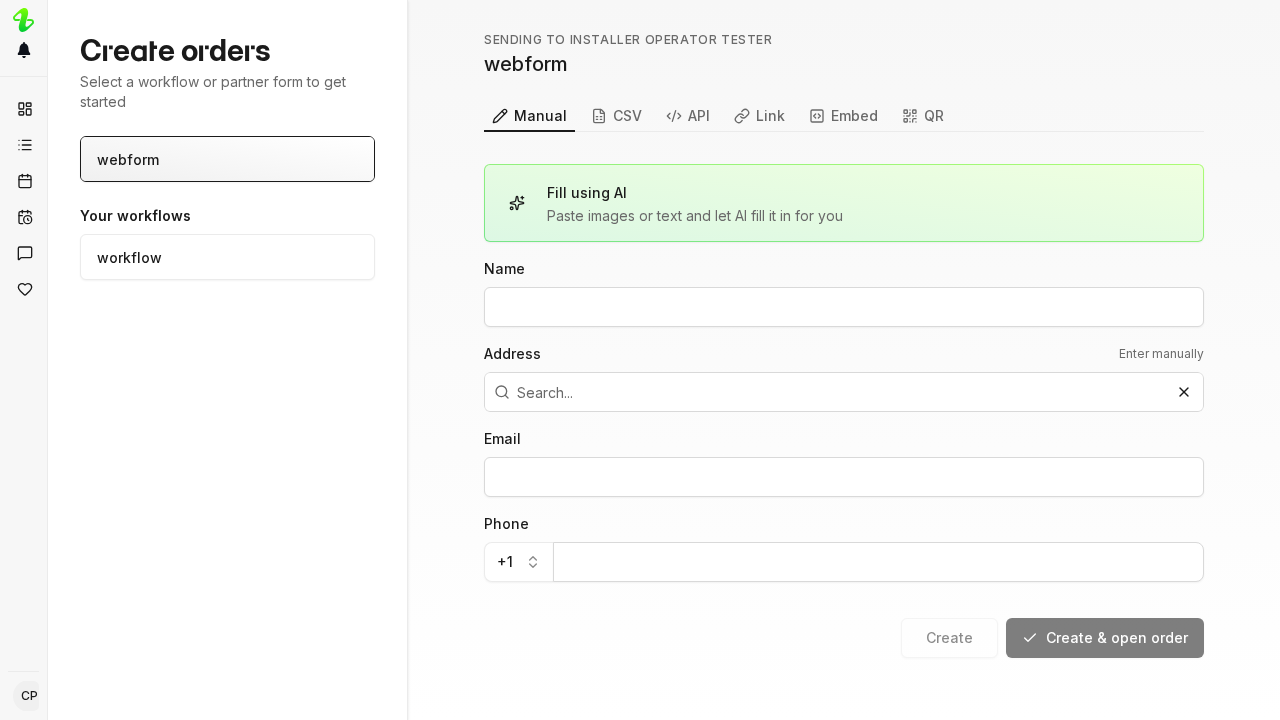
- Paste the order text into Paste order text here, or select Drop files or click to upload and add one image. PNG, JPEG and WebP are accepted, up to 5 MB. You can give it both text and an image.
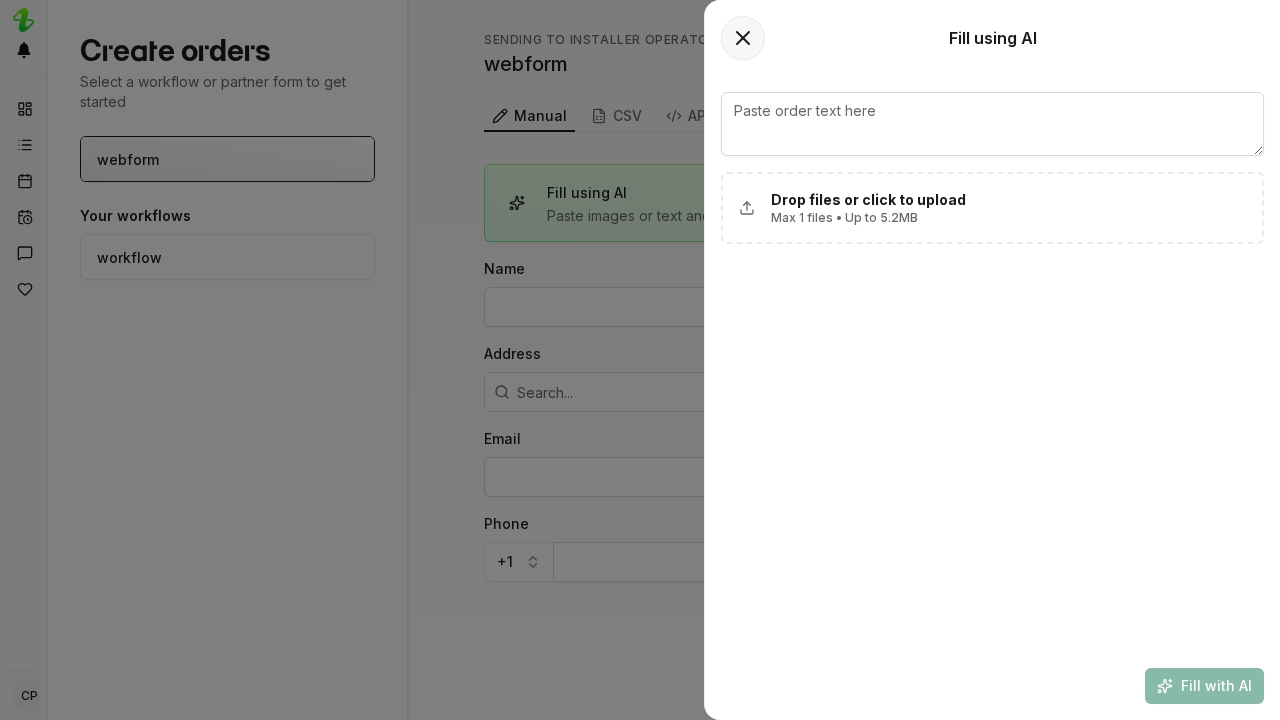
- Select Fill with AI.
The button reads Parsing… while it runs. The panel then closes and the form is filled in. Check the values before you create the order.
What it fills in
- Order name and Description. Workflow form only.
- The contact person’s Name, Email and phone number. The phone number is filled only when it can be read as an international number.
- Address, City and Postal code, as text without map coordinates.
- Custom fields of type Text, Email, Number and Yes / No that appear on the create form. Fields marked as sensitive are left alone, and so are file, date, and date-and-time fields.
On a webform, Yes / No and multi-select questions are left for you to answer.
Values you typed yourself are replaced. Values the workflow prefilled are kept.
If nothing happens
- Fill with AI stays disabled until you paste text or add an image.
- A partner’s webform does not show the card. Use it on your own workflow or your own webform.
- If AI is turned off for your organization, or the monthly spend limit is reached, the parse fails and an error appears. Both are set in Settings > AI credits.
Need help? Contact Installer.com support.
Was this helpful?