Reassign an order
Every order has one assignee: the person in your organization who is responsible for it. Reassign an order when that person is away, or when you are balancing work across the team. You can only pick a user in your own organization.
Change the assignee
- Open the order.
- In the Details panel, find the Assignee card and select Change. You can also select Change assignee in the order’s actions menu.
- In the Change assignee dialog, select the user field, then pick the person to assign. The field shows Select user when the order has no assignee yet.
- Under Chat responsibility, choose what happens to the order’s chats. Replace is selected to start with.
- Select Update.
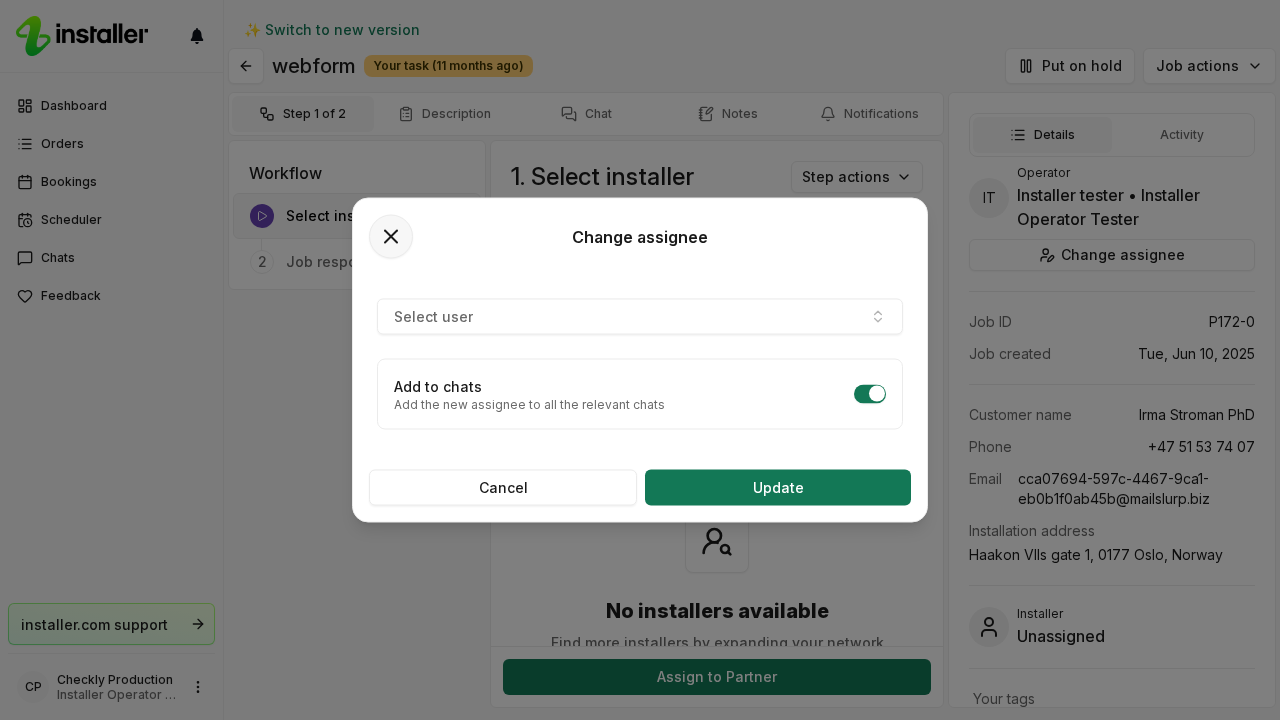
To take the order yourself, select Assign to me. That saves the change straight away, with the Chat responsibility option that is selected at the time.
Chat responsibility
| Option | What it does |
|---|---|
| Replace | Adds the new assignee to the order’s chats and removes the previous assignee. |
| Add | Adds the new assignee to the order’s chats and leaves the previous assignee in them. |
| No changes | Keeps the existing chat members. |
What happens next
The Assignee card shows the new name, and the change is recorded in the order’s activity. The new assignee gets a notification, unless you assigned the order to yourself.
Booking responsibles are separate from the order assignee. Changing the assignee does not change who is assigned to a booking.
If your organization is an installer on the order rather than its owner, the same card and the same dialog set who in your organization is responsible for your part of the workflow.
Reassign several orders at once
Select the orders in the order list and use Change assignee there. The dialog and the chat options are the same.
Related articles
Need help? Contact Installer.com support.
Was this helpful?