Decline an order from a partner
When a partner dispatches an order to your organization, it waits for your answer. If you cannot take it, decline it with a reason instead of leaving it open.
Decline the order
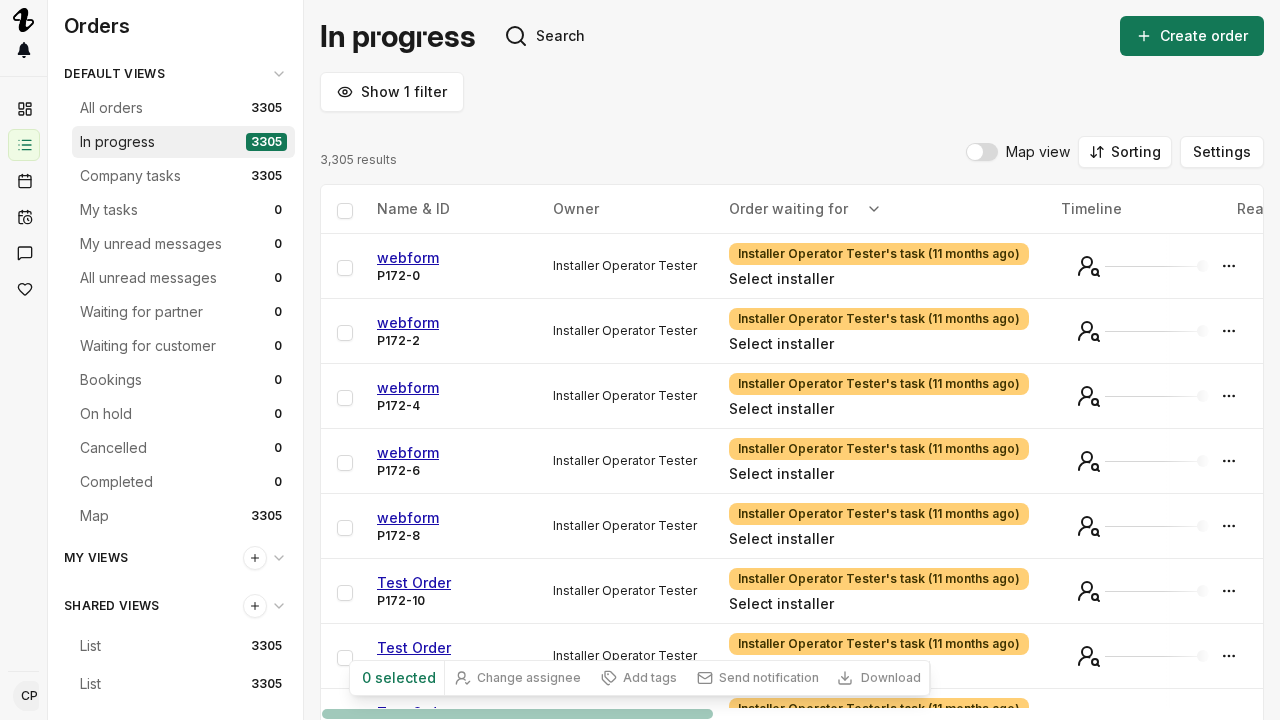
- Select Orders in the sidebar and open the order.
- In the Workflow panel, select the step waiting on your answer.
- At the bottom of the step, under Can’t take the order?, select Decline with reason.
- Pick a reason in Decline order. Under We can’t do it: No capacity, Not our expertise, Too far away. Under Something’s off: Product or material issues, Can’t be installed, Something else.
- Add anything the partner should know under Additional comments.
- Select Confirm.
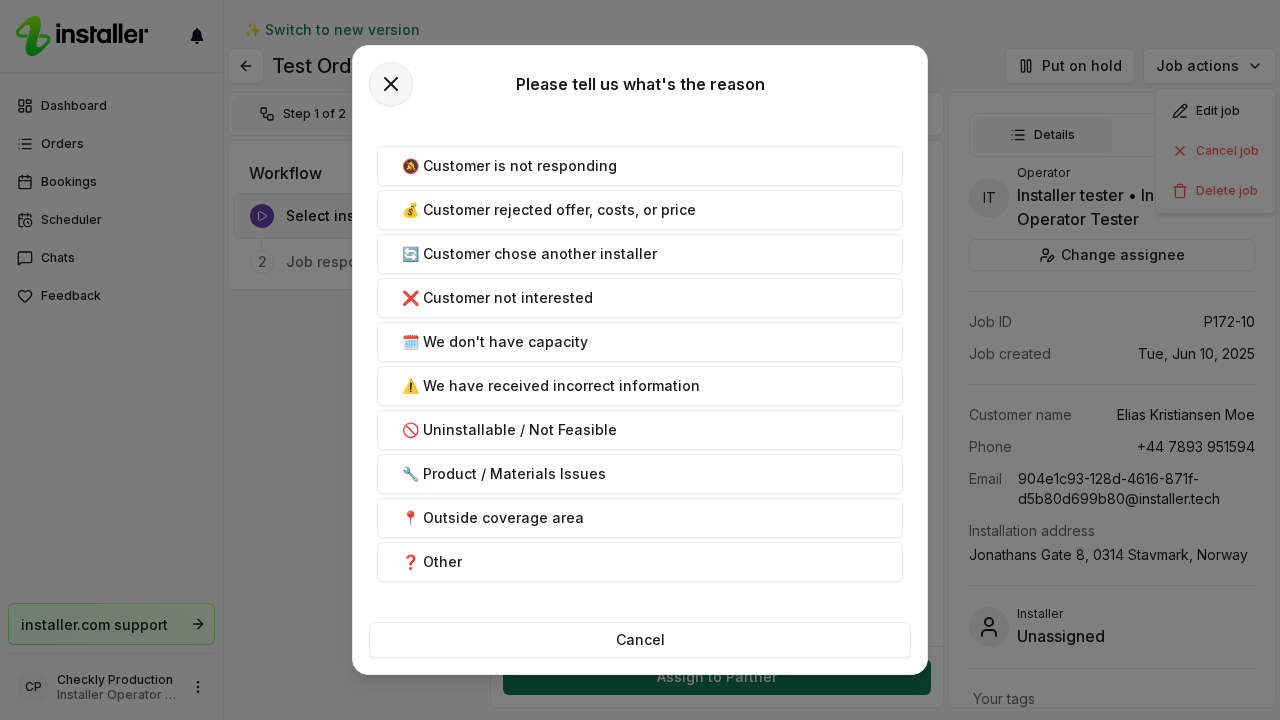
Declining before you accept only offers reasons about your own organization. Reasons about the client are offered once you have accepted the order.
What happens next
The order goes back to the partner. It is not closed, and you lose access to it. Before you confirm, the dialog says We’ll find a new installer. and You’ll lose access to this order.
If the partner dispatches automatically, the order moves on to the next eligible contractor on its own. An organization that has already been offered the order is not offered it again.
Declining for No capacity, Not our expertise or Too far away also prompts you to keep the setting behind that reason up to date: your calendar, your installation types, or your area.
Related
Need help? Contact Installer.com support.
Was this helpful?