View an order's activity log
Every order keeps a log of what happened to it and who did it. The Log panel on the order page lists those entries newest first, and the order’s Details wall shows the most recent one on its own.
See the last activity
Open an order. The Details wall on the right opens with Last activity at the top, followed by how long ago it happened. Hover the time to see the exact timestamp.
The order list also has a Last activity column, so you can sort on it. See Customize and save table views.
Open the full log
-
Click Orders in the sidebar.
-
Click an order to open it.
-
Click More in the panel toolbar, then click Log.
The panel loads more entries as you scroll. If the order has no entries yet, it reads No activity recorded.
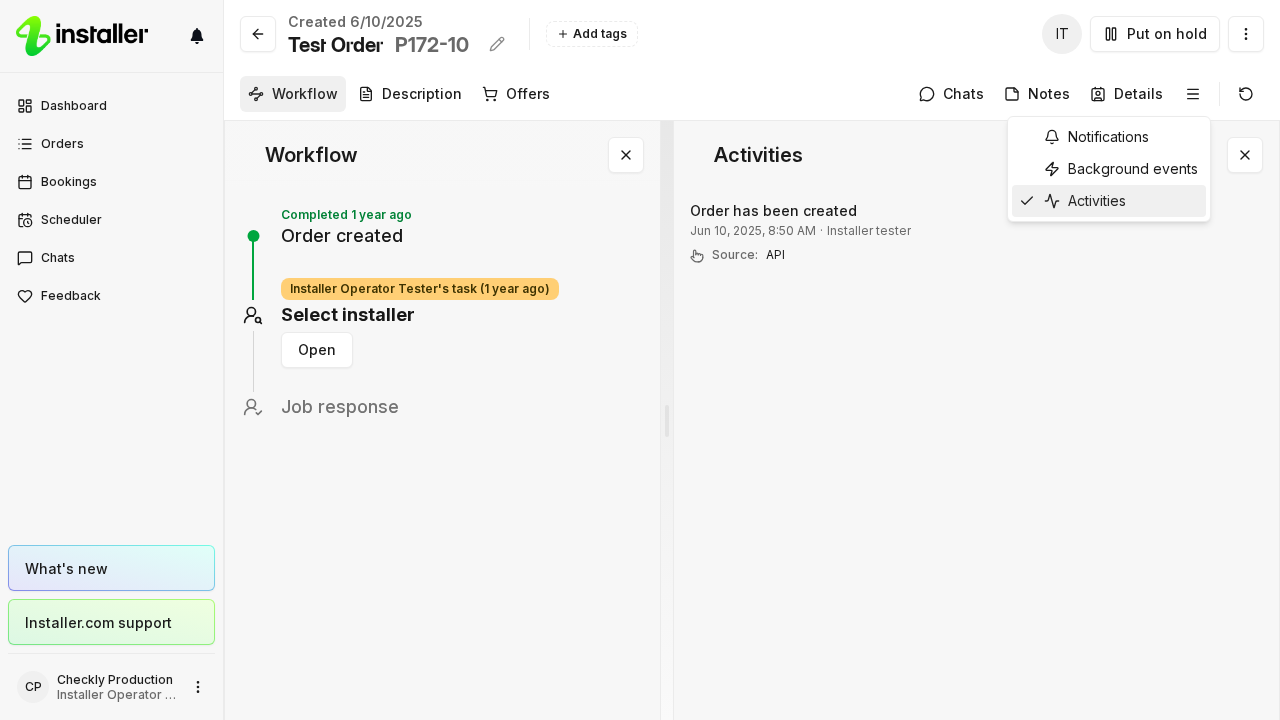
What the log records
Each entry names who acted and what they did:
- The order — order created, closed, reopened.
- Assignee and tags — who changed the order assignee, and who added or removed tags.
- Description — who updated the order description.
- Chats and notes — who sent a message, marked a chat as read, added a note, or updated one.
- Workflow steps — who completed, skipped, rejected or cancelled a step, who inserted a step, and who assigned a step to a participant.
- Notifications — that a notification was sent, and which one.
- Agents — when an automation agent flags the order, the entry carries the reason it gave.
Every entry shows how long ago it happened. Hover the time for the exact timestamp.
Jump to what an entry changed
Click an entry about a workflow step, a chat, a note or the description, and the matching panel opens on that item: Step, Chats, Notes or Description. Entries with nothing to open are not clickable.
Grouped entries
When the same kind of event happens several times within 30 minutes, the log collapses them into one row that counts them, such as 3 messages sent. Click the row to expand it and see each entry.
Entries an automation made
An entry produced by an automation is tinted and carries an AI mark. Where the run still exists, an arrow on the entry opens the automation run that made it.
Related
Need help? Contact Installer.com support.
Was this helpful?